


.avif)

Core Audio process taps are a type of Core Audio Tap introduced in macOS 14.2 that allow developers to capture audio from applications like Zoom and Google Chrome. This blog is for developers who want to understand how Core Audio process taps work and what it takes to use them to build a desktop meeting recorder.
Accessing system audio with Core Audio Taps
When you open an application or browser, macOS starts one or more processes to handle different parts of the application’s work, including audio. Core Audio process taps allow developers to capture outgoing audio by tapping into the specific process or group of processes. Although theoretically simple, developers need to identify which process or group of processes is responsible for the audio they want to capture.
Capturing the app’s outgoing audio is not the same as capturing system audio. System audio records all sound from the desktop, including audio from other applications. When recording system audio unrelated audio from other applications can get introduced into the recording.
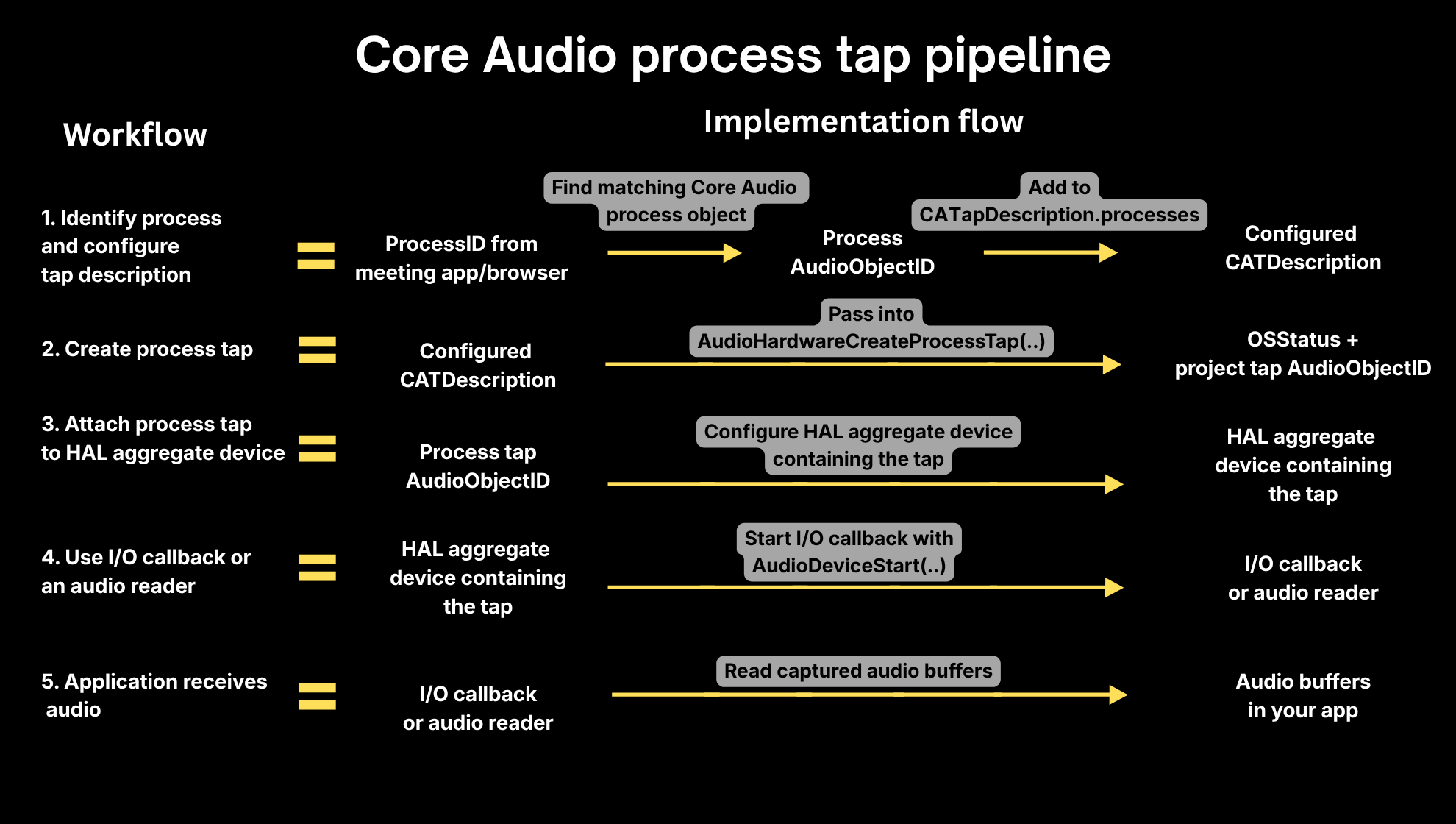
In practice, creating a Core Audio process tap and turning it into usable audio involves three main steps:
- Creating a process tap by configuring a
CATapDescriptionfor the target process or group of processes.CATapDescriptionis the configuration object that tells Core Audio which process or group of processes to tap. - Attaching the process tap to a HAL aggregate device, which makes the tapped audio appear as an input stream that your application can read, similar to how it would read from a microphone.
- Using Core Audio’s I/O callback or an audio reader, applications can then read the captured audio buffers and process, record or stream them.
Building a desktop meeting recorder with Core Audio Taps
Minimally, developers building a desktop meeting recorder need to capture both the meeting application’s outgoing audio and the local speaker’s microphone audio. The meeting application’s outgoing audio captures remote meeting participants’ voices and any media through the meeting app, while microphone audio captures the local speaker’s voice. To fully record a meeting developers also need to capture screen video.
To capture the microphone audio and meeting video, developers need to use additional capture APIs. AVFoundation can be used for microphone capture, while ScreenCaptureKit can be used for microphone capture (macOS 16+) and screen capture. But capturing all the media streams is only the first step in building a desktop recorder.
Developers need to synchronize and combine the separate media streams. Since an application’s outgoing audio, microphone audio, and screen video are captured through different APIs, each stream has its own timestamps, buffer sizes, sample rates and latency. Without proper synchronization, the final recording can suffer from audio-video drift, incorrect pacing and duplicate audio, resulting in an inaccurate and low-quality recording.
If your application also needs meeting video, you may want to explore other local recording APIs for screen capture.
While combining audio and video streams is technically complex, it is not the only reason why building a desktop meeting from scratch with Core Audio process taps is challenging.
Why Core Audio process taps isn’t the best solution for desktop meeting recording
One main limitation of using Core Audio process taps to build a desktop meeting recorder is operating system compatibility. If the desktop meeting recorder uses Core Audio process taps, it cannot capture an app’s outgoing audio for end-users on macOS versions earlier than 14.2.
Developers need to create a fallback capture path for an app’s outgoing audio for end-users on unsupported macOS versions. One common path teams explore is using a virtual loopback driver so the desktop recorder can still capture an app’s outgoing audio on older versions of macOS.
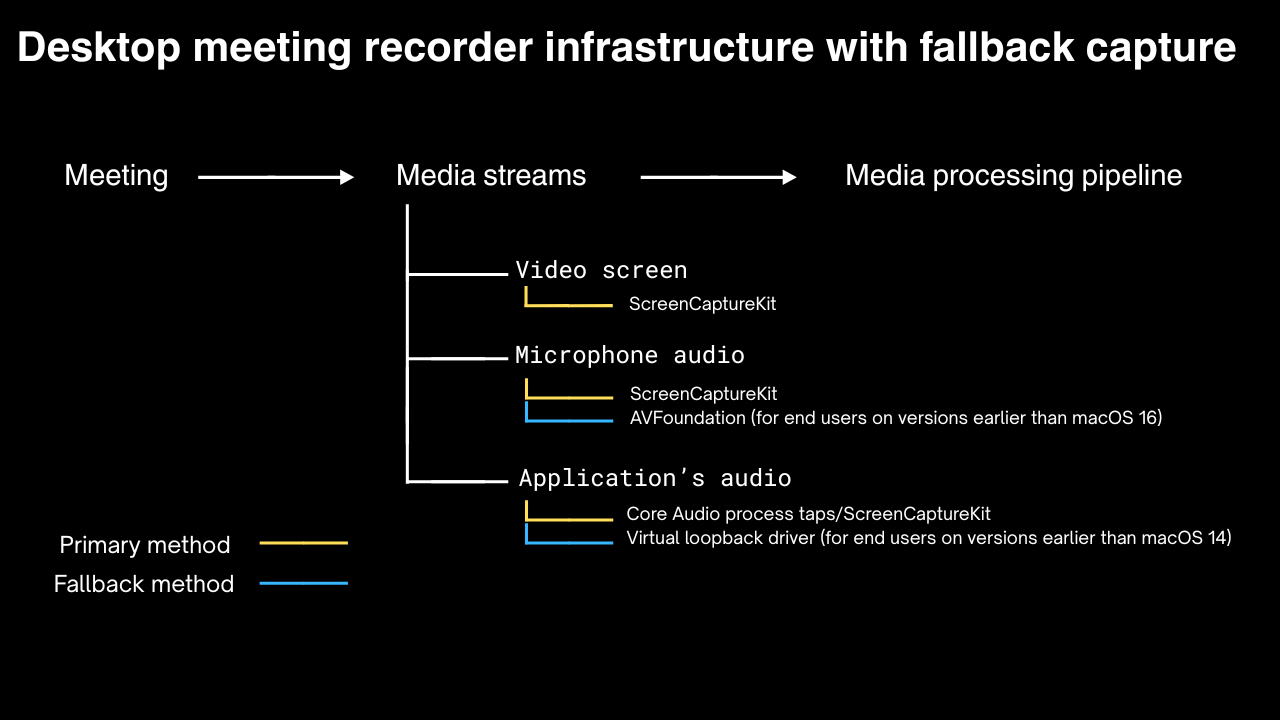
Virtual loopback drivers like BlackHole or Loopback were the default before Core Audio process taps were introduced in macOS 14.2. Virtual loopback drivers are not ideal for end-user products because they require users to install and configure a third-party application.
Another challenge is capturing audio from browser-based meetings. A browser-based meeting runs across multiple processes: main browser process, tab renderer processes, helper processes and GPU processes. The process responsible for meeting audio varies depending on the browser and meeting platform, making it difficult to identify and target the right process or group of processes. By comparison, a native meeting app is often easier to target because the meeting audio is usually associated with the app’s own process group.
After identifying the target process or process group, developers still need to create the process tap, attach it to a HAL aggregate device, expose the tapped audio as an input stream, and read the audio buffers. The many steps and sparse documentation make each step hard to implement and debug.
While the challenges to get audio are significant, developers building downstream AI workflows on top of meeting conversations also need to handle the issues that can affect audio quality such as mute-state detection, microphone and speaker changes, and echo caused when speaker audio is picked up by the microphone. If the issues are not handled correctly, the resulting audio can be incomplete, duplicated, or noisy and transcripts become less accurate and downstream workflows are affected. These challenges are some of the reasons developers building AI products on top of meeting recordings choose Recall.ai instead of building and maintaining the recording infrastructure themselves.
Using Recall.ai’s Desktop Recording SDK to build a desktop meeting recorder
Recall.ai’s Desktop Recording SDK saves teams months of infrastructure work by handling the meeting recording, audio optimization, and end-user edge cases developers would otherwise need to solve from scratch.
| Feature | Desktop Recording SDK | Core Audio Taps | Virtual Audio Loopback Driver |
|---|---|---|---|
| System audio capture | Yes | Yes (macOS 14.2+) | Yes |
| Outgoing app audio capture | Yes | Yes (macOS 14.2+) | Depends on tool and routing |
| Microphone capture | Yes | No | Depends on tool and routing |
| Compatible across browsers | Yes | Yes, but harder to implement | Depends on tool and routing |
| Compatible across macOS versions | Yes | No, requires macOS 14.2+ | Depends on tool and routing |
| Compatible with macOS and Windows | Yes | No | Similar solutions exist on Windows, but require different software |
The first benefit of using Recall.ai is that it solves the media capture layer and generates high-quality meeting audio and video recordings. Recall.ai’s Desktop Recording SDK captures both local speaker audio and remote participant audio across meeting platforms, browsers, and operating systems, including macOS and Windows.
The audio recordings stay clear and focused on the meeting because the Desktop Recording SDK handles edge cases such as echo cancellation, speaker and microphone changes, and mute detection out of the box.
Recall.ai: Desktop Recording SDK
With just a few lines of code, developers can turn recorded meeting audio into transcripts without building and maintaining a transcription pipeline from scratch. Recall.ai supports both real-time and post-meeting transcriptions with speaker labels.
Recall.ai’s Desktop Recording SDK is designed for real-world user behavior. Automatic meeting detection records meetings without users having to manually start every recording. Meeting data is also uploaded continuously throughout the meeting, reducing the risk of data loss if the end-user closes their laptop, loses power, or experiences a network issue in the middle of a meeting.
We handle edge cases across operating systems, devices, and user behavior that developers would otherwise need to solve themselves. Recall.ai is trusted by both startups and Fortune 500 companies and is the most reliable meeting recording infrastructure.
If you are interested in building with Recall.ai, you can sign up for a free account or book a demo.
Appendix
Difference between Core Audio, Core Audio tap, and Core Audio process tap
Core Audio is a macOS audio framework. Applications use Core Audio to play sound through speakers or headphones, and capture microphone input.
Core Audio tap is a mechanism within Core Audio that enables a software to receive a copy of an audio stream. Historically, a Core Audio tap could only access an application’s audio if the application had exposed its own audio tap.
Core Audio process tap is a newer type of Core Audio tap introduced in macOS 14.2 that allows developers to capture outgoing audio from a specific process or group of processes without requiring the source application to expose its own audio tap.
Difference between a process and PID
When you open an application, macOS starts at least one process. Applications, especially browsers, often start multiple processes to handle different parts of the application’s work.
A PID, or process ID, is the unique number macOS assigns to each running process. With Core Audio process taps, developers do not target “Chrome” or “Zoom” by application name. Instead, they identify the process or processes producing the meeting audio, then use their PID or PIDs to configure the process tap.
Difference between audio output from an app and system audio
Audio output from an app refers to the sound produced by a specific application like Zoom, Chrome, and Slack. System audio refers to the overall audio playing from the computer, which can include multiple apps at the same time. In the context of meeting recording, if you are in a meeting while Slack is open and a notification sound plays, capturing the entire system audio mix will include the notification sound in the recording.
HAL aggregate device
A HAL aggregate device is a software-created audio device managed by Core Audio that developers need to configure programmatically. It is not a physical device or an application. In the process tap workflow, it exposes the tapped audio as a readable input stream.
I/O callback
An I/O callback is a function that developers implement and register in their application. Once registered, Core Audio calls the callback whenever new audio buffers are available. The application then receives a continuous stream of captured data it can read, process, record, or stream.
A virtual audio loopback system
A virtual audio loopback system is a software-based audio routing setup that routes audio output from one application into another application as an input. To macOS, the routed audio appears as an audio input device, even though the sound source is another application rather than a physical microphone.
Tools like BlackHole (macOS 10+) and Loopback (macOS 11+) were common workarounds for capturing application or system audio before Core Audio process taps became available. Their capabilities vary depending on the tool and how the audio routing is configured.
FAQ for Core Audio Taps
What are Core Audio Taps?
Core Audio taps are a mechanism within Apple that allow software to receive a copy of an audio stream. Historically, Core Audio taps could only access an application’s audio if that application exposed its own audio tap.
Core Audio process taps are a newer type of Core Audio tap introduced in macOS 14.2. They allow developers to capture outgoing audio from a specific process or group of processes, such as a meeting app or browser process, without requiring the source application to expose its own audio tap.
Can I use Core Audio taps to record a meeting programmatically?
Yes, but only part of the meeting.
Core Audio process taps can help you capture the meeting application’s outgoing audio, which usually includes the voices of remote meeting participants and media played through the meeting app. However, they do not capture microphone audio or screen video by themselves.
To build a complete desktop meeting recorder, you also need to capture the local speaker’s microphone audio and video. That usually means combining Core Audio process taps with additional capture APIs such as AVFoundation or ScreenCaptureKit. Alternatively, Recall.ai’s Desktop Recording SDK can capture microphone audio as well as meeting audio and video through one integration.
What are some limitations of using Core Audio taps?
One of the limitations is that Core Audio process taps require end-users to be on macOS 14.2+, so they do not work as an application audio capture solution for end-users on older macOS versions.
Additionally, they only capture outgoing application audio and do not support microphone audio or screen video. They also can be difficult to use with browser-based meetings, because meeting audio may come from a renderer or helper process rather than the main browser process.
Even after capture works, developers still need to handle synchronization, mute-state detection, microphone and speaker changes, and other quality issues that affect recordings and transcripts. Meanwhile, the Desktop Recording SDK can capture both microphone and meeting audio across all versions of macOS, and can record both browser-based meetings and those that occur in meeting apps.
Should I be using Core Audio taps or Core Audio process taps?
If your goal is to capture the outgoing audio from Zoom, Chrome, Safari, Teams, or another app, the API you need is Core Audio process taps.
Core Audio Tap enables a software to receive a copy of an audio stream if an application exposes its own audio tap. To determine whether an application exposes its own audio tap, developers usually need to consult the application’s developer documentation or inspect the Core Audio objects.
Can I use Core Audio taps to build a desktop meeting recorder?
You can use Core Audio process taps as one part of a desktop meeting recorder, but they are not enough by themselves.
A full desktop meeting recorder needs to capture: video screen, application and microphone audio. Developers still need additional APIs for microphone and screen capture, plus logic to synchronize the streams, handle audio quality issues, and generate usable meeting artifacts such as recordings and transcripts.
Many developers are choosing to build their own Granola AI alternative, but turning a desktop recorder into a reliable end-user production ready desktop recorder requires handling many edge cases across devices, operating systems and user behavior.
How to build a desktop recording app (Like Granola)
Is there an easier way to build a desktop meeting recorder?
Yes. Instead of building and maintaining the full capture pipeline yourself, you can use Recall.ai’s Desktop Recording SDK.
Recall.ai’s Desktop Recording SDK handles meeting capture, audio optimization, recording reliability, and end-user edge cases across operating systems, devices, browsers, and meeting platforms. It captures local speaker audio, remote participant audio, and meeting video, then provides the meeting data developers need for downstream AI workflows.
Why should I use Recall.ai’s Desktop SDK when I can build my own desktop meeting recorder?
You can build your own desktop meeting recorder that records meetings without bots but doing so requires more than capturing audio.
Developers need to handle application audio capture, microphone capture, screen capture, stream synchronization, audio-video drift, duplicate audio, echo cancellation, mute-state detection, device changes, browser process targeting, OS compatibility, fallback capture paths, continuous upload, and transcription.
Recall.ai’s Desktop Recording SDK handles these edge cases out of the box. It captures high-quality meeting audio and video across macOS and Windows, supports real-time and post-meeting transcription, returns speaker-labeled transcripts, automatically detects meetings, and continuously uploads meeting data to reduce the risk of data loss if a user closes their laptop, loses power, or experiences a network issue.


