


.avif)

Recording meetings has become the norm. Many developers need a way to pipe video and audio data from these meetings into their products without a bot joining a call.
Building a desktop recorder is one of the most effective ways to capture meeting data directly from a user’s machine. Feature-complete desktop recorders can also generate artifacts like transcripts and recordings.
In this blog, I’ll walk through the technical steps required to build a desktop meeting recorder, with a focus on the most critical piece: capturing audio and video data. I’ll cover the most common ways to record meetings on macOS, the technical challenges you’ll encounter, and what you need to build a feature-complete desktop recording app.
If you want to skip the complexity of building a meeting recorder, Recall.ai’s Desktop Recording SDK helps you bring one into production on both macOS and Windows in a matter of days.
Technical components of meeting capture
Building a reliable desktop meeting recorder on macOS involves several steps. It starts with capturing meeting audio and video data. This is handled by the data capture layer, which we’ll focus on in this blog.
A meeting consists of audio and video data, and the capture layer ensures the data is recorded. Audio and video quality directly impact the usability of recordings, transcripts, and downstream analysis. Poor audio capture can lead to lost information and misattributed transcripts, making it unclear who said what.
At a high level, the capture layer is responsible for:
- Video: The visual content of the meeting, including participants’ videos and screens shared.
- Outgoing app audio: Audio produced by the meeting app, including remote participants speaking and media played during the meeting.
- Microphone audio: Sound picked up by your microphone, including your voice and any surrounding noise. This must be handled separately from outgoing app audio.
If you want more than just meeting data, you can use Recall.ai's calendar API as an additional capture layer.
How to record meetings on macOS programmatically
In this section, I'll go over meeting capture on macOS using Electron’s desktopCapturer API, AVFoundation, and ScreenCaptureKit along with each API's limitations.
1. Electron App desktopCapturer
Electron provides a built-in way to capture audio and video on macOS and Windows via the desktopCapturer API. You can capture system audio on macOS, which includes outgoing meeting audio. Microphone input must typically be captured separately and combined manually. desktopCapturer also does not include built-in echo cancellation, which results in duplicated audio ending up in the recording. To avoid this, you'd need to perform additional processing.
2. AVFoundation
AVFoundation is Apple’s native media framework for working with audio and video on macOS 10.7 and later. It can access input devices like microphones and capture screen content via AVCaptureScreenInput, but it does not capture outgoing app audio and does not work on Windows. If you choose to build with AVFoundation, you would need to build an entirely separate capture implementation on Windows.
3. ScreenCaptureKit
ScreenCaptureKit is Apple’s native screen-capture framework for macOS. It captures both video and system audio for newer versions of macOS (12.3+). While earlier versions of ScreenCaptureKit do not support microphone input, this capability was added in macOS 15+. But the system audio captured is not isolated to just outgoing app audio, meaning it also records things like notification sounds. ScreenCaptureKit does not work on Windows, so you'd have to also build a separate capture implementation on Windows.
4. Desktop Recording SDK
Recall.ai’s Desktop Recording SDK captures microphone audio, outgoing app audio, and video across macOS versions. The Desktop Recording SDK also supports recording on Windows devices. It comes with built-in echo cancellation, audio synchronization, and tab isolation.
FFmpeg is commonly used when working with audio and video data but it is not included in this blog because it is not a capture tool. Electron’s DesktopCapturer, AVFoundation, ScreenCaptureKit, and Recall.ai’s Desktop Recording SDK are capture tools that handle recording meeting video and audio data.
Limitations of native macOS and Electron APIs
To better understand the strengths and limitations of these approaches, I built three different meeting recorders using Electron’s DesktopCapturer, AVFoundation and ScreenCaptureKit where I quickly ran into a few limitations.
Automatic meeting detection
Electron’s desktopCapturer API, AVFoundation, and ScreenCaptureKit do not have a built-in meeting detection feature. They cannot automatically determine when a meeting starts or ends. If you build on these APIs and do not implement meeting detection, your end users must manually start and stop recordings, which can cause important meeting data to not get recorded.
Video recording
When it comes to video recording, these tools default to capturing the entire screen rather than just the meeting window. As a result, other applications and background activity are recorded as well.
A usable recording should capture only the meeting window and intentionally shared content. You will need to build tab isolation to avoid users unintentionally sharing personal content when switching between tabs or windows.
Outgoing app audio recording
System audio includes all device output, such as meeting conversations, media, and notifications. Outgoing application audio includes only audio from a specific app or group of processes, excluding sounds from other apps or meetings.
AVFoundation supports microphone capture but does not support outgoing app audio, which must be captured using APIs like ScreenCaptureKit. Electron requires additional logic to get just the outgoing meeting audio. In all three approaches, the separate audio sources still need to be synchronized and combined into the final recording.
Combining audio streams can introduce echo if not handled correctly. AVFoundation, ScreenCaptureKit, and desktopCapturer do not provide built-in echo cancellation, so this must be implemented separately. Additionally, they can’t detect mute state and will continue recording even when users mute themselves in a meeting.
Diarized transcription
None of the solutions tested generate transcripts, adding to the list of things the developers would need to build themselves. Even if you capture audio clearly, for transcripts to be usable, they must be diarized, with clear speaker attribution to identify who said what. Speaker labels are needed to generate diarized transcripts, but they are not provided by the solutions I tested.
Here is a side-by-side comparison of the solutions I tested, including the key features and edge cases to consider when building a production-ready meeting recorder:
| Capabilities | Electron’s desktopCapturer API | AVFoundation | ScreenCaptureKit | Recall.ai’s Desktop Recording SDK |
|---|---|---|---|---|
| Automatically starts and stops recordings when meetings start and end | No | No | No | Yes |
| Captures the audio from the user’s microphone during the meeting | Yes (macOS 13+) | Yes | Yes | Yes |
| Participant speech and media played during the meeting are recorded | Yes (macOS 13+) | No | Yes | Yes |
| Eliminates echo caused by routing microphone audio into outgoing app audio | No | No | No | Yes |
| Window selection removes the need to manually specify recording dimensions | Yes | Limited | Yes | Yes |
| Captures the shared screen directly, ensuring clear and readable content | No | No | No | Yes |
| Ensures only the intended tab is shared and recorded | No | No | No | Yes |
| Generates diarized transcripts automatically | No | No | No | Yes |
| Gets speaker names | No | No | No | Yes |
| Optimized for low battery usage, so recording won’t drain the user’s device | No | No | No | Yes |
| Works when user’s disk is full | No | No | No | Yes |
| Works when user’s connection drops | No | No | No | Yes |
| Works on macOS and Windows | Yes | No | No | Yes |
As shown above, Electron’s desktopCapturer API, AVFoundation, and ScreenCaptureKit do not address many important edge cases. If your goal is to simply capture raw video, even if it is cluttered and requires manual setup, or audio quality isn’t important, these tools may be sufficient.
However, if you need high-quality and clear video recordings that only show the intended shared content, audio that is synced and echo-free, or transcripts with perfect speaker diarization, you’ll need to explore other options.
Desktop SDKs: A better approach to programmatically recording meetings on macOS
For teams comparing screen recording SDK vendors, the build vs buy decision involves evaluating far more than just the meeting capture pipeline, which includes factors like reliability. Building a desktop recorder in-house with Electron’s desktopCapturer API, AVFoundation, or ScreenCaptureKit starts with capturing audio and video, but turning the capture layer into a meeting product also requires features like automatic meeting detection, synchronized audio, and speaker diarization.
Recall.ai’s Desktop Recording SDK provides the meeting recording pipeline across macOS and Windows. It handles audio, video, and screen capture, while also providing product-level capabilities such as automatic meeting detection, recordings, and transcripts. Teams can use these outputs to build downstream workflows instead of implementing and maintaining the capture stack.
For clarity, I will be referring to Recall.ai’s Desktop Recording SDK as the Desktop Recording SDK.
The Desktop Recording SDK handles everything from the capture layer to producing outputs like transcripts with perfect speaker diarization. But even at the capture layer, it optimizes for performance and reliability.
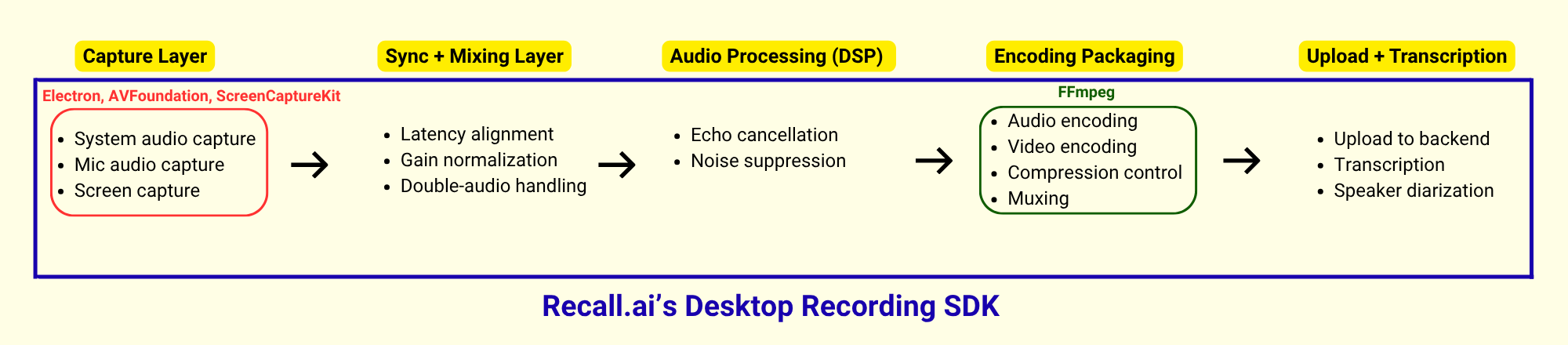
Users often switch between tabs, windows or apps during a meeting. The Desktop Recording SDK handles tab isolation, ensuring that only the relevant meeting window is recorded. When users switch tabs during a meeting, it continues to record only the meeting content, preventing accidental exposure of unrelated or private information.
During screen sharing, the Desktop Recording SDK records the shared window directly rather than recording it through the call, resulting in a higher recording quality.
To get clear audio, the Desktop Recording SDK eliminates the echo caused by microphone audio being routed into outgoing app audio, eliminating duplicate sound. When users are muted in a meeting, it will not record them. This prevents accidental recording of private conversations.
Additionally, the Desktop Recording SDK precisely detects when meetings start and end. Many desktop recording apps on the market rely on microphone activity to infer when meetings start, but this approach is unreliable, as it does not account for waiting rooms or scenarios where the microphone is used outside of an active meeting.
If you want to get started quickly, check out our Desktop Recording SDK tutorial
How to build a desktop recording app (Like Granola)
To generate perfectly diarized transcripts, you need speaker names. Recall.ai’s Desktop Recording SDK automatically captures the speaker names, essential for understanding who said what, enabling reliable summarization and action item tracking.
Building a product that deals with the numerous edge cases and complex functionality that works reliably across different devices can drain battery life. It also requires significant engineering effort to handle the long tail of device-specific issues. These are some of the many challenges we’ve already solved with the Desktop Recording SDK.
Recall.ai’s Desktop Recording SDK is built to handle complex edge cases and work across meeting platforms on both Windows and macOS.
Conclusion
Building a production-ready desktop meeting recorder on macOS requires more than just recording audio and video content. In this post, we explored several ways to record meeting audio and video on macOS. Common limitations of some of the solutions we explored include lack of automatic meeting detection, no tab isolation, and echo from combined audio sources. Solving these common limitations usually takes months of engineering time.
Recall.ai’s Desktop Recording SDK deals with all of these limitations. It provides reliable automatic meeting detection, generates clear video and audio recordings, and delivers perfectly diarized transcripts. The Desktop Recording SDK manages all the edge cases so you can focus on building your product, and not the underlying infrastructure.
You can build a production-ready desktop app in a day using Recall.ai or you can learn more about the product.


