


There are many different options available to programmatically get recordings from Microsoft Teams meetings, and each has its own tradeoffs. This guide will walk you through the available options, and show you how to implement the simplest option: using a Teams recording bot API to produce mp3 and mp4 recordings of Teams meetings.
See the Microsoft Teams bot in action
Prerequisites for getting started with Microsoft Teams recording
- A Recall.ai API key (sign up for free, store in your .env)
- A publicly accessible webhook URL (a service like Ngrok will work during development)
- A backend that can send and receive HTTP POST requests
Note that this setup doesn't require an Azure subscription, Entra ID configuration, or approval from the admin of a Microsoft tenant (the organization-level Microsoft 365 account that controls users, permissions, and policies for a company). This differentiates it from many of the more Microsoft-native options for recording meetings.
Step 1: Sending a bot into a Microsoft Teams meeting
The first step in recording a Teams meeting is to acquire a Teams URL. This is the join link that participants click to enter the meeting. It looks something like https://teams.microsoft.com/l/meetup-join/... or, with Microsoft's newer short format, https://teams.microsoft.com/meet/<meeting_id>. You can find it in the meeting invite email, or retrieve it programmatically via the Microsoft Graph API. Once you have this, you can provide the URL to Recall.ai’s Create Bot endpoint:
const sendBot = async (meetingUrl) => {
    const response = await fetch("https://us-west-2.recall.ai/api/v1/bot/", {
        method: "POST",
        headers: {
            Authorization: `Token ${process.env.RECALLAI_API_KEY}`,
            "Content-Type": "application/json",
        },
        body: JSON.stringify({
            meeting_url: meetingUrl,
            bot_name: "Teams Meeting Recorder",
            recording_config: {
                video_mixed_mp4: {},
                audio_mixed_mp3: {}
            }
        }),
    });
    const bot = await response.json();
    console.log("Bot ID:", bot.id);
};
The meeting URL is the only Teams-specific input. Recall.ai’s API detects the platform from the URL, so the same code works for Zoom, Google Meet, and Webex if you need cross-platform support. The recording_config controls what you get back: in this case, a mixed MP4 and a mixed MP3. You can also request per-participant audio/video, raw frames, or RTMP streams depending on your needs and use case.
Step 2: Setting up your backend to receive Microsoft Teams meeting data via webhooks
The configuration above is sufficient to send a bot to a call, but you’ll likely also want to get real-time updates about the status of the bot. To accomplish this, you can subscribe to bot status change webhooks from the Recall.ai dashboard.
These webhooks will alert you when a bot has joined a call, when it has started recording, and when its recording is ready to be downloaded. For this example, you just need to know when a recording has finished. First you’ll need to register a webhook endpoint in the Recall.ai dashboard:
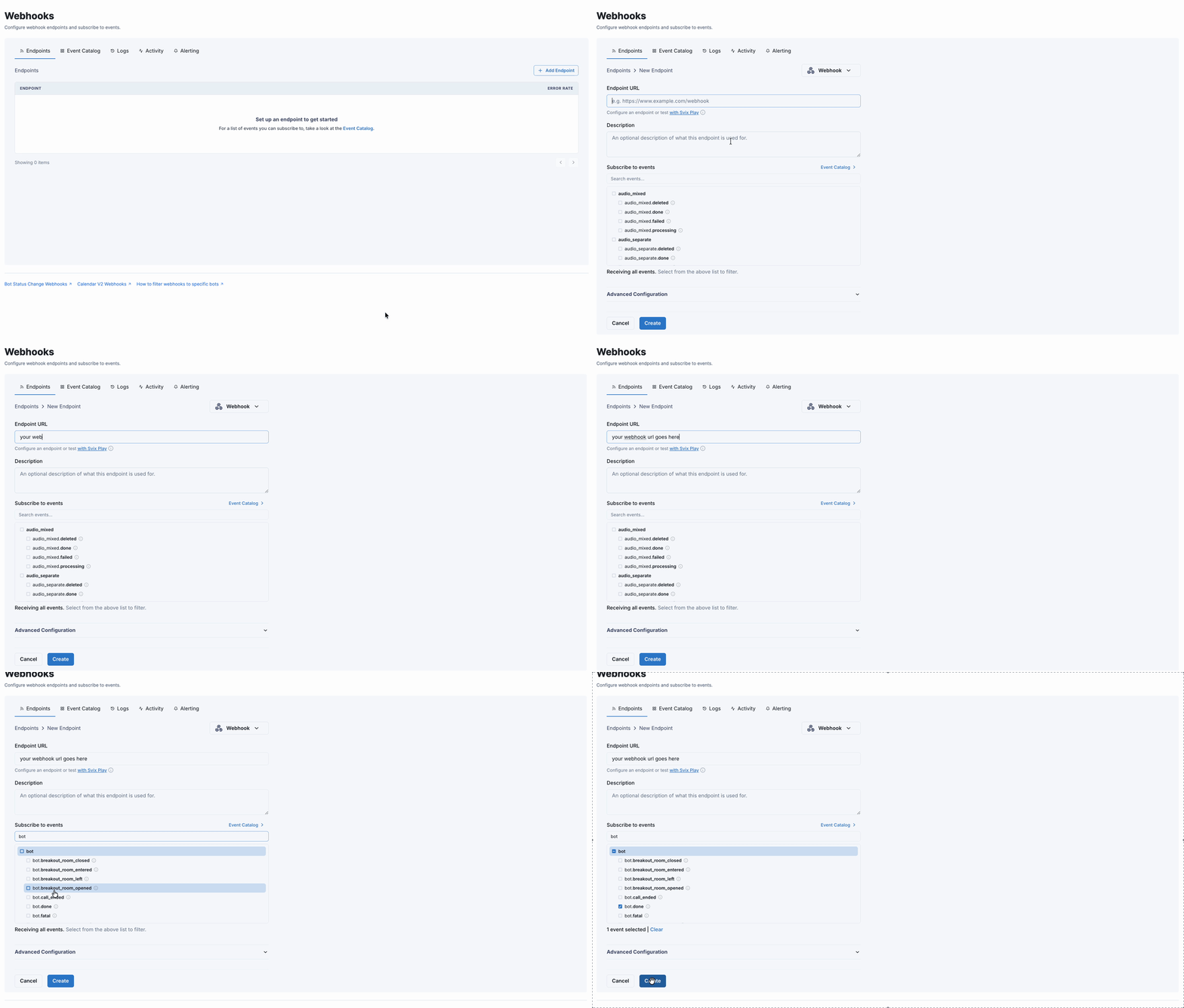
Then you’ll handle incoming events on the backend. Below is a minimal Express server that handles incoming webhooks from Recall.ai:
import express from "express";
const app = express();
app.use(express.json());

app.post("/webhook", async (req, res) => {
  const { event, data } = req.body;
  switch (event) {
    case "bot.done":
      console.log("Meeting ended — recording is ready to download");
      const botId = data.bot.id;
      const { videoUrl, audioUrl } = await retrieveBot(botId);
      console.log("Video URL:", videoUrl);
      console.log("Audio URL:", audioUrl);
      break;
  }
  res.json({ ok: true });
});

app.listen(3000, () => console.log("Webhook server running on port 3000"));
Once this endpoint is running, you'll be able to programmatically understand when a meeting has ended, and when a recording is available to download.
Step 3: Receiving Microsoft Teams meeting recordings post-call
While Recall.ai’s API allows you to fetch many different data formats, we will focus on retrieving the mp4 recording of the meeting that contains the audio and video of all participants on the call. Once the meeting ends and you've received the bot.done event, you can pull the recording via the Retrieve Bot endpoint:
const retrieveBot = async (botId) => {
    const response = await fetch(
        `https://us-west-2.recall.ai/api/v1/bot/${botId}/`,
        {
          headers: {
            Authorization: `Token ${process.env.RECALLAI_API_KEY}`,
          },
        }
      );
      const bot = await response.json();
      // Extract download URLs from the bot's recordings
      const recording = bot.recordings[0];
      const videoUrl = recording.media_shortcuts.video_mixed.data.download_url;
      const audioUrl = recording.media_shortcuts.audio_mixed.data.download_url;
      return { videoUrl, audioUrl };
}
The video_mixed download URL gives you a direct link to the MP4 file with all participants' audio and video mixed together. Swap to audio_mixed for an MP3 with audio only. These are short-lived download URLs, so make sure to download or process them promptly after retrieval. When implementing the fetch request, make sure to use your region in the URL.
Why did I choose this implementation?
As mentioned earlier, this is one of many ways to get Teams recordings. So why did I choose to use a Microsoft Teams bot API?
No Azure or Entra ID setup required: Unlike the native recording options, Recall.ai’s Meeting Bot API doesn't require an Azure subscription, tenant admin approval, or Entra ID configuration. It joins meetings as an external participant, which means it works across any Microsoft tenant without the customer’s IT team needing to configure anything.
No media infrastructure required: Recall.ai handles ingestion, recording, and processing, so you don't need to manage WebRTC pipelines or browser automation.
Real-time streaming available: You can receive real-time audio, video, and transcripts from the meeting bot API without building your own media infrastructure. The real-time option is not available for most of the alternatives that we’ll discuss below.
Cross-platform support: You can record meetings across Teams, Zoom, Google Meet, and Webex using the same API. The only difference between these platforms is the meeting URL you provide.
Other methods to record Microsoft Teams meetings
While Recall.ai is our recommended API for most situations where Teams meetings need to be recorded programmatically, there are other options available with their own values and tradeoffs. Some of these options are detailed below:
Microsoft Graph API
When someone presses "Start Recording" in a Teams meeting, the recording gets processed and stored in OneDrive or SharePoint. The Microsoft Graph API lets you fetch that recording programmatically after the meeting ends.
This is a good option for internal tooling within a single tenant where you have admin access, but there are a few limitations worth knowing about. Someone in the meeting needs to manually start recording (or auto-record needs to be enabled by an admin beforehand). Additionally, cross-tenant access is scoped to the meeting organizer, which means if you're building a product that records meetings hosted by your customers' external contacts, those recordings won't be accessible through the Graph API.
Best for: Internal tooling within a single tenant where you have admin access and can ensure recordings are started.
Microsoft Teams compliance recording
Compliance recording is a policy-driven framework where recording happens automatically. A tenant admin assigns a compliance recording policy to specific users, and when those users join any call or meeting, a recording bot is automatically invited by the Teams backend. This is primarily used in highly-regulated environments that need to comply with regulations like MiFID II, Dodd-Frank, FDCPA, HIPAA, and GDPR. Microsoft provides the policy framework, but the actual recording solution comes from a certified third-party partner like Verint, NICE, or Red Box.
This recording mode is scoped to your own tenant, which means you can only record meetings for users who have the compliance policy assigned. The setup is oriented toward enterprise IT teams, not developers building products. The certified vendor also adds additional licensing costs on top of your Teams licenses.
Best for: Compliance officers at regulated enterprises (finance, healthcare, legal).
Building your own meeting bot
You can build your own bot using either the Graph Communications API, which gives you access to audio and video streams through Microsoft's .NET SDK, or browser automation with Playwright or Puppeteer, which controls a headless browser that joins the meeting as a participant.
The Graph Communications API requires an Azure Bot registration, a Windows Server environment, and .NET development. The browser automation approach requires a headless browser environment, infrastructure to manage browser instances at scale, and ongoing maintenance as the Teams web client UI changes. We've written a guide on building a Teams bot from scratch using the browser automation approach if you want to see what's involved.
The Graph Communications API only runs on Windows Server. Browser automation is more flexible but fragile, since UI changes in the Teams web client can break your bot without warning. Both approaches require you to build and maintain your own media processing pipeline for recording, transcoding, and storage.
Best for: Large engineering teams that need full control over their implementation and can devote a significant amount of time to internal bot maintenance.
Recall.ai's Desktop Recording SDK
You can also record meetings without a bot by using a companion app to capture the meeting window and audio on the user's device. Recall.ai offers a Desktop Recording SDK for this form factor.
You need to integrate the SDK into a desktop application and have your user download this application. On macOS, the app requires code signing and notarization. No Azure setup or tenant admin approval is required.
Best for: Situations where a bot is distracting or makes participants uncomfortable.
How to choose the right approach for your use case
| Situation | Best option |
|---|---|
| Building a product, meetings span multiple external tenants | Recording bot API |
| Internal tooling, single tenant, admin access available | Graph Recording API |
| Regulated industry, auditable automatic recording required by policy | Compliance recording (certified vendor) |
| Bots aren't welcome, desktop app form factor is fine | Desktop recording |
For most developers building products that integrate with Teams meetings, especially when your users' meetings happen across different organizations, a bot-based approach is the most straightforward way to get recordings without requiring admin setup in each tenant.
Why you might want another option
There are situations where other options may be preferred over the Recall.ai API. We've listed a few of these below:
- You don’t want to pay for an API: Like other third-party APIs, Recall.ai has usage-based pricing. If you only need recordings from meetings within your own tenant and already have Microsoft 365 licenses that support recording, the Graph API has no additional per-call cost. The recording infrastructure is included in your existing license.
- You don't want third-party vendors: Companies with particularly strict procurement / security teams may prefer to build everything in house when possible.
- You don't want a bot in the meeting: The bot joins as a visible participant, which may not provide the best experience in some settings. If that's a concern, alternatives include:
- Recall.ai’s Desktop Recording SDK captures meetings locally on the user's device without adding a participant.
- The Microsoft Graph API fetches recordings natively without any additional participant, though it requires tenant admin setup and someone in the meeting must still initiate recording (or an admin must enable auto-record).
- You're building strictly for a single tenant you control: If all your meetings happen within one organization where you have admin access, the Graph API or compliance recording may be simpler since you don't need the cross-tenant flexibility the bot provides.
Conclusion
The options discussed above are the primary methods used for capturing recordings from Teams. For most developers building products where meetings span multiple organizations and platforms, the meeting bot API approach is the most practical path to getting recordings without requiring admin setup in each customer's tenant.
If you have any questions, our team is always happy to help! If you want to build anything we’ve discussed in this article, you can sign up and try Recall.ai for free. We’ve got a wide variety of sample apps that you can clone and get started with immediately.
Microsoft Teams Recording FAQ
Does the Microsoft Teams bot work across different tenants?
Yes. It joins meetings the same way any external participant would. There is no dependency on the organizer's tenant configuration, admin policies, or license tier.
Can I get a Microsoft Teams recording if I'm not the meeting organizer?
With the Graph API, recording access is scoped to the organizer in delegated permission scenarios. With the bot, you can record any meeting you have a join link for.
Where are Microsoft Teams meeting recordings saved?
OneDrive for Business (non-channel meetings) or SharePoint (channel meetings), under the organizer's account.
Can I trigger Microsoft Teams recording automatically without someone pressing record?
Teams supports auto-record as a meeting policy or per-meeting setting, but both require admin configuration. The bot approach is inherently automatic: send the bot, get the recording.
What do participants see when a bot joins a Microsoft Teams meeting?
When native Teams recording starts, participants see a notification banner. When the bot joins, participants see an additional participant whose display name is configurable. The bot can also be configured to output audio, display a custom video, and send chat messages to make it clear that its purpose is to record the meeting.


