


.avif)

This blog is for developers who want to build a macOS desktop application that records meetings programmatically using ScreenCaptureKit’s latest features.
ScreenCaptureKit introduced microphone capture support in macOS 16. That means that for devices on macOS 16 onwards, ScreenCaptureKit can capture all three media streams required to record a meeting: video screen, system audio, and microphone audio. However, developers using ScreenCaptureKit still need to build a fallback for microphone audio for users with devices on older versions of macOS.
To avoid building a workaround, teams can use the Desktop Recording SDK to capture meeting video and microphone and system audio for users on all versions of macOS. In this blog, I’ll show you how ScreenCaptureKit’s newest features work, explain ScreenCaptureKit's limitations, and offer potential alternatives.
Record a meeting programmatically using ScreenCaptureKit
Note: The demo application I built uses ScreenCaptureKit’s new microphone capture API, which is only available on macOS 16 or later. As a result, this application won’t run on earlier versions of macOS.
Developers on macOS 16+ can easily use ScreenCaptureKit’s microphone capture functionality. All you need to do is enable the microphone capture stream and register microphone stream output as you would for system audio capture.
//@title Enabling system audio and microphone input capture
config.capturesAudio = true
config.captureMicrophone = true

try stream.addStreamOutput(output, type: .audio, sampleHandlerQueue: DispatchQueue.main)
try stream.addStreamOutput(output, type: .microphone, sampleHandlerQueue: DispatchQueue.main)
To record video, you can use ScreenCaptureKit’s built-in SCContentFilter functionality to either capture your entire display or a specific browser. For the demo, I used the SCContentFilter functionality to capture my entire display.
//@title Captures the entire display
let filter = SCContentFilter(
    display: display,
excludingApplications: [],
exceptingWindows: []
)
However, as the demo video above shows, video capture on ScreenCaptureKit has several limitations.
Limitations of using ScreenCaptureKit to record meeting audio & video
One of the most obvious limitations of ScreenCaptureKit is that it does not dynamically record a meeting window. If display capture is set, ScreenCaptureKit will continue to record the entire display even if the meeting window is minimized. If window-level capture is selected, when a user minimizes the meeting window the meeting automatically transitions into Picture-in-Picture (PiP), and ScreenCaptureKit will output a black video. If a user switches tabs while multitasking in the meeting, ScreenCaptureKit will record the newly displayed tab instead of the existing meeting window regardless of the video capture method.
Another limitation of ScreenCaptureKit is that it doesn't automatically support generating transcripts with speaker labels. To generate speaker-labeled transcripts, you need both speaker-separated audio and meeting metadata like participants list, which are not supported by ScreenCaptureKit out of the box.
ScreenCaptureKit provides separate streams for system and microphone audio, but it does not separate audio by participant. Instead, ScreenCaptureKit mixes speech from all remote participants into a single system audio stream, and everyone using the same microphone is mixed into a single microphone audio stream. To get diarized audio using ScreenCaptureKit, developers have to build the infrastructure to separate the mixed audio by speaker so they can then generate speaker-labeled transcripts.
ScreenCaptureKit also doesn’t understand the meeting context so it can’t automatically extract meeting-specific information like meeting URLs and participants list. Developers need to build additional infrastructure leveraging Accessibility API and UI automation to get that information.
Without a participant list, a diarized transcript will identify speakers as “Speaker 1” or “Speaker 2” instead of their actual names. Lack of participant names makes it impossible to tie speech to identities and limits an AI application’s ability to understand a conversation. Diarized transcripts with speaker names enable teams to accurately generate meeting summaries, draft follow-up emails, assign action items correctly, and automate downstream workflows.
Building all of the aforementioned capabilities from scratch is a significant engineering effort. To deal with the limitations of ScreenCaptureKit, developers often spend months building and stitching together multiple frameworks to build a complete meeting recording solution or use a desktop recording SDK to avoid the engineering headaches and hassle.
Alternatives to ScreenCaptureKit for system and microphone audio capture
Besides ScreenCaptureKit, developers can use native macOS APIs such as Core Audio Taps and AVAudioEngine to get system and microphone audio respectively.
Developers building a desktop meeting recorder for both Windows and macOS usually build on Electron’s desktopCapturer API so that users can select which meeting window to record. To capture system and microphone audio, developers pair desktopCapturer API with standard web APIs such as getDisplayMedia() and getUserMedia() or native APIs Core Audio Taps and AVFoundation's AVAudioEngine together. However, unlike the Desktop Recording SDK, none of these solutions address meeting data extraction or speaker-labeled transcripts out of the box.
| Feature | Core Audio Taps | AVAudioEngine | ScreenCaptureKit | Electron desktopCapturer App | Recall.ai’s Desktop Recording SDK |
|---|---|---|---|---|---|
| Captures system audio | Yes | No | Yes | Yes with web API | Yes |
| Captures microphone audio | No | Yes | Yes (macOS 15 onwards) | Yes with web API | Yes |
| Captures video screen | No | No | Yes | Yes | Yes |
| Video capture complexity is abstracted | No | No | No | No | Yes |
| Audio capture complexity is abstracted | No | No | No | No | Yes |
| Abstracting meeting metadata automatically | No | No | No | No | Yes |
| Speaker diarization | No | No | No | No | Yes |
If your goal is to simply produce raw audio and do not need reliable meeting video recordings, ScreenCaptureKit is the best choice because you don’t need to stitch multiple solutions to get video screen, system and microphone audio. If you are building AI applications that depend on conversational context including meeting metadata and speaker-labeled transcripts, need reliable high-quality video recordings or a cross-platform recording solution that works across operating systems and devices, Recall.ai's Desktop Recording SDK provides the better solution.
How to get speaker-labeled transcripts, meeting metadata, and more out-of-the-box
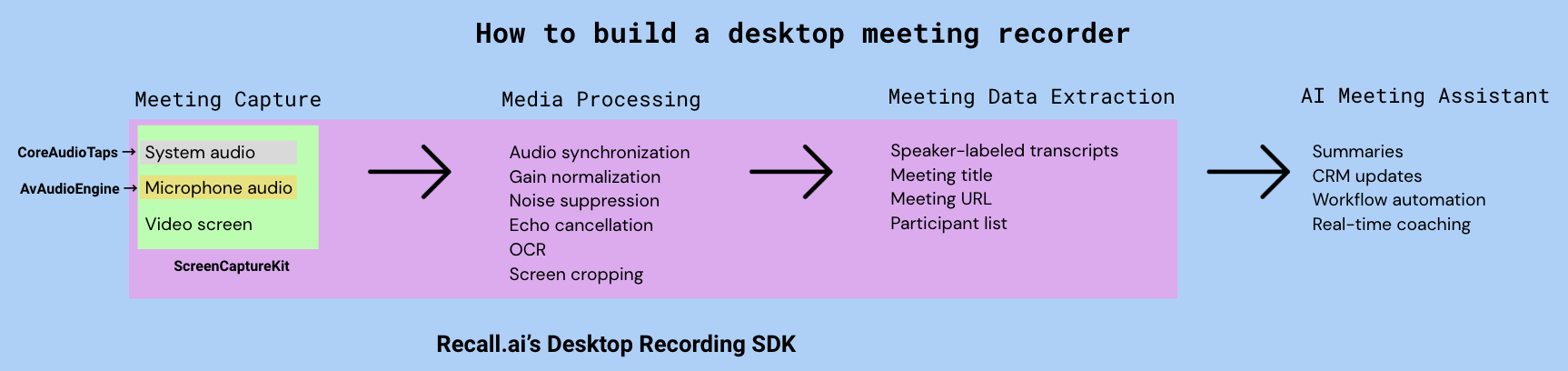
Using Recall.ai’s Desktop Recording SDK, developers receive meeting transcripts with speaker labels both in real-time and after the meeting ends. The generated transcript attributes each transcript segment to the corresponding meeting participant such as “John Smith” instead of generic labels like “Speaker 1”.
Recall.ai also produces high-quality video recordings that remain focused on the meeting window. The Desktop Recording SDK does this by tracking the meeting window. So even if a user switches browser tabs or minimizes the meeting window into PiP, it continues to record the meeting window. This functionality reduces the risk of accidentally recording private information like unrelated browser tabs or desktop notifications.
The Desktop Recording SDK also includes features such as automatic meeting detection and mute state detection, eliminating the need for users to remember to start and stop recording and automatically pausing microphone recording when the user is muted.
As your user base grows, meeting recording becomes significantly more complex. Each operating system, device, meeting platform, and user behavior introduces another layer of complexity developers must account for. Recall.ai’s Desktop Recording SDK is capable of handling all these complexities while remaining efficient.
The Desktop Recording SDK is designed to work across operating systems, major meeting platforms and browsers without straining CPU, memory and battery usage. It is also designed to be resilient, ensuring developers receive meeting data even if the user abruptly closes their laptop, faces network problems, or runs out of battery. Together these capabilities allow developers to focus on powering their applications and are a few of the reasons why both startups and Fortune 500 companies trust Recall.ai.
While ScreenCaptureKit's latest updates make it possible to build a desktop meeting recorder with screen, system audio, and microphone capture, developers still need to do a lot of engineering work if you are building AI applications on top of meeting data. Instead of spending months building and maintaining meeting recording infrastructure, developers can use Recall.ai’s Desktop Recording SDK and focus on building differentiated AI products.
If you are interested in building with Recall.ai, you can sign up for a free account or book a demo.
Appendix
The media components of meeting recording
To record a meeting, developers need to capture three media streams:
| Media Stream | Description |
|---|---|
| Video screen | Content displayed in the meeting window, including participant video and shared screen |
| Microphone audio | Audio captured by the microphone including local participant’s speech |
| System audio | Audio from remote meeting participants, along with any other sounds played by the computer |
Troubleshooting system audio access for ScreenCaptureKit
If you clone the GitHub repository and run the demo locally, you might run into issues with system audio permissions.
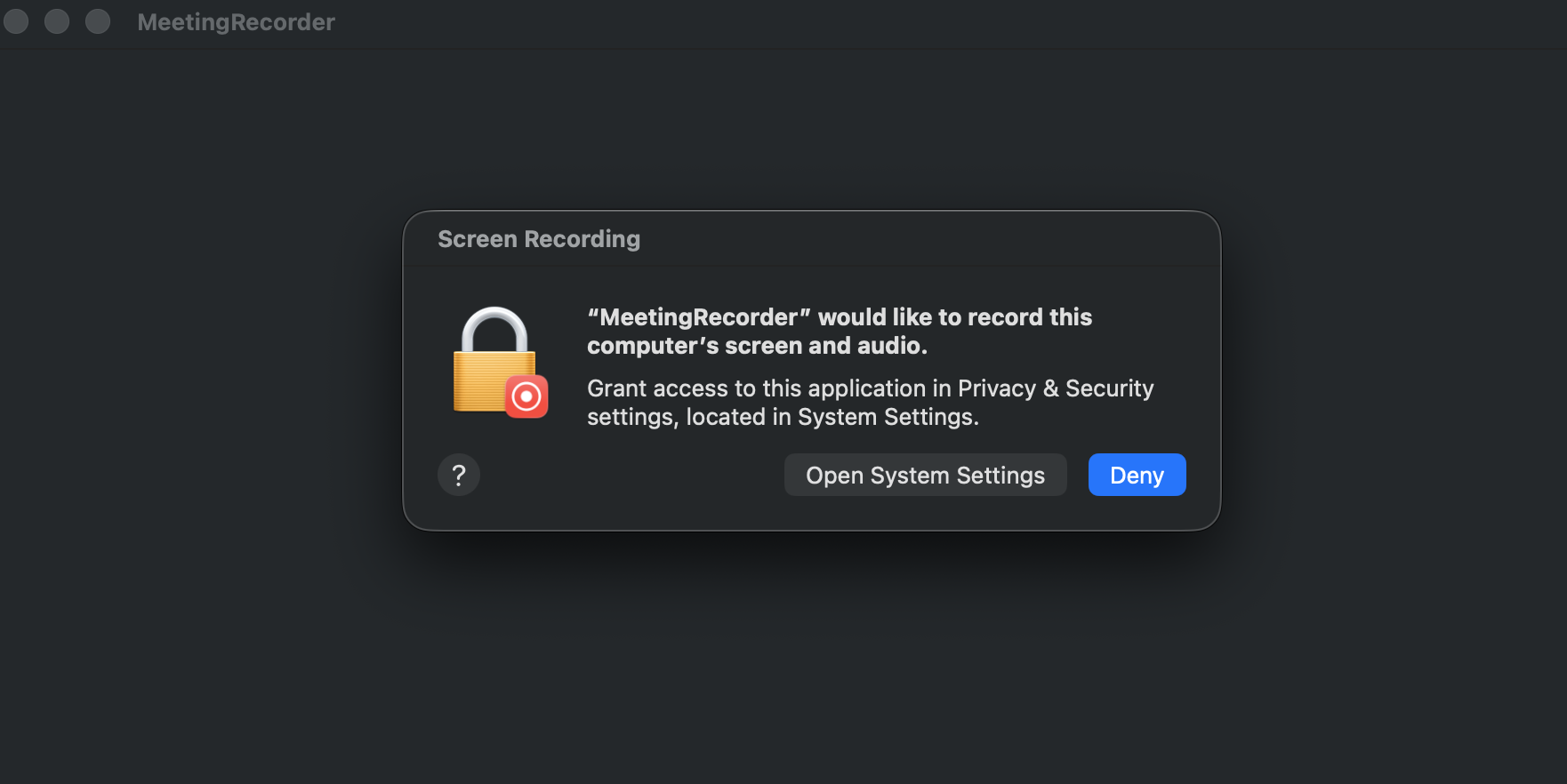 If this happens, reset the Screen Recording permissions by running the following command in terminal:
//@title index.js
//@title reset ScreenCapture permissions access
tccutil reset ScreenCapture
After running the command, restart the XCode application.
Troubleshooting audio export for ScreenCaptureKit
The current implementation produces a.mov file containing the screen recording and system audio, but it doesn’t include microphone audio. To combine the system and microphone audio tracks, run the following script:
//@title index.js
//@title stitching system audio, microphone input and video screen

ffmpeg -i ~/Movies/meeting-recording.mov \
-filter_complex "[0:a:0][0:a:1]amix=inputs=2:duration=longest[a]" \
-map 0:v:0 -map "[a]" -c:v copy -c:a aac \
~/Movies/meeting-recording-mixed.mov
It generates a new file named meeting-recording-mixed.mov, which contains both audio streams.
Frequently asked questions: Using ScreenCaptureKit to record meeting audio & video
What is ScreenCaptureKit?
ScreenCaptureKit is Apple’s native framework for capturing video screen, system audio and, on macOS 16+, microphone audio.
Why do I need to capture microphone input?
Without microphone capture, developers won’t be able to record what the person using the desktop recording application says. That’s why recording a meeting programmatically requires capturing all three media streams: video screen, system audio and microphone audio.
Can ScreenCaptureKit record microphone input?
Yes, starting on macOS 16, ScreenCaptureKit can capture microphone input in addition to screen video and system audio, making it possible to programmatically record a meeting.
What if my users aren’t on macOS 16?
The microphone capture API is only available on macOS 16 and later. To support earlier macOS versions, you would need to implement an alternative microphone capture solution such as using Recall.ai’s Desktop Recording SDK.
Can ScreenCaptureKit record system audio?
Yes, ScreenCaptureKit can record system audio (all the sound from the user’s machine) on macOS versions 13 and above.
Can ScreenCaptureKit record outgoing app audio?
Yes, ScreenCaptureKit offers SCContentFilter to isolate audio from specific apps, allowing users on macOS 13 and above to capture outgoing app audio.
What permissions are required for audio capture with ScreenCaptureKit?
System audio capture is covered by the Screen Recording permission. Microphone capture additionally requires the Microphone permission and an NSMicrophoneUsageDescription entry in your Info.plist.
Can I use ScreenCaptureKit to record a meeting programmatically?
ScreenCaptureKit lets you programmatically capture screen video, system audio and microphone audio (on macOS 16+). Developers will receive three separate media streams that can be encoded into a meeting recording.
What are some limitations of using ScreenCaptureKit to record a meeting programmatically?
ScreenCaptureKit’s microphone audio capture is only available on macOS 16 and later. So developers would need to implement an alternative way to capture microphone audio for earlier macOS versions.
ScreenCaptureKit is also designed for media capture not meeting data extraction. While it can record video screen, system audio, and microphone audio, it does not provide meeting metadata or speaker-labelled transcripts. Developers who need meeting metadata or diarized transcripts can use the Desktop Recording SDK or build additional infrastructure leveraging Accessibility API, UI automation, and speaker diarization.
If you are building a recording app that is a Granola alternative, we have written a blog that shows how you can leverage Recall.ai's Desktop Recording SDK.
Is there an easier way to record a meeting on macOS?
Yes, Recall.ai’s Desktop Recording SDK records meetings across all major meeting platforms, operating systems, browsers and devices. It allows developers building for end users to get meeting meta data, video recordings and speaker-labeled transcripts right away. Here is a tutorial that shows you how to build a desktop recording app.
Which meeting metadata can I get from the Desktop Recording SDK?
The Desktop Recording SDK provides meeting data such as meeting title, meeting URL and speaker-labeled transcripts, as well as video recordings. This allows developers to build AI applications on top of conversation data without building the infrastructure themselves.


