


.avif)

Apple has introduced native APIs for capturing application audio on macOS, but options such as ScreenCaptureKit and Core Audio process taps still come with tradeoffs around OS compatibility, permissions, capture scope, and implementation complexity. If you are buildling on Windows without a desktop recording SDK, a separate system-audio capture implementation using APIs such as Windows Graphics Capture is required.
A desktop recording SDK prevents breakages that come with maintaining multiple APIs and handles the underlying capture layer across both macOS and Windows. Developers using native APIs in their own app also need to account for requirements such as code signing, notarization and permissions.
In this blog, I’ll cover the APIs and approaches developers can use to programmatically capture system audio, the limitations of each approach, and alternative ways to reliably access meeting audio. I’ll also cover screen recording APIs, giving you a complete picture of what’s involved in building your own desktop recorder, and how that approach compares with integrating a desktop recording SDK into your existing app.
Recall.ai’s Desktop Recording SDK captures meeting audio and video across macOS and Windows and generates both real-time and post-meeting artifacts, including video recordings and transcripts.
Accessing system audio on macOS
Before exploring system audio capture methods, it is important to distinguish system audio from outgoing application audio. System audio includes all device output, such as meeting conversations, media, and notifications. Outgoing application audio includes only audio from a specific app or group of processes, excluding sounds from other apps or meetings.
For a desktop meeting recorder, developers want the meeting application’s outgoing audio rather than the entire system audio mix.
ScreenCaptureKit
ScreenCaptureKit is a macOS media capture API that allows apps to record a screen, system audio, and microphone audio. It is relatively easy to use, but outgoing audio access is tied to a window or capture session. This means even if you only want to record audio, a screen capture target such as display, window, or app that records the screen as part of the capture pipeline still needs to be configured.
Beyond being tied to a screen capture session, the audio recorded by ScreenCaptureKit is not isolated. If notifications, music, or other media happen to play during the capture session, they will be part of the recording, which creates polluted audio. To avoid this, you need to implement additional logic that handles these edge cases to perform high-quality system audio capture.
Electron’s desktopCapturer
Developers building a meeting recorder in Electron often use desktopCapturer to access system audio. Electron is a common choice because it supports both macOS and Windows. However, an app's outgoing audio behavior differs by operating system. On macOS, Electron relies on native API solutions like ScreenCaptureKit, which means it inherits many of the same limitations.
Recall’s Recording Desktop SDK supports Swift, Tauri, native Windows apps, and more in addition to the Electron app.
Core Audio process taps
In cases where developers want to record outgoing app audio on macOS without video, they typically rely on Core Audio APIs like Core Audio process taps. Core Audio process taps historically only allowed developers to capture audio generated within the applications they are implemented in. However, in newer versions of macOS (14.2+), Apple expanded the API to support recording system audio from all applications including meeting platforms, with user permission.
While this was a major improvement, the ecosystem around Core Audio process taps is still nascent. Apple’s documentation for this functionality is limited, making it hard to implement. Many developers especially struggle to reliably implement Core Audio process taps in production environments.
Why accessing system audio isn’t enough for meeting recording
For use cases that don’t involve meeting recording, accessing outgoing app audio is enough. Outgoing app audio captures audio coming from the computer. However, to record a conversation on a meeting platform, microphone access is required to record what the desktop app user says. macOS recently introduced microphone capture support to ScreenCaptureKit, but it still requires a lot of developer intervention.
Limitations of ScreenCaptureKit
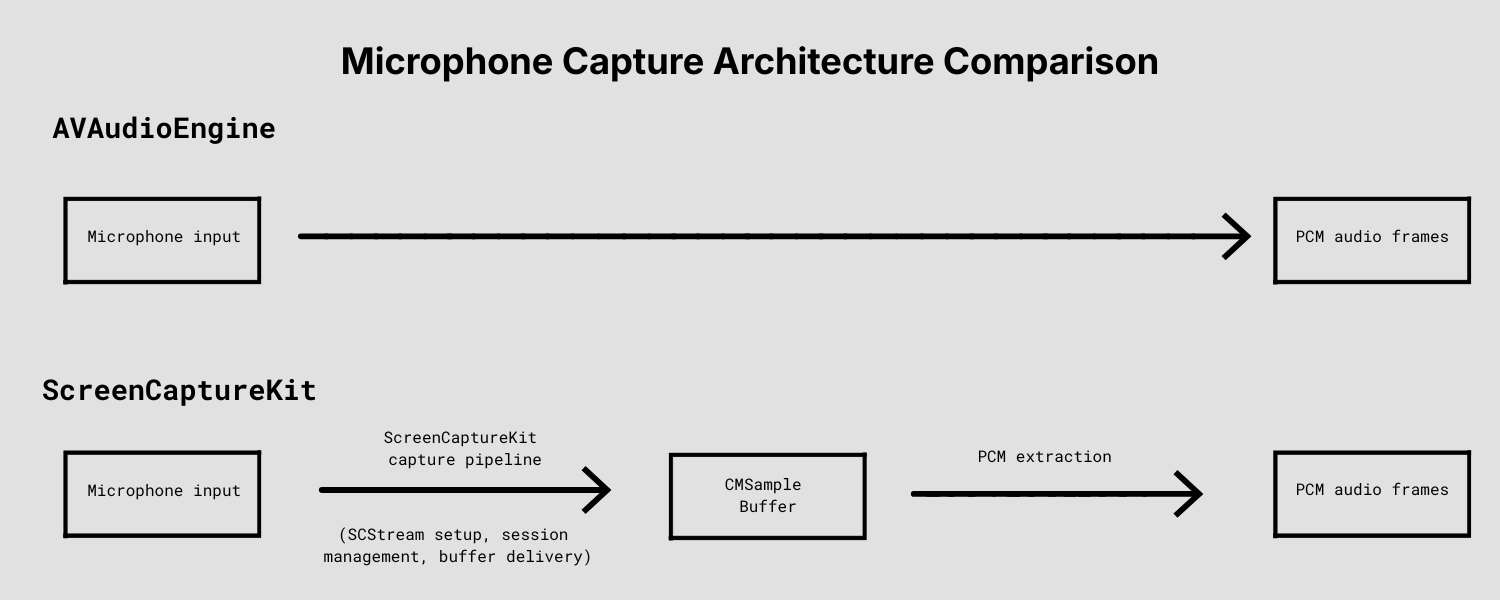
When using ScreenCaptureKit for microphone recording, audio is delivered through a media capture stream rather than an audio-focused pipeline like AVAudioEngine. This means developers need to manage stream state, audio buffers, and formatting before audio is ready for downstream use. If these systems are not handled correctly, recording quality will be degraded due to dropped audio and synchronization issues.
Dedicated audio APIs like AVFoundation's AVAudioEngine provide a more direct path for microphone capture and audio processing, and don't require developers to manage broader media-stream concerns. However, since AVAudioEngine does not support outgoing app audio access, you still need to combine multiple audio APIs.
Challenges of programmatically accessing system audio on macOS
We’ve covered how to capture outgoing app audio and microphone audio on macOS. Developers can capture outgoing app audio using APIs like ScreenCaptureKit, Electron’s desktopCapturer, or Core Audio process taps, and can capture microphone audio using APIs like ScreenCaptureKit and AVAudioEngine. But using multiple APIs to access and stitch together outgoing app and microphone audio is only the first step.
On macOS, developers must account for a myriad of edge cases during microphone capture. For example, your meeting recorder needs to track which microphone is used in a meeting because users might switch microphones when they have low battery or there is background noise. If microphone tracking is not handled correctly, parts of the conversation will not be recorded.
Neither AVAudioEngine nor ScreenCaptureKit automatically handles microphone switching. They also don’t account for edge cases like mute detection and microphone selection. As a developer, you need to implement support for all of these functionalities yourself. Without mute detection, audio still gets captured even if the user mutes themselves in a meeting. This can lead to private conversations getting recorded without the user’s consent.
Another challenge is excluding sounds from other apps that users are running on their device. To record just the audio coming from the meeting application, you have to implement meeting audio isolation. Otherwise, audio unrelated to the meeting will be recorded and appear in the transcript.
Recall.ai’s Desktop Recording SDK supports both microphone and system audio capture and handles all edge cases including mute state detection and switching microphone input during a meeting. Get started with just a few lines of code.
After you solve all of the technical challenges related to capturing system and microphone audio, you’ll also need to ensure audio quality challenges like echo cancellation are handled.
Echo cancellation is particularly tricky
Echo occurs when a microphone input picks up audio that is also being played through the speakers, resulting in duplicated speech getting recorded. This is a challenge every developer building a meeting recorder needs to solve. A way to solve this is using echo cancellation, the process of removing overlapping audio between system output and microphone input.
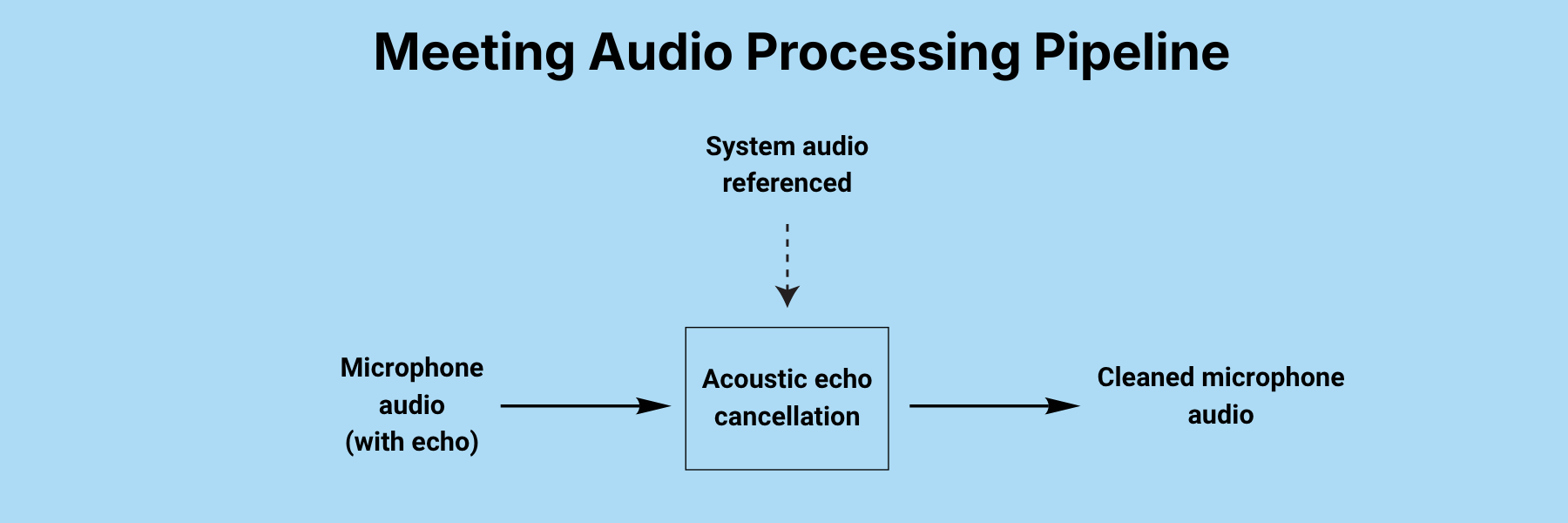
A common approach to solve for echo cancellation is to use an acoustic echo cancellation (AEC) library, which takes both system audio and microphone input to remove overlapping sounds in the microphone audio stream. However, there is no one size fits all solution to eliminate echo.
Different AEC libraries are optimized for different environments, including device types and browsers. The effectiveness of an AEC library depends heavily on your audio pipeline: how audio is captured, synchronized, and processed. To choose the right AEC library, you need to test it with your actual pipeline.
If echo cancellation is not handled properly, transcripts may contain repeated speech, reducing their accuracy.
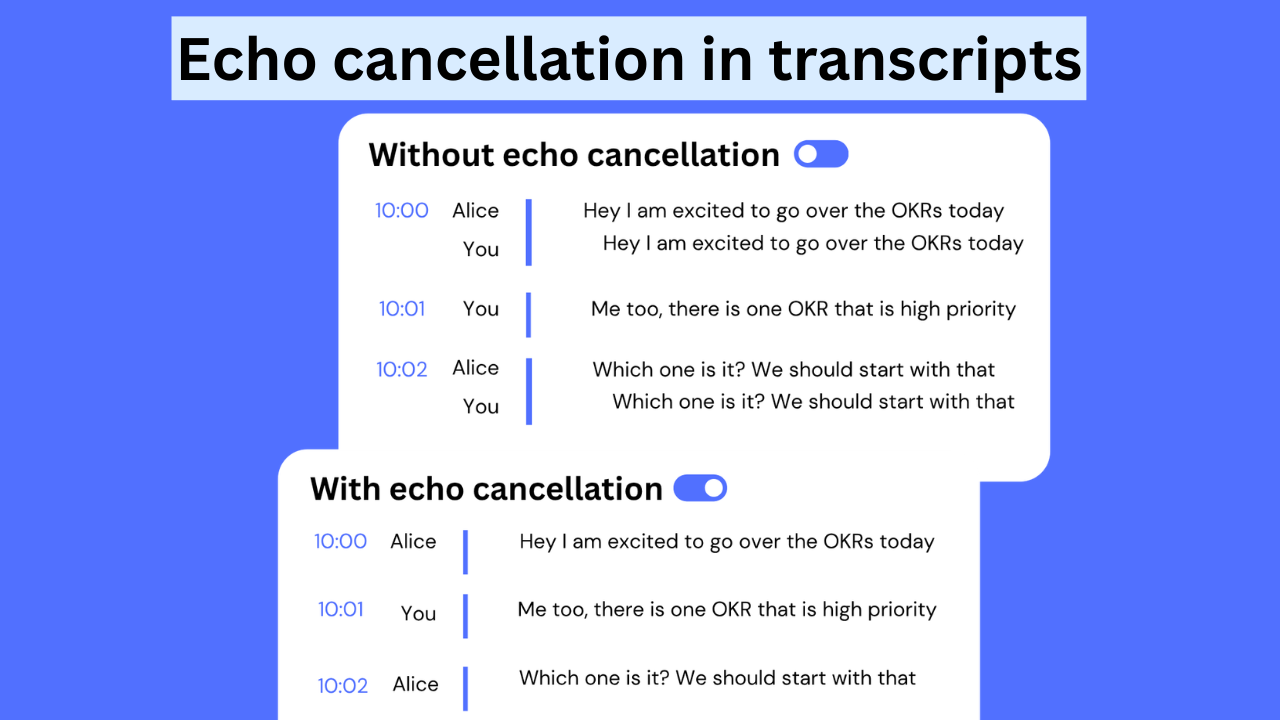
Echo cancellation is not a problem when the user wears headphones. However, since you can’t assume users will always wear headphones, your application needs logic to detect the output device type and accordingly enable or disable AEC.
Beyond echo cancellation, producing high-quality meeting audio also requires maintaining speaker volume, minimizing processing delay, and ensuring system and microphone audio remain synchronized throughout the recording. These audio issues are just a few of the many challenges involved in producing reliable recordings and transcripts that Recall.ai’s Desktop SDK has already solved.
Record system audio programmatically using Recall.ai’s Desktop Recording SDK
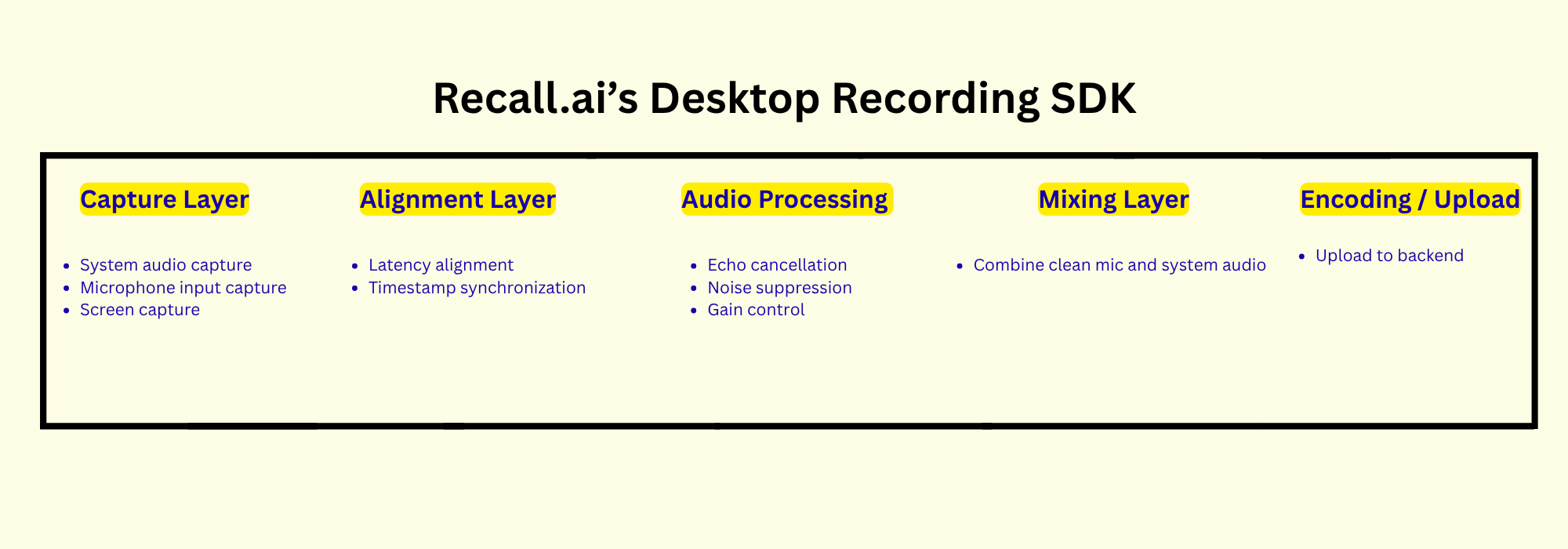
The table below outlines the components to capture meeting data accurately, from recording the conversation to processing the recording:
| Components | Recall.ai’s Desktop Recording SDK | ScreenCaptureKit | AVAudioEngine | CoreAudioTaps |
|---|---|---|---|---|
| System audio capture | Yes | Yes (tied to Screen Capture) | No | Yes* |
| Microphone audio capture | Yes | Limited and more complicated | Yes | No |
| Acoustic echo cancellation | Yes | No | No | No |
| Combining system audio and microphone streams | Yes | No | No | No |
| Audio Processing | Yes | No | Yes | Yes |
| Encoding | Yes | No | Limited | Limited |
*but implementation is difficult due to sparse documentation
With Recall.ai’s Desktop Recording SDK, echo cancellation and the granular challenges of audio capture are handled out of the box across any Mac device and version. If you want to solve for system audio access yourself, it is important to ensure your solution works across all macOS devices and operating systems.
Transcript quality is one of the most important factors for end users when deciding on a meeting recorder. Users value both accurately transcribing meeting audio, which depends on a recording’s audio quality, and correctly attributing speech to the right speakers.
Speaker attribution ensures the transcript clearly shows who said what. Without correct speaker attribution, it becomes difficult to follow the conversation and build automations. This is true especially in meetings with more than two participants. Even if the transcription is accurate, it becomes far less useful without correct speaker labeling.
Transcripts generated with Recall.ai’s Desktop Recording SDK include speaker names. You can seamlessly integrate all of this functionality into your desktop app in just a few days.
By this point, you probably understand that accessing outgoing app audio is just the start of the many challenges you’ll face when building a production-ready desktop meeting recorder. For other common issues you’ll need to tackle when building a desktop meeting recorder, check out the appendix.
Recall.ai’s Desktop Recording SDK is designed to handle all of the challenges you might face out of the box, ensuring reliability across a wide range of edge cases. This saves engineers months of time, and helps you get to market in a matter of days.
Conclusion: Programmatically recording audio on macOS
In this blog, we went over the different ways you can capture outgoing app audio on macOS, along with the key features required to build a production-ready audio recorder that reliably records meeting audio with features like automatic meeting detection.
Building a production-ready meeting recorder that generates reliable artifacts like transcripts, video, and recordings while accounting for user experience and real-world edge cases is a significant engineering challenge. With Recall.ai’s Desktop Recording SDK, skip building from scratch and ship in days instead.
Appendix
System audio FAQ
Here are the most common questions about accessing system audio:
How do you access system audio on Windows?
You can capture system audio on Windows using WASAPI in loopback mode, which provides access to the audio being played through the system.
How do you access microphone input on Windows?
You can capture microphone input on Windows using WASAPI as well.
Do you have to solve echo cancellation on Windows as well?
Yes. WASAPI does not provide built-in echo cancellation, so echo must be handled separately in the audio processing pipeline.
What meeting artifacts can be generated from system audio?
Common meeting artifacts include audio and video recordings, as well as transcripts with speaker diarization. With Recall.ai’s products, you can also get the meeting URL, participants list, and other meeting metadata.
How do you implement screen capture programmatically?
You can implement screen capture using built-in macOS APIs like ScreenCaptureKit, but this captures the entire selected display, which can unintentionally include personal, or irrelevant on-screen content. With Recall.ai’s Desktop Recording SDK, screen capture is built in and video recordings are limited to the meeting window itself.
Features needed to build a reliable desktop recorder
Here are examples of features you need to think about when building a reliable, production-ready desktop meeting recorder:
| Features | Type | Does Recall.ai’s Desktop Recording SDK Support? | Why it matters |
|---|---|---|---|
| Automatic meeting detection | User-facing | Yes | Eliminates the need for manual recording |
| Microphone source detection | User-facing | Yes | Ensures the correct microphone is used even if the input device changes |
| Resource optimization (CPU/battery) | System/Reliability | Yes | Prevents excessive battery drain during recording |
| Real-time data storage | System/Reliability | Yes | Preserves recording even when user has poor connection or if desktop app is closed before meeting ends |
| Device and system compatibility | System/Reliability | Yes | Ensures the desktop app can run across a wide range of devices and operating systems |
These user-facing and reliability-focused features are critical to making a production-ready meeting desktop recorder. Implementing these features require months of development, testing, and ongoing maintenance.


