


.avif)


Slack Huddles are where fast, high-stakes conversations happen, from incident response and on-call handoffs to customer escalations and daily syncs. But once a huddle ends, its context disappears. Without access to audio recordings or transcripts, teams can’t automate workflows, document decisions, or turn spoken discussions into searchable, reusable knowledge.
Developers trying to programmatically access Slack Huddles data hit an immediate roadblock. Slack's official APIs provide no access to huddle recordings, transcripts, or related metadata. So how do you get around this limitation? In this article, we'll explore Slack's API constraints and show you how to capture huddle data on macOS using Recall.ai’s Desktop Recording SDK.
What data is available using the official Slack API?
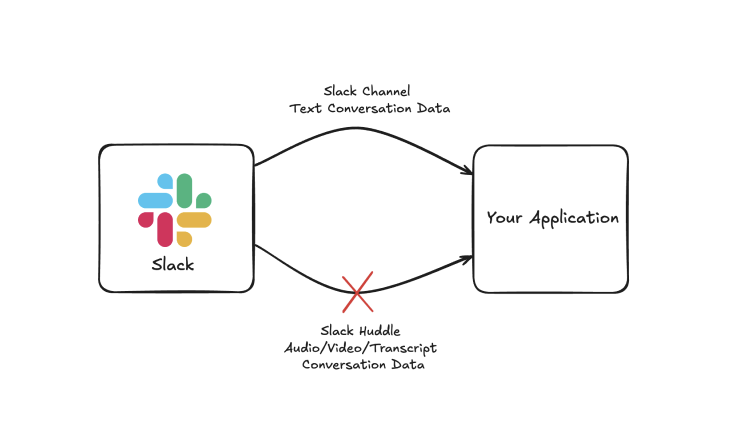
Slack's official APIs work well for accessing text-based conversation data. You can use endpoints like conversations.list and conversations.history to retrieve messages from channels and direct messages, giving you a comprehensive view of written discussions happening across an organization.
When it comes to huddles, the available data becomes extremely limited. The primary source of huddle-related information is the user_huddle_changed event. This event tells you when users join or leave a huddle, and provides basic metadata like the huddle ID and participant list.
That's it: there’s no access to actual conversation content, which disappears forever once the call ends. This creates a serious blind spot for developers building solutions that require context across both written and spoken conversations. To bridge this gap, developers need to look beyond Slack's native capabilities.
Using Recall.ai to get recordings and transcripts from Slack Huddles
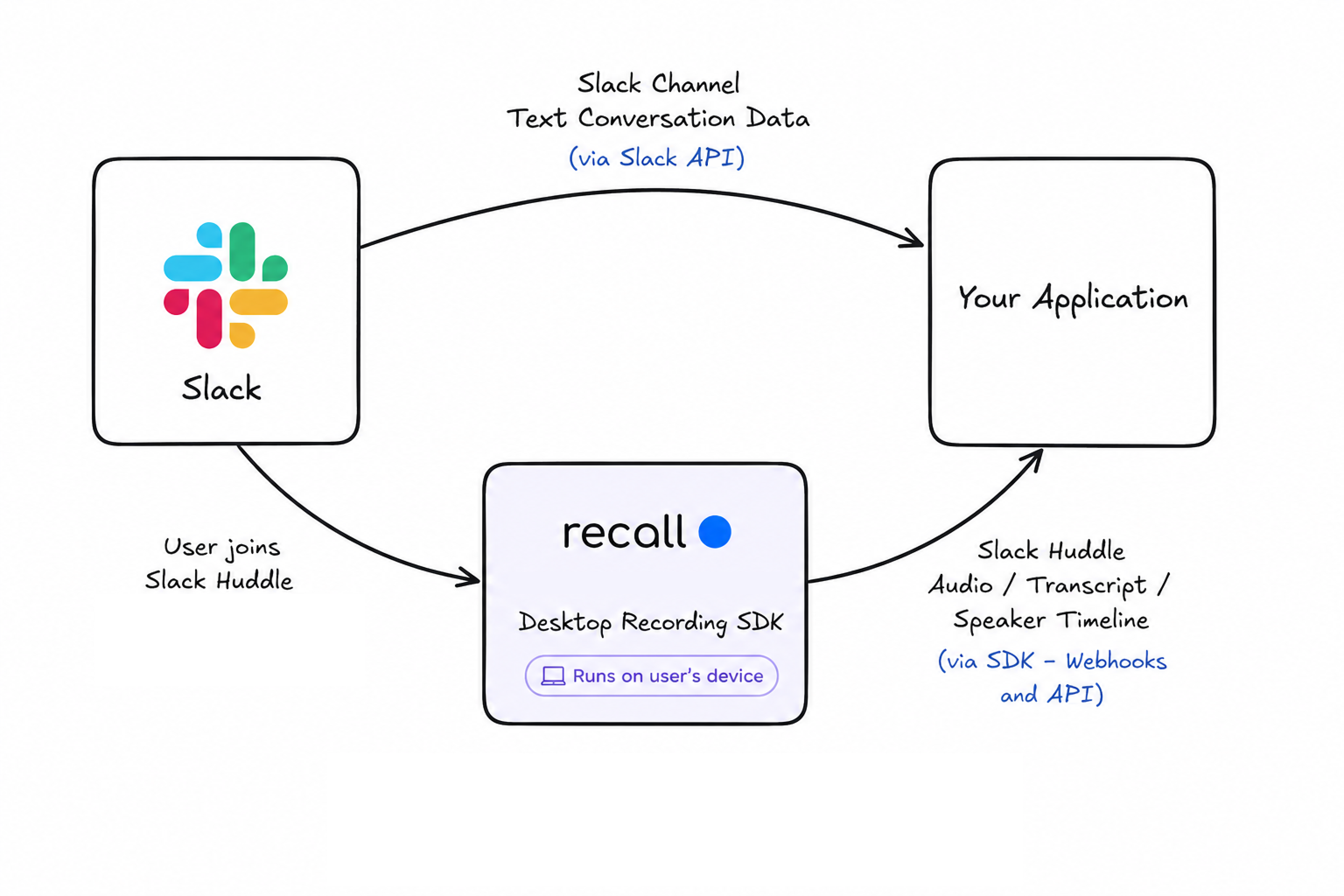
Since there’s no way to access huddle data from Slack’s official APIs, we need to look for alternative methods to extract this information. While there are a few potential options, the most established solution to this issue is to use Recall.ai’s Desktop Recording SDK to capture huddles directly from a user’s machine.
Using the Recall.ai Desktop Recording SDK, you can record Slack Huddles from within your desktop application. Once recording starts, the SDK captures the audio and generates transcripts in real time.
All of this data is made available via API endpoints and webhooks.
Accessing Slack Huddles transcription data
The Desktop Recording SDK will produce a structured transcript that you can pass to an LLM for deeper analysis. The SDK can transcribe the call in real time, giving you access to up-to-date information as it’s being spoken. Below is an example of the format of transcript data that you can expect to receive from a huddle recording:
[
  {
    "participant": {
      "id": 1,
      "name": "Aydin",
      ...
    },
    "words": [
      {
        "text": "I'm just hanging out in this huddle",
        "start_timestamp": {
          "relative": 0,
          "absolute": "2025-08-05T23:59:05.927163Z"
        },
        "end_timestamp": {
          "relative": 2.3542128,
          "absolute": "2025-08-05T23:59:08.281376Z"
        }
      }
    ]
  },
...
]
Accessing Slack Huddles recordings
After the huddle has ended, the SDK will upload the complete audio recording of the meeting. This information can be accessed via API endpoints and webhooks. Below is an example of the data you can expect to see:
{
  "id": "95db53d7-47f6-4d49-be61-dd4481038958",
  ...,
  "recordings": [
    {
      "id": "824ad909-8736-4bb1-92d8-1639aa297cd2",
      ...
      "media_shortcuts": {
        "audio_mixed": {
          "data": {
            "download_url": "https://recallai-production-data.s3.amazonaws.com/..."
          },
          "format": "mp4",
          ...
        },
        ...
      }
    }
  ]
}
Conclusion
While Slack's official APIs provide comprehensive access to text-based conversations, huddle data remains completely inaccessible through native endpoints. The only option to get Slack Huddle's recordings and transcripts is to use Recall.ai Slack Huddles API.
If you’re interested in recording Slack Huddles conversations, you can sign up for a Recall.ai account right now and try recording Slack Huddles for free. For more information, you can reference our documentation on the Desktop Recording SDK, or reach out to us directly.
FAQs
Do I need to do a Slack App to use Recall.ai for Slack Huddles?
No, you do not need a Slack App to use Recall.ai’s Desktop Recording SDK. The SDK records huddles directly from a user’s machine without requiring bots or Slack integrations.
Why can’t I access Slack Huddle recordings or transcripts using Slack’s API?
Slack does not provide an API for retrieving Slack Huddle recordings, transcripts, or conversation content. Once a huddle ends, the spoken conversation is not retained or accessible programmatically through Slack’s official APIs.
What kind of data can Recall.ai capture from Slack Huddles?
Recall.ai’s Desktop Recording SDK can capture structured data from huddles, including real-time transcripts, audio recordings, and participant activity. This data is available via APIs and webhooks for downstream processing.
What are common use cases for Slack Huddle data?
Teams use Slack Huddle data for incident response documentation, post-incident reviews, on-call handovers, CRM and ticket updates, daily standup summaries, and cross-team documentation. The data can also power AI-driven features like summarization, search, and sentiment analysis.
Can Slack Huddle data be used for AI and analytics applications?
Yes. Because transcripts and metadata are structured and time-aligned, Slack Huddle data can be used to build AI-powered applications such as automatic summaries, searchable knowledge bases, and real-time insights using NLP and LLMs.
How do developers get started with Slack Huddle transcription?
Developers can get started by integrating Recall.ai’s Desktop Recording SDK to capture huddles directly from their application. Once recording begins, data is captured automatically and made available through APIs and real-time webhooks.


