


Summary: If all you need is a basic desktop meeting recorder that only works on Windows and recording quality isn’t a priority, using Window’s native capture APIs to build one makes sense. You can build a working prototype with WASAPI and Windows Graphics Capture fairly quickly. But as you scale to hundreds of recording hours or expand to other operating systems like macOS and Linux, you’ll need to build and support hundreds of different integrations. Recall.ai’s Desktop Recording SDK provides the reliability and scalability needed to support high-volume recording.
In this blog, I’ll walk through how I used Windows capture APIs like WASAPI and Windows Graphics Capture to build a desktop meeting recorder. I’ll share my code and working demo, along with the limitations I encountered working with Window’s capture APIs.
Using WASAPI and Windows Graphic Capture to build a desktop meeting recorder
Windows offers several native APIs for audio and video capture. To build a desktop meeting recorder, I used Windows Graphics Capture and Windows Audio Session API (WASAPI). While Windows offers several native APIs for audio and video capture, Windows Graphics Capture is the only Windows recording API that supports recording individual windows instead of the entire display and WASAPI is the only native Windows API that captures system audio not just microphone audio without requiring a dedicated loopback device.
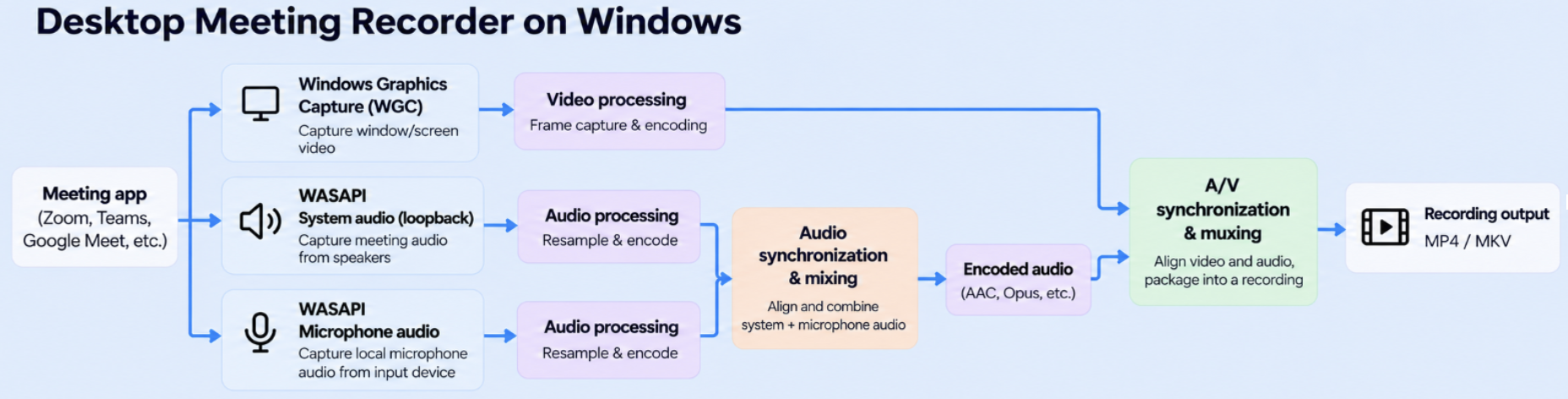
WASAPI captures both microphone and system audio on Windows separately using standard capture and loopback capture. Standard capture records the microphone input, while loopback capture records meeting audio playing through the speakers or headphones. The Windows API for audio doesn’t require custom audio routing or additional drivers to capture audio. However, WASAPI doesn’t automatically handle mute-state detection or audio device changes, both of which are needed for privacy reasons.
// Sample showcasing how to initialize WASAPI

// Assumes COM is initialized.
// Error handling and cleanup are omitted for brevity.
IMMDeviceEnumerator* enumerator = nullptr;
IMMDevice* endpoint = nullptr;
IAudioClient* audioClient = nullptr;
IAudioCaptureClient* captureClient = nullptr;
WAVEFORMATEX* format = nullptr;

CoCreateInstance(
    __uuidof(MMDeviceEnumerator), nullptr, CLSCTX_ALL,
    IID_PPV_ARGS(&enumerator));

// Select the default speakers/headset for system audio.
enumerator->GetDefaultAudioEndpoint(
    eRender, eConsole, &endpoint);

endpoint->Activate(
    __uuidof(IAudioClient), CLSCTX_ALL,
    nullptr, reinterpret_cast<void**>(&audioClient));

audioClient->GetMixFormat(&format);

// Capture the output device's audio using shared loopback mode.
audioClient->Initialize(
    AUDCLNT_SHAREMODE_SHARED,
    AUDCLNT_STREAMFLAGS_LOOPBACK,
    1000000,  // Requested buffer duration: 100 ms
    0, format, nullptr);

audioClient->GetService(IID_PPV_ARGS(&captureClient));
audioClient->Start();
I used Windows Graphics Capture to record video frames from the meeting window, including participant video and shared screens. However, Windows Graphics Capture captures the entire application window, including UI elements such as browser tabs, address bars, and meeting controls. Windows Graphics Capture cannot automatically identify which areas contain meeting content. You need additional logic to identify the boundaries of participant video and shared screens, crop out unwanted UI elements, and update those boundaries as the meeting layout changes. When participants join or leave, or someone shares their screen, the meeting display gets rearranged. Because Windows Graphics Capture doesn't identify these changes automatically, the recorder must detect them and determine the new capture boundaries to avoid cutting off meeting content or including unwanted UI elements.
// Sample showcasing how to initialize Windows Graphics Capture

using namespace winrt::Windows::Graphics::Capture;
using namespace winrt::Windows::Graphics::DirectX;

// Create two buffers for incoming video frames.
auto framePool = Direct3D11CaptureFramePool::CreateFreeThreaded(
    device,
    DirectXPixelFormat::B8G8R8A8UIntNormalized,
    2,
    item.Size());

// Receive frames on the frame pool's worker thread.
framePool.FrameArrived([](auto const& pool, auto const&) {
    auto frame = pool.TryGetNextFrame();
    if (!frame) return;

    auto surface = frame.Surface();
    auto timestamp = frame.SystemRelativeTime();
    auto size = frame.ContentSize();

    // Copy the surface into an encoder-owned texture here.
    // Use the timestamp to align video with captured audio.

    frame.Close(); // Return the capture buffer to the pool.
});

auto session = framePool.CreateCaptureSession(item);
session.StartCapture();
The following video demonstrates how the sample desktop recorder I built works when recording a meeting:
Building a basic desktop meeting recorder on Windows was a fairly straightforward experience especially compared to building one on macOS. While Apple has native capture APIs like Core Audio Taps, AVFoundation, and ScreenCaptureKit that can be used to build a desktop meeting recorder, working with macOS’ native APIs involves more complexity around permissions, OS version compatibility, and setup.
Both Windows and macOS’ native recording APIs provide the building blocks for a basic meeting recorder. But they lack features like automatic meeting and mute detection, which are a few of the many end-user facing capabilities needed to build a reliable desktop meeting recorder.
What desktop capture APIs like WASAPI and Windows Graphic Capture don’t cover
To create a robust and reliable desktop meeting recorder, developers must build a long list of capabilities that are not provided by any meeting recording APIs. Otherwise, both user adoption and a desktop recorder’s utility become limited.
Automatic meeting detection recognizes when a user joins a meeting on platforms like Google Meet, Zoom, or Microsoft Teams and starts recording automatically. Without automatic meeting detection, users would need to remember to record meetings. Automatic meeting detection reduces the percentage of meetings that go unrecorded from 88% to just 2%.
Then there are features designed for user privacy, such as in-app mute detection and browser tab isolation. Mute detection ensures that when a user mutes themselves during a meeting and says something, no speech is captured. Browser tab isolation only records the meeting tab, even if the user switches to another tab during the meeting. Mute detection and tab isolation reduce the risk of sensitive information getting accidentally captured and neither are built into WASAPI or other native Windows APIs.
In addition to protecting user privacy, a robust desktop meeting recorder also needs to capture audio and video reliably across different device configurations and user behavior. For example, if an end-user switches microphones or headphones in the middle of a meeting, the recorder should detect the change and continue capturing audio without interruption. If an end-user’s device is running low on battery or available memory, the recorder should minimize its resource consumption like the Desktop Recording SDK does and continue recording without causing additional strain. While Windows' native capture APIs provide the underlying functionality to capture meeting audio and video separately, they do not have features around user privacy and device resource consumption built in.
Recall.ai's Desktop Recording SDK handles the gaps left by Windows capture APIs that impact user adoption while also capturing separate audio and video streams. Because separate audio streams give each meeting participant its own audio stream, audio using the Desktop Recording SDK is by default diarized and speaker-labeled transcripts are generated. Downstream AI applications need structured context around the conversation instead of just a wall of text. Recall.ai provides diarized audio recordings and speaker-labeled transcripts, rather than building and maintaining their own recording infrastructure.
Buying a desktop meeting recorder vs building one with WASAPI
All the features discussed in the previous section, including mute detection, automatic meeting detection, device resilience, and browser tab isolation, are built into Recall.ai's Desktop Recording SDK.
Additionally, the Desktop Recording SDK also handles a long tail of edge cases, including network interruptions. By uploading meeting data while the recording is happening, the SDK saves the portion of the recording captured before a network interruption, rather than losing the entire recording. The capabilities covered in this blog address reliability issues developers face when building and maintaining a desktop meeting recorder.
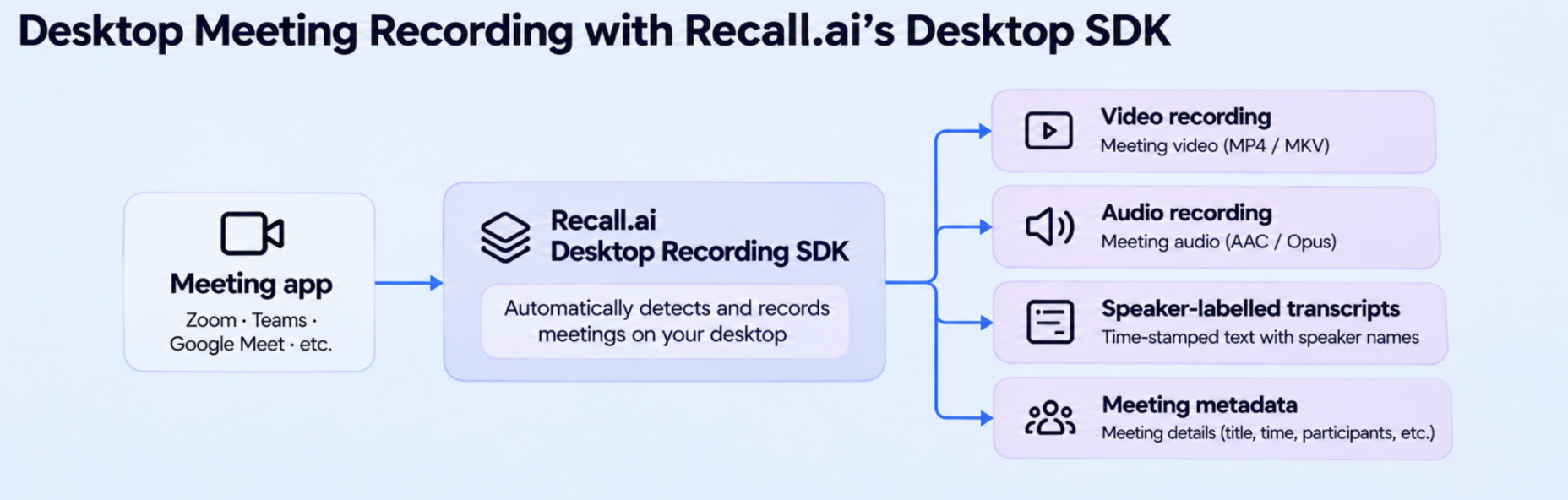
Recall.ai's Desktop Recording SDK is built to be integrated into a production app in a few minutes. The SDK addresses challenges like those mentioned above that would otherwise take months of engineering effort to identify, solve, test, and maintain. Meeting platforms like Zoom, Google Meet, and Microsoft Teams regularly change their user interfaces and accessibility APIs, potentially disrupting recording abilities. Recall.ai has a dedicated team that proactively monitors meeting platform changes, and adapts to changes to the UI, APIs, etc to ensure that recordings remain reliable.
Recording reliability is a challenge that is not immediately apparent when launching a new product. As a startup or a team launching a new product, you may initially only have a handful of users with one device setup. But as your user base grows, so does the complexity of supporting an increasingly diverse range of devices, configurations, and real-world edge cases. Reliably supporting different device configurations and meeting platforms requires ongoing engineering investment that involves a dedicated team of up to six engineers.
How to build a desktop recording app (Like Granola)
Developers using Recall.ai can focus on building features that use meeting data, rather than ongoing maintenance of the capture layer. Even though you purchase the capture layer, Recall.ai still allows you to retain control over where and how your meeting data is stored and when it’s deleted. The ability to build on reliable recording infrastructure while maintaining control over meeting data is one reason companies ranging from Fortune 500 enterprises to startups like Fireflies and Circleback trust Recall.ai.
If you are interested in building on meeting data with Recall.ai, you can sign up for a free account.
Appendix
Difference between WASAPI Capture and WASAPI Loopback Capture
| WASAPI Capture | WASAPI Loopback Capture | |
|---|---|---|
| Purpose | Captures audio from input devices | Captures audio from meeting audio |
| Audio source | Microphones | Speakers, headphones, AirPods |
| Capture method | Captures audio directly from input endpoint | Captures playback audio from an output endpoint |


