.avif)


.avif)

AVFoundation is Apple’s high-level media framework for capturing, processing and exporting audio and video in apps. This blog examines AVFoundation’s media capture APIs and explores how developers can use them to build products like a desktop meeting recorder.
A breakdown of AVFoundation APIs
Within AVFoundation’s media stack, the three commonly used capture APIs are AVAudioRecorder, AVAudioEngine, and AVCaptureSession. The right AVFoundation API for a project depends on what developers are building, as each API is designed for a different purpose.
AVAudioRecorder is the AVFoundation API to build an application like Voice Memos
AVAudioRecorder helps developers build simple voice recording features like when an application captures microphone audio directly to a file. However, because AVAudioRecorder does not expose live audio buffers, it is not well suited for applications that need to process speech with minimal latency, such as real-time transcription or voice activity detection.
AVAudioEngine is the AVFoundation API to build an application like Wispr Flow
AVAudioEngine provides live audio buffers, making it well-suited for developers building applications like Wispr Flow that do more than saving microphone audio to a file. With live audio buffers, developers can process and stream audio while the user is still speaking. This allows developers to send audio to a transcription service or trigger downstream actions with minimal latency.
However, developers who need camera capture in addition to live audio buffers should explore other options. AVAudioEngine is designed exclusively for audio recording.
AVCaptureSession is the AVFoundation API to build an application like Snapchat
AVCaptureSession provides live audio buffers alongside camera capture. It is well suited for developers building products that need synchronized video and microphone streams, such as Snapchat-style recording applications and live-streaming applications. But if you want more advanced audio processing, such as mixing, filtering or converting formats, you may want to use a different API.
The table below summarizes the capabilities and use cases of each API discussed above:
| Capabilities | AVAudioRecorder | AVAudioEngine | AVCaptureSession |
|---|---|---|---|
| Can record microphone audio | Yes | Yes | Yes |
| Records outgoing app audio | No | No | No |
| Records camera video | No | No | Yes |
| Direct access to live audio buffers | No | Yes, provides the most granular control | Yes |
| Output can be saved as a file | Yes | Yes | Yes |
AVFoundation’s documentation and examples, like all macOS APIs, are written in Swift, but using AVFoundation does not require building the entire application in Swift or SwiftUI. An Electron application can access AVFoundation through a native Swift module included in its macOS build.
If you are building a desktop meeting recorder like a Granola AI alternative, you need live audio buffers so the application can transcribe the conversation and use the transcript to trigger downstream workflows. Both AVAudioEngine and AVCaptureSession can provide live audio buffers. But AVAudioEngine offers more granular control through its node-based audio graph.
A node-based audio graph enables developers to build a customizable audio pipeline for processing and mixing microphone audio, in addition to receiving live audio buffers. AVCaptureSession, by contrast, uses an input-to-output capture model, so processing and mixing must be handled in a separate pipeline.
Because AVFoundation doesn’t capture outgoing app audio, developers building a desktop meeting recorder need both an additional capture method and a way to combine outgoing app audio with microphone audio. Combining audio sources is easier when developers have fine-grained control over audio processing , which is why AVAudioEngine is the most suitable AVFoundation API for building a desktop meeting recorder.
Building a desktop meeting recorder with AVFoundation
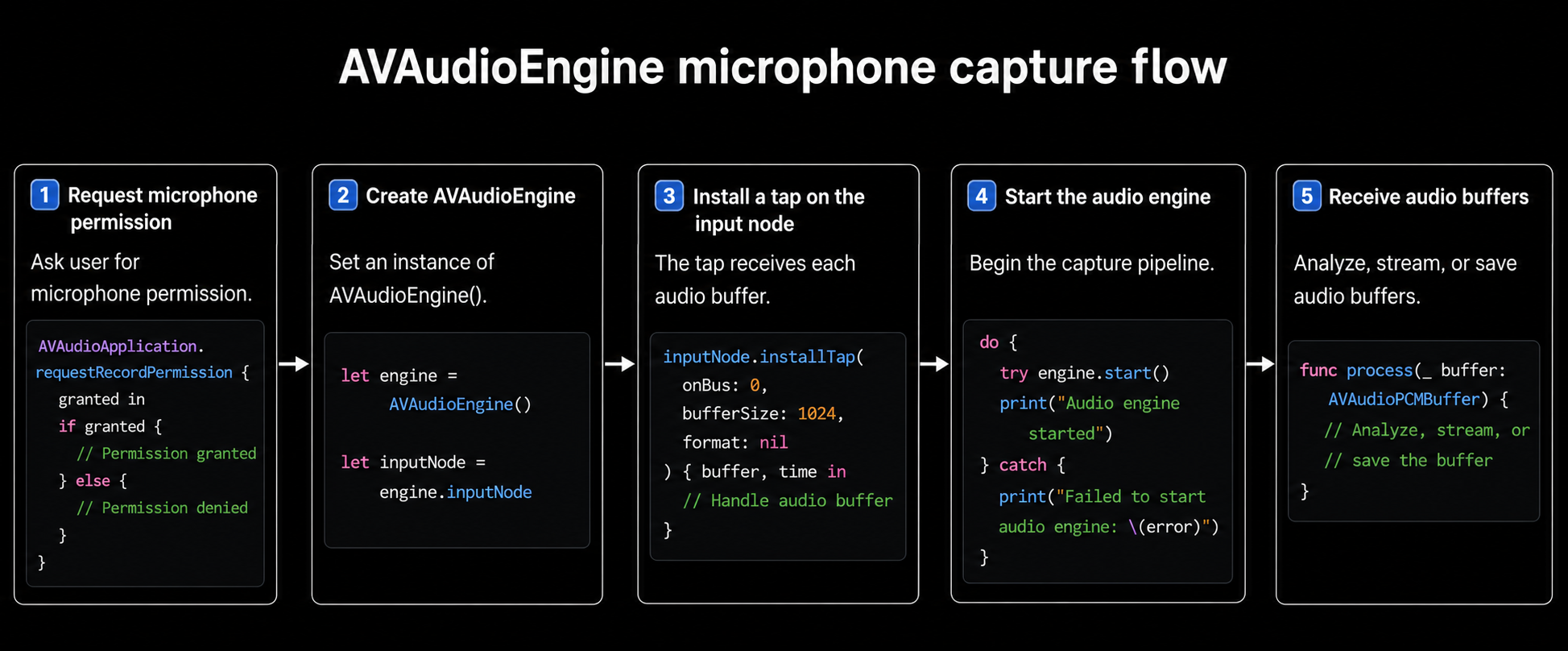
To implement microphone capture with AVAudioEngine when building a desktop meeting recorder, developers need to:
- Request microphone permission: AVAudioEngine uses the standard macOS microphone permission flow.
- Create an AVAudioEngine instance and access its input node: After the user grants access, the application creates an AVAudioEngine instance and retrieves its input node, which represents audio from the current microphone input.
- Install a tap on the input node to receive live microphone audio buffers: The application then installs a tap on the input node, allowing the AVAudioEngine instance to receive audio buffers as the microphone captures them.
- Start the audio engine: Call
AVAudioEngine.start()to begin real-time microphone capture. Once the audio engine is running, the tap installed on the input node starts delivering audio buffers to the application. Developers can then process, stream or save the captured audio buffers according to what the application needs.
The challenges when building microphone capture with AVFoundation
Implementing basic microphone capture with AVAudioEngine is straightforward, but making it resilient under real-world meeting conditions requires engineering effort. Developers must handle edge cases caused by user behavior such as device selection and audio-routing changes that can degrade captured audio quality.
It is important for a desktop meeting recorder to select the right microphone. When a user takes a meeting directly from a laptop, the built-in microphone is the only available input device. However, connecting the laptop to a dock, monitor, headset, or external audio device makes multiple microphone inputs available and device selection more complex. If the recorder chooses the wrong microphone source, the captured audio may sound distant, muffled, or noisy.
Selecting the appropriate microphone is only the first step. The recorder must also detect microphone input changes and reconfigure its capture pipeline when necessary. For example, if a user’s AirPods disconnect or run out of battery during a meeting, the desktop recorder needs to switch to another available microphone to keep recording the user's speech.
If the recorded microphone audio is distant, muffled, noisy, or missing parts of the meeting, the recording quality suffers. Because transcription accuracy is dependent on the quality and completeness of the recorded audio, selecting or switching microphones incorrectly will result in inaccurate transcripts, incorrect speaker labels, and unreliable action items.
To resolve these challenges, technical implementation beyond basic microphone capture is required. The application must first use Apple’s Core Audio API to enumerate the available devices with kAudioHardwarePropertyDevices, filter the list of devices that provide input channels, and read each device’s properties. It can then use this information to select the microphone.
The application must also register a Core Audio property listener for kAudioHardwarePropertyDefaultInputDevice to detect changes to the default input device during a meeting. When a change occurs, the recorder can identify the new microphone, update its audio configuration, reinstall the input tap if necessary, and restart AVAudioEngine so microphone capture can continue.
Even after handling microphone selection and device changes while maintaining reliable microphone capture, developers only have access to half of the audio in a meeting.
What AVFoundation does not capture
AVFoundation captures microphone input, but, as mentioned earlier, it does not capture outgoing audio from another application. Developers therefore need to use another API to record the audio produced by Zoom, Teams, or any browser-based meetings.
A meeting application’s outgoing audio includes speech from remote participants and any media played during the meeting.
One way to get outgoing audio is to use ScreenCaptureKit because it can capture screen video, programmatically record system audio, and microphone audio. Using ScreenCaptureKit eliminates the need to combine separate capture APIs. However, ScreenCaptureKit’s microphone capture ability is only available on macOS 15 and later. Developers who would want to support end users on earlier macOS versions will need to implement a fallback system.
A fallback system ensures that audio and video capture continues even when the primary capture method is unavailable due to the end user’s macOS version. For example, Core Audio process taps captures outgoing audio from a meeting, but this capability requires macOS 14.2 or later. On earlier versions of macOS, a recorder that uses Core Audio process taps or ScreenCaptureKit must fall back to a virtual audio loopback driver. Without this fallback, outgoing application audio will not be captured. An architecture that supports multiple capture paths accounts for these version-specific limitations.
After reliably capturing microphone audio and outgoing meeting audio, the next challenge is combining the streams into a single recording.
The complexity of synchronizing audio streams
Because microphone audio and outgoing application audio may be captured through different APIs and devices, the resulting streams can differ in timing, sample rate, channel layout, and audio format. Developers must normalize and synchronize these streams before mixing them into a single recording by converting streams into a common audio format and align their buffers using timestamps from a shared clock. Skipping this step, the final audio may become distorted, drift out of alignment, or contain gaps. The AVAudioConverter class can support the audio format transformation, but developers still need to implement the timestamp alignment logic independently.
After synchronizing the streams, developers must address the audio-quality issues that can arise when audio streams are combined. For example, when an end user is not wearing headphones, meeting audio is played through the device’s speakers and may be captured by the microphone, resulting in duplicated speech or echo.
If the challenges of audio synchronization and echo cancellation are not handled correctly, the final audio quality may contain missing or misaligned audio. As we discussed earlier in the incomplete microphone capture section, reduced audio quality will undermine both transcript accuracy and downstream workflows such as summaries and action items.
These audio challenges are not specific to AVFoundation. They arise whenever microphone audio and outgoing applications’ audio are captured separately and then combined. Developers use Recall.ai to avoid building and maintaining the complex audio and video infrastructure that a desktop meeting recorder requires.
How Recall.ai simplifies meeting capture
Recall.ai’s Desktop Recording SDK handles the capture layer of a desktop meeting recorder. Developers do not need to build separate media-capture pipelines or synchronize the streams afterward. Recall.ai handles real-world end-user edge cases, such as microphone changes and mute-state detection out of the box. Once developers integrate the Desktop Recording SDK into their application, they can access clear, echo-free audio and video meeting recordings, speaker-labeled transcripts, and other structured meeting data.
Developers know that downstream AI workflows, such as summaries, action items, and automations, are only as reliable as the quality of meeting artifacts received. The quality and completeness of those artifacts depend on whether the meeting was recorded successfully.
To improve recording reliability, the Desktop Recording SDK includes automatic meeting detection. The Desktop Recording SDK identifies when an end-user is in a meeting and prompts them to begin recording, reducing the risk of missed meetings. The Desktop Recording SDK also continuously uploads meeting data during the meeting, helping preserve data if the user’s device runs out of battery or loses internet connection.
All the aforementioned capabilities give developers a reliable way to receive audio streams, video streams, and speaker-labeled transcripts both in real time and after the meeting ends. Unlike any other meeting recording API including AVFoundation or other native mac APIs, Recall.ai considers easy audio and video recording table stakes. If you are interested in building with Recall.ai, you can sign up for a free account or book a demo.
Appendix
Node-based audio graph
A node is a software component in an audio pipeline with a specific role. For example, one node may represent microphone input, while others may play audio, mix audio streams, or send audio to an output.
AVAudioEngine manages a graph of connected AVAudioNode objects.
Developers can install a tap on a node to receive a copy of the audio buffers at that point in the graph. The tap’s location determines which stage of the audio pipeline the application observes. For example, a tap on the input node receives microphone audio near the beginning of the pipeline, while a tap on a mixer node receives audio after the relevant streams have been combined.
Input-to-output capture model
An input represents a camera or microphone. An output represents where the captured media is delivered, such as a file or a callback that receives live sample buffers.
Camera/microphone input -> AVCaptureSession -> Output
AVAudioEngine coordinates the flow of media from capture inputs to capture outputs. It can configure the capture devices, connections, formats, and outputs. Developers can also receive live sample buffers for custom processing. More advanced processing such as custom format conversion, mixing, filtering, must happen in a separate pipeline after the buffers are received.
FAQ for AVFoundation
What is AVFoundation?
AVFoundation is Apple’s high-level framework for capturing, processing, and playing audio and video media. The most relevant AVFoundation APIs for media capture are AVAudioRecorder, AVAudioEngine, and AVCaptureSession. Most developers do not use AVFoundation since newer native APIs and third-party APIs and SDKs make solving the same problems much less complex.
Can you use AVFoundation to build a desktop meeting recorder?
Yes, but only for microphone capture. A desktop meeting recorder must also capture screen video and the outgoing audio produced by the meeting application. Developers therefore need to combine AVFoundation with other macOS APIs, such as ScreenCaptureKit or Core Audio process taps.
What are the limitations of using AVFoundation to build a desktop meeting recorder?
AVFoundation addresses only the microphone-capture layer. However, many of the challenges like making microphone capture reliable and synchronizing and mixing audio streams are not specific to AVFoundation. Increasingly, building a desktop meeting recorder also requires video, which is a challenge for AVFoundation and other native APIs as discussed in this blog on how to build a botless recorder for meetings. Developers must solve these problems regardless of which native macOS APIs they use.
Is AVFoundation better than Core Audio process taps or ScreenCaptureKit for building a desktop meeting recorder?
These technologies are complementary rather than direct alternatives because they address different parts of the desktop meeting-recording pipeline without using a Local Recording API. AVFoundation can capture microphone audio, Core Audio process taps can capture audio produced by meeting applications, and ScreenCaptureKit can capture screen or window video and system audio but have limited operating system version compatibility. The best and simplest option is to use Recall.ai’s Desktop Recording SDK instead of a native macOS API.
Is there an easier way to build a desktop meeting recorder?
Developers can use Recall.ai’s Desktop Recording SDK that handles meeting detection, media capture and stream synchronization across both Windows and macOS. This allows engineering teams to focus on features such as summaries, action items, follow-up emails, and other downstream AI workflows.
Why should I use the Desktop Recording SDK when I can build a desktop recorder with AVFoundation?
AVFoundation can help developers implement microphone capture, but microphone capture is only one component of a desktop meeting recorder. As discussed above, implementing basic microphone capture with AVFoundation is straightforward. The challenge lies in building a reliable end-to-end infrastructure for end-users across different devices and operating systems.


