




In an earlier tutorial, we built a voice agent using AssemblyAI and Recall.ai. We connected it to meetings through a webpage that handled the audio between the agent and the call.
With Recall.ai's new direct integrations, we can take a different approach and integrate with agent frameworks directly.
This time, we're using Phonic, a platform for building real-time voice agents. Recall.ai handles the audio connection to Phonic, allowing us to focus on configuring the agent and giving it tools to interact with the meeting.
We'll use a small Python application that lets the AI meeting agent ask Recall.ai to share webpages in the meeting, post chat messages, and leave the call.
If you prefer another language, Recall.ai supports more than just Python. You can connect a coding agent or look at the API reference for each endpoint you’d like to hit to find the correct code for each language.
In this tutorial, I'll walk through the direct integration, how Phonic's tools connect to Recall.ai, and how to run the sample in Google Meet. The sample also supports Zoom, Microsoft Teams, and Webex.
You can follow along with the complete Phonic meeting agent sample on GitHub.
How does the Phonic integration work?
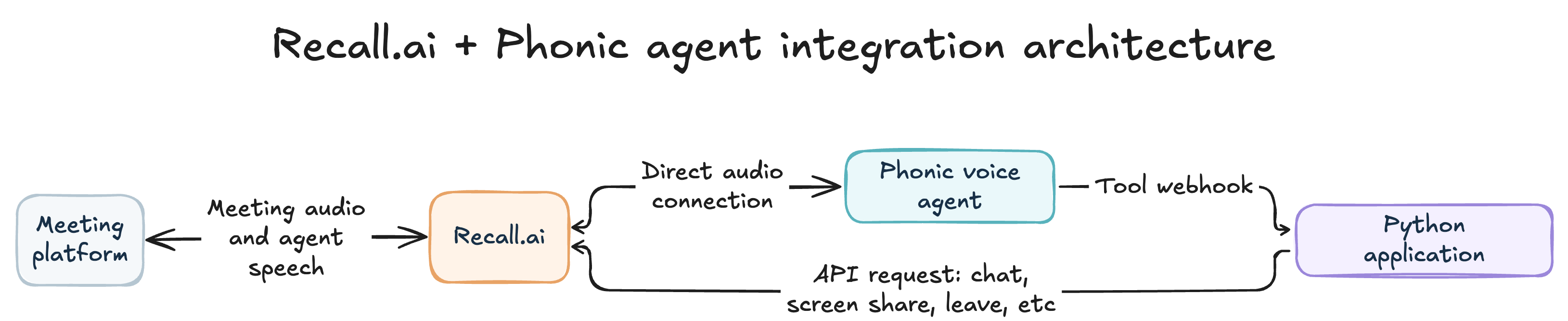
When someone asks the agent to share a webpage or post a message in chat, Phonic sends a tool request to our Python application. The application checks the request and calls Recall.ai's API to perform the action.
The sample uses Phonic for the agent's voice, while webpage screen sharing is handled separately through Recall.ai's Meeting Agent API.
1. Configure Phonic's direct audio connection
Let's start with the part that replaces the webpage-based audio setup that users have historically relied on to send agents into a meeting.
In app/recall_client.py, the application creates a bot using Recall.ai's Create Bot API.
Most of the request looks like a normal bot configuration: it includes the meeting URL, bot name, and platform settings.
However, in order to enable an agent to output into the meeting, we must configure output_media:
"output_media": {
    "audio": {
        "kind": "phonic",
        "config": phonic_config,
    }
}
Setting "kind": "phonic" tells Recall.ai to use its direct Phonic integration for the bot's audio.
We pass phonic_config alongside it, which tells Phonic how the agent should behave during this particular meeting.
The application constructs that configuration in app/agent.py.
Here's a shortened version:
def native_config(session_token: str) -> dict:
    duration = session_timeout()

    return {
        "project": project_name(),
        "system_prompt": INSTRUCTIONS,
        "voice_id": voice_id(),
        "default_language": "en",
        "generate_welcome_message": False,
        "no_input_end_conversation_sec": duration,
        "max_conversation_duration_sec": duration,
        "template_variables": {
            "session_token": session_token
        },
        "tools": [
            *(name for name, _, _ in TOOL_SPECS),
            {
                "type": "built_in",
                "name": "choose_not_to_respond",
                "tool_config": {
                    "respond_after_sec": None
                },
            },
        ],
    }
The project identifies the Phonic project we're using, system_prompt contains the agent's instructions, and voice_id selects the voice Phonic uses to speak. The sample defaults to sabrina, but you can change PHONIC_VOICE_ID in .env to use another voice available in your Phonic project.
We also pass the names of the tools that the agent can call, which we’ll look at in the next section.
We don't need to create a separate saved Phonic agent before launching the meeting. The application sends the agent's instructions and voice configuration with each Create Bot request.
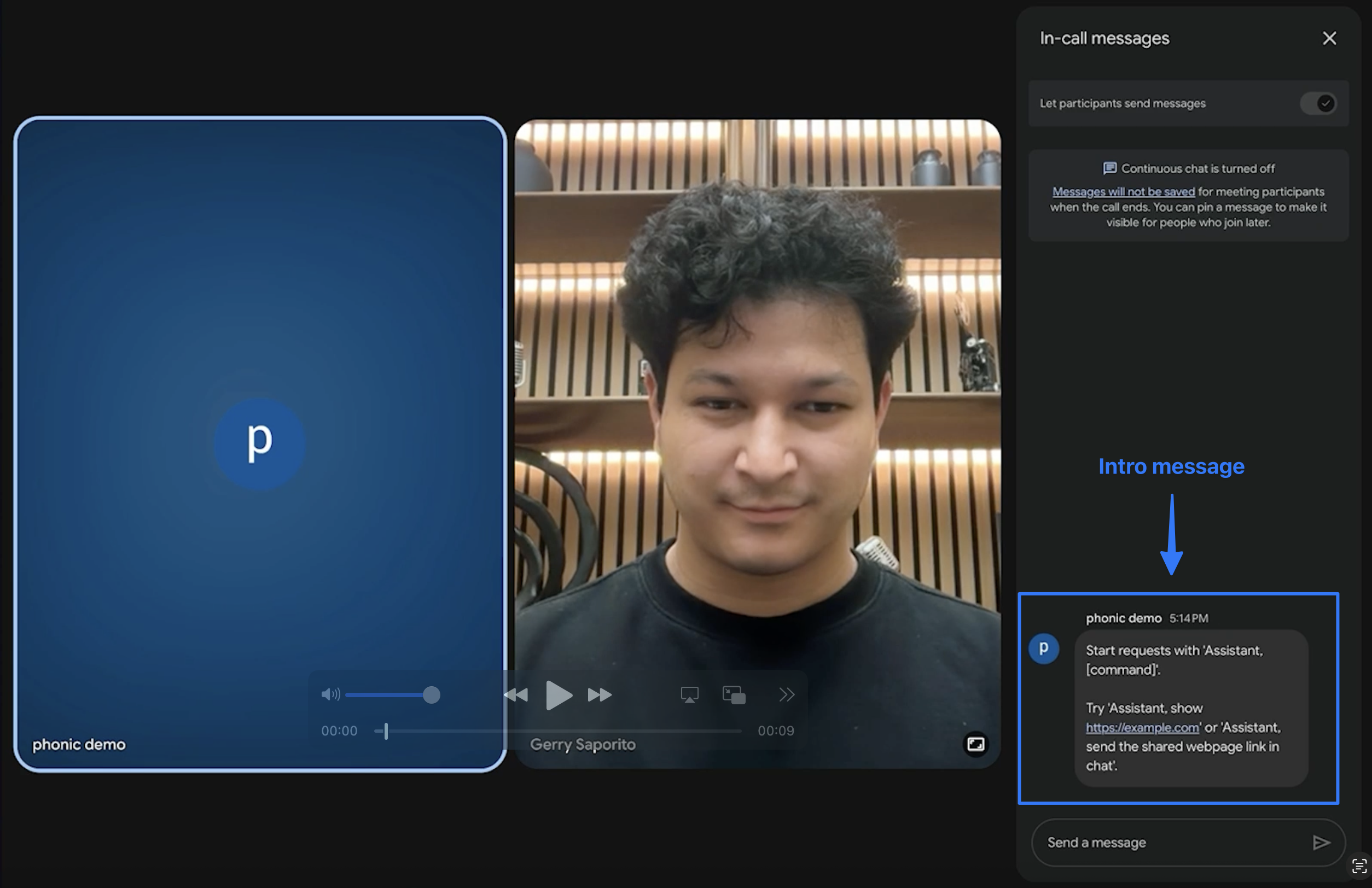
The sample app disables Phonic's spoken welcome message. For our Google Meet walkthrough, Recall.ai instead sends an introduction through meeting chat when the bot joins.
That works nicely for meetings. The agent can join without interrupting whoever is speaking, while participants still get a message explaining how to interact with it. However, this is a design choice that you can easily change if you need your agent to speak into the call to gather consent or supply instructions.
Decide when the agent should speak
Unlike a typical one-on-one voice conversation, a meeting contains plenty of speech that isn't directed at the agent.
We don't want the agent to respond every time someone in the meeting asks another participant a question.
The instructions in app/agent.py address this directly:
Only respond when someone addresses Assistant or phonic demo,
or clearly continues a request they already directed to you.

For conversation between other people,
use choose_not_to_respond.
The sample uses Phonic's built-in choose_not_to_respond tool to let the agent stay silent during unrelated conversation. For this demo, participants can get the agent’s attention by saying "Assistant" or "phonic demo" before making a request.
You can change these instructions in app/agent.py to suit your users’ needs. For example, you could give the agent a different name or instruct it to respond to questions directed at the whole group, rather than waiting to be addressed by name. You could also make it more selective, asking it to respond only when someone uses a specific phrase.
These are instructions to the model, not a separate filter that prevents unrelated audio from reaching Phonic. The agent still receives the meeting's mixed audio, so changing the instructions can influence when it responds but doesn't guarantee that it will always remain silent during other conversations.
2. Connect Phonic's tools to Recall.ai
The audio connection is now set up, but the agent still needs a way to act on requests in the meeting.
Phonic supports webhook tools, which let an agent make an HTTP request to another application when it decides to use a tool.
We'll use those webhooks to connect Phonic to Recall.ai's APIs.
The sample defines five tools:
| Tool | Meeting action |
|---|---|
start_screenshare(url) |
Share a public webpage |
send_chat_message(message) |
Post text in meeting chat, where supported |
send_current_page_link() |
Post the last accepted webpage URL in chat, where supported |
stop_screenshare() |
Stop sharing without leaving the meeting |
leave_call() |
Remove the bot from the meeting |
Register the webhook tools
Each tool points to an endpoint in our Python application.
For example, start_screenshare is configured to send a POST request to /tools/start_screenshare.
{
    "name": name,
    "type": "custom_webhook",
    "execution_mode": "sync",
    "endpoint_method": "POST",
    "endpoint_url": f"{tools_origin()}/tools/{name}",
    "endpoint_headers": {
        "X-Session-Token": "{{session_token}}",
        "X-Recall-Bot-Id": "{{recall_bot_id}}",
        "X-Recall-Api-Base-Url": "{{recall_api_base_url}}",
    },
}
Phonic sends the requested tool arguments in the request body and includes the meeting-specific values in the headers.
Those headers allow us to understand which Recall.ai bot a particular request belongs to when our Python server is handling more than one meeting.
When the application launches a bot, it creates a random session token and associates that token with the bot's ID and Recall.ai region.
Phonic receives the token through template_variables and includes it when calling a webhook.
The tool server checks the token, bot ID, and Recall.ai API origin before running the action.
This prevents Phonic from simply providing a different bot ID in the request and having our application act on an unrelated meeting. The server uses the session it created when launching the bot to decide which meeting the tool can control.
Trace a spoken request to a meeting action
Let's say someone in the meeting asks: Assistant, could you please share Recall.ai’s homepage?
Here's what happens:
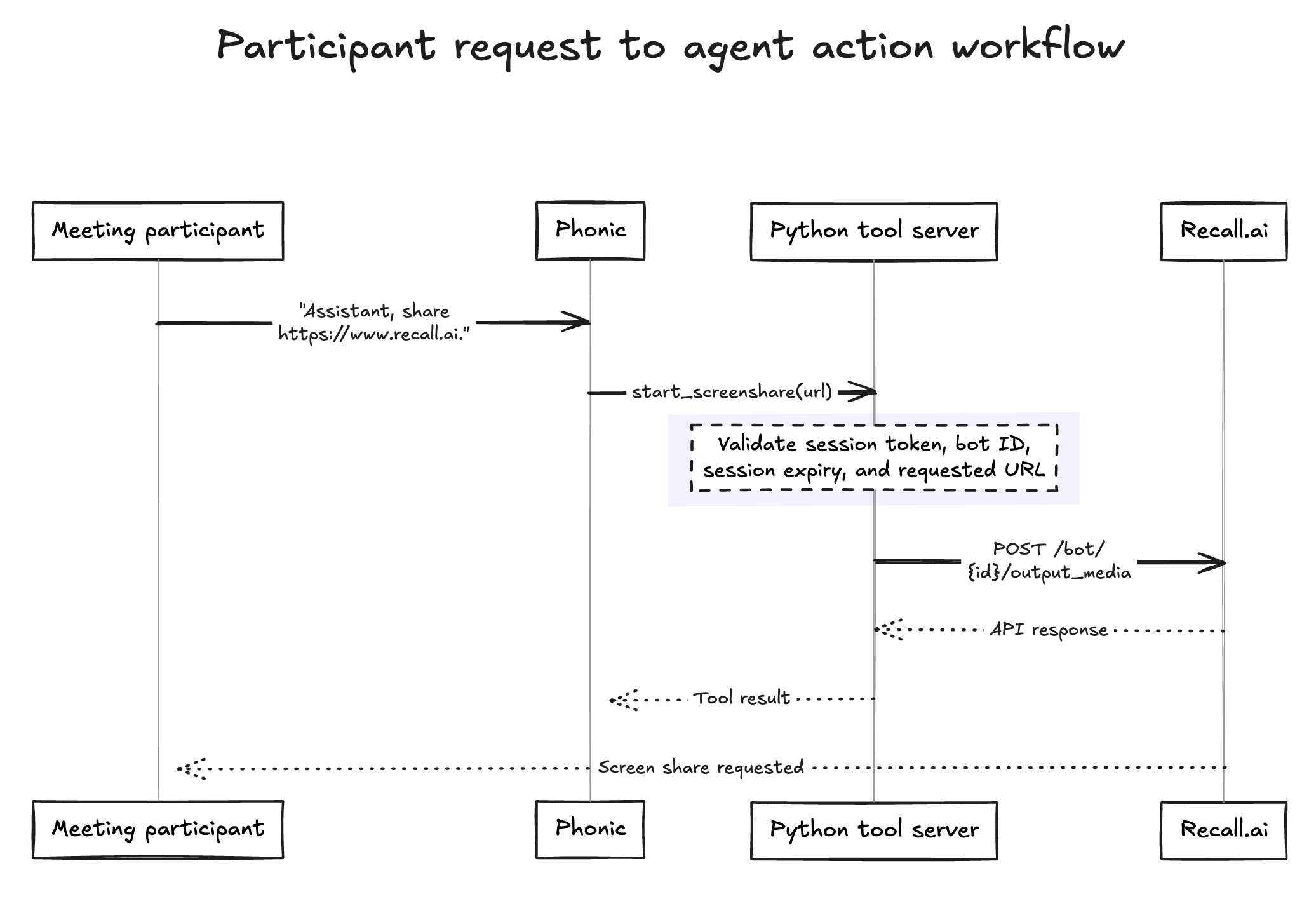
There's an important distinction here between the model requesting an action and the application executing it.
Phonic decides that start_screenshare is appropriate based on the participant's request. Our Python code is responsible for checking the arguments and determining whether the action is allowed.
Before requesting a screen share, the sample checks the URL to reduce the risk of loading sensitive or unintended resources. It requires HTTPS and rejects URLs containing embedded credentials or obvious private network addresses. For example, a participant shouldn't be able to ask the agent to load an internal company dashboard simply by providing its private IP address.
These checks don't make arbitrary URLs completely safe. The validator doesn't resolve every hostname to verify where it points, so a production application would need stronger URL validation.
The sample also checks that the session hasn't expired and that the tool request belongs to the correct bot.
Once those checks pass, the application can send the request to Recall.ai.
3. Use Recall.ai to share webpages and post links
The tool handlers themselves are fairly small because Recall.ai already provides APIs for the actions we're using.
For screen sharing, the application calls Recall.ai's Meeting Agent API:
async def start_screenshare(
    self, bot_id: str, url: str
) -> None:
    await self._request(
        "POST",
        self._bot_path(bot_id, "output_media"),
        "starting the screen share",
        {
            "screenshare": {
                "kind": "webpage",
                "config": {"url": url},
            }
        },
    )
You might have noticed that the screen-sharing configuration uses "kind": "webpage".
That's separate from the Phonic audio integration we configured earlier.
Recall.ai continues handling the agent's audio through Phonic while displaying the requested webpage as a screen share.
The fact that direct voice integrations and sending agents via a webpage aren't mutually exclusive allows users to select direct connection for audio and still use a webpage when they want to screenshare in the meeting. In instances, where the direct integration does not support video/image output, teams can use webpage-based outputting as a workaround to generate an avatar.
Remembering the last accepted screen share URL
Often, people may ask for the URL of content that was screen shared by the agent. However, because a URL might contain a long path or query parameters, asking the model to repeat it introduces an opportunity to change the address accidentally.
When Recall.ai accepts a screen-share request, the application saves the URL that was requested:
@dataclass
class MeetingState:
    current_page_url: str | None = None
    is_leaving: bool = False
If a participant later says: Assistant, could you send that link in the chat, please?
The agent calls send_current_page_link().
Storing the URL lets the tool send the exact address from the last accepted screen-share request, without asking Phonic to reconstruct it.
The application remembers the URL even after the agent stops sharing, so participants can request the link later.
What happens when an action fails?
The sample takes care not to confuse an accepted API request with a completed action.
For example, Recall.ai may accept a screen-share request before the webpage finishes loading in the meeting.
The application's response reflects that distinction: it reports that the screen share was requested, rather than claiming the page is already visible.
There's a similar consideration for actions that time out.
If the application asks Recall.ai to post a chat message but doesn't receive a response, it may not know whether the message was posted. Automatically retrying could send the message twice.
The sample therefore avoids automatically repeating actions whose results are uncertain.
These behaviors matter because an AI agent's spoken confidence isn't proof that something happened. The application still needs to treat external API results carefully.
4. Run the Phonic sample
Now that we've seen how the connections work, let's run the application.
You'll need Python 3.12, uv, a Recall.ai workspace with access to the Phonic integration, and a Phonic project.
You'll also need an HTTPS tunnel for Phonic's tool callbacks.
Install the application
Clone the repository and install the dependencies:
git clone https://github.com/recallai/agent-demo-phonic.git
cd agent-demo-phonic
uv sync --locked
cp .env.example .env
In .env, configure your Recall.ai and Phonic credentials:
RECALL_API_KEY=YOUR_RECALL_API_KEY
RECALL_API_BASE_URL=https://us-east-1.recall.ai/api/v1

PHONIC_API_KEY=YOUR_PHONIC_API_KEY
PHONIC_PROJECT=main
PHONIC_VOICE_ID=sabrina

PHONIC_TOOLS_ORIGIN=https://YOUR_TUNNEL_HOST
SESSION_TIMEOUT_SECONDS=600
Make sure RECALL_API_BASE_URL matches your Recall workspace's region.
You'll also need to save a Phonic API key in your Recall.ai workspace in the Recall.ai dashboard under Agents → Phonic.
There are two Phonic credential settings involved here, and they serve different purposes.
The Phonic API key saved in Recall.ai is used for the direct audio integration. The local PHONIC_API_KEY is used by the sample's setup command to configure the webhook tools in your Phonic project.
The application reads the local .env on the server. It doesn't send those API keys to the browser.
Start the tool callback tunnel
The sample runs two local HTTP servers:
| Port | Purpose |
|---|---|
8006 |
Local webpage for launching the meeting bot |
7866 |
Endpoint for receiving Phonic tool webhooks |
Phonic needs a public HTTPS URL to reach the tool server on port 7866. We can provide one using cloudflared, without opening that port to inbound internet traffic.
With cloudflared installed, run:
cloudflared tunnel --url http://127.0.0.1:7866
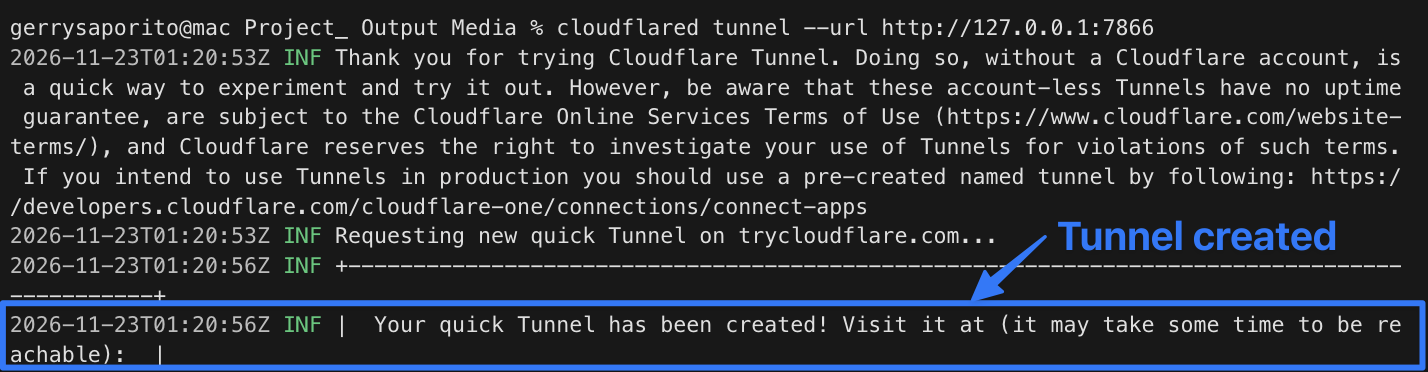
Copy the public HTTPS origin that cloudflared provides and add it to PHONIC_TOOLS_ORIGIN in .env.
Keep the tunnel running.
This tunnel doesn't carry meeting audio. It's only there so Phonic can reach our Python application's tool endpoints.
Recall.ai connects directly to Phonic to send meeting audio and play the agent's spoken responses.
For this sample app, the meeting launcher stays on localhost because it can create bots using your Recall.ai credentials. We don't want to make that functionality publicly accessible for this demo.
Configure the Phonic tools
Before launching a meeting, register the sample's five webhook tools in your Phonic project.
First, you can preview the configuration:
uv run --locked python -m app.agent --dry-run
Then create the tools:
uv run --locked python -m app.agent --setup-tools
The setup command saves the webhook definitions in the Phonic project you've configured.
If your tunnel URL changes, the saved tools will still point to the old address until you update them.
You can refresh the sample's tool definitions with:
uv run --locked python -m app.agent --setup-tools --update
The setup command checks existing tool names before making changes and won't silently overwrite unrelated tools. For that reason, I'd use a separate Phonic project for this demo if you're already using Phonic for another application.
Launch the agent
Start the application:
uv run --locked python -m app.web
Then open:
http://127.0.0.1:8006
You'll see a simple local webpage where you can enter a meeting URL and send the agent into the meeting.
This walkthrough uses Google Meet, but the sample launcher also accepts Zoom, Microsoft Teams, and Webex meeting links.
Create a meeting at meet.new, paste its URL into the launcher, and select Send agent.
If Google Meet asks you to admit phonic demo, accept the request.
The bot should join without speaking and post an introduction in Google Meet's chat, explaining how participants can interact with it.
Try the demo
Once the bot is in the meeting, try a few requests.
These examples use Google Meet, where Recall.ai supports posting messages in meeting chat. If you're testing another platform, check its chat capabilities before trying those commands.
| Say this | What to look for |
|---|---|
| "Assistant, could you please introduce yourself?" | The agent answers aloud. |
| "Assistant, could you share the recall.ai homepage?" | A webpage screen share starts. |
| "Assistant, could you send that link in chat, please?" | The exact URL from the last accepted screen-share request appears in chat. |
| "Assistant, could you share https\://www.recall.ai/agents instead?" | The new webpage replaces the previous one. |
| "Assistant, could you stop sharing, please?" | The screen share stops, but the voice agent stays in the meeting. |
| "Assistant, could you post 'Thanks for joining the demo!' in chat?" | The requested message appears in chat. |
| "Assistant, could you please leave the meeting?" | The bot requests to leave the call. |
You can also try having two participants talk to each other without addressing the agent, then ask a direct question that starts with "Assistant" to get the agent to reply.
That helps demonstrate the difference between conversation the agent is supposed to respond to and conversation it should ignore.
Remember that the addressing behavior is model-guided, not a guaranteed filter. I'd test it with several participants and normal interruptions before using the same approach in a more demanding meeting.
By default, the sample allows each session to run for up to ten minutes, starting when the launcher requests the bot. The agent can leave earlier if asked. When the time limit is reached, the application invalidates the session token and requests that the bot leave the meeting.
What I'd change for a production application
This sample keeps most of its complexity in the tool callbacks and meeting-session handling. In order to move from a demo to production, there are a few things that I’d recommend you update.
First, the application stores active meeting sessions in memory. Restarting the Python process clears those sessions, including the information needed to authenticate tool calls. A production deployment with multiple application instances would need shared session storage.
Second, I'd strengthen the URL validation for webpage sharing. The sample rejects obvious local and private addresses, but it doesn't resolve arbitrary hostnames to check whether they lead to internal network resources.
I'd also think carefully about which actions the agent can execute without confirmation. Posting a link in chat is relatively straightforward. If I later added tools that modified external systems, such as changing a project milestone or sending an email, I'd want clearer permission boundaries and probably a human approval step.
Finally, I'd test the app with users to see if any additional tuning needs to happen to fit the agent experience to your use case and make sure your agent is appropriately listening and responding. Tool configuration and successful API responses tell us that the pieces are connected, but they don't establish how well the agent handles interruptions, uncertain requests, or situations where a shared webpage takes time to load.
Finally, Python application doesn't save meeting transcripts or recordings, but that doesn't mean the meeting isn't recorded. The sample doesn't configure recording behavior, so Recall.ai uses its default setting to start recording automatically. For a production application, I'd configure recording and retention explicitly and review Phonic's data-handling settings as well.
Final thoughts
This sample app is intended to show how easy building with one of Recall.ai’s direct integrations is. Recall.ai connects the meeting directly to Phonic. The Python application creates the bot and exposes a few tools for meeting actions. The application doesn't need to handle the agent's audio to make interacting with the agent possible.
That leaves room to expand the AI agent for meetings without rebuilding its audio connection. You could add tools for looking up information, checking the status of a project, or preparing follow-up work, depending on what participants need during a call.
When adding functionality, the same basic pattern would apply: configure the agent in Phonic, let Recall.ai handle the meeting connection, and use your application to validate and execute any actions the agent requests.
To try it yourself, take a look at the Phonic sample repository, the Phonic integration documentation, and Recall.ai's guide to adding tools to meeting agents.


