


LiveKit Agents lets developers build voice and multimodal AI agents that listen, respond, and perform actions in real time. With Recall.ai, those agents can also join meetings on Zoom, Google Meet, and Microsoft Teams without developers having to build separate integrations for each platform.
To show how this works, we built a sample agent that joins Google Meet with an animated avatar, answers questions, shares webpages, sends messages in chat, and responds to commands like muting itself or leaving the meeting.
In this tutorial, we'll walk through how we connected Recall.ai to LiveKit, added meeting actions using function tools, and handled some of the challenges that come with putting an AI agent into a conversation with multiple people.
You can find the complete implementation in our LiveKit agent demo repository.
How Recall.ai and LiveKit work together
LiveKit Agents handles the agent's conversation, including speech processing, model inference, and tool calling. Recall.ai handles joining the meeting, connecting its media to LiveKit, and providing APIs for meeting actions.
For the sample app, we also used Runway to generate an animated avatar and a small Python launcher to create the Recall.ai bot.
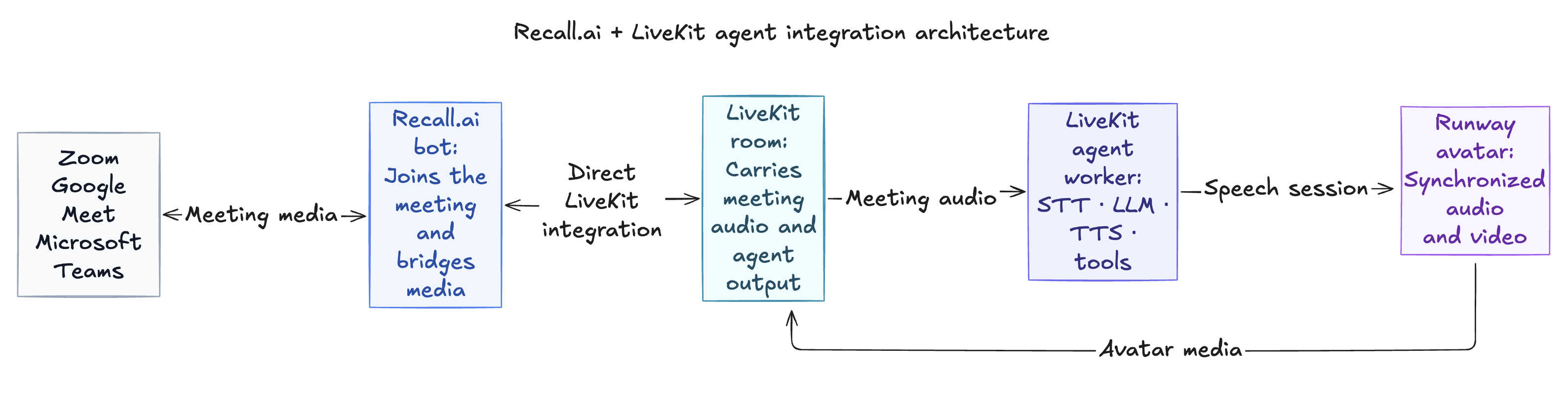
There are two Python processes in the application:
- A LiveKit worker that runs the agent.
- A launcher that accepts a meeting URL and creates a Recall.ai bot.
Previously, Recall.ai's Meeting Agent API supported streaming audio and video into meetings through a webpage. Now, the API also supports direct integrations with providers like LiveKit, allowing developers to send media into meetings without rendering it in a webpage first.
That works well for this sample app because LiveKit already handles the agent's speech and Runway generates its avatar. The agent can send media to Recall.ai without building a separate webpage for the agent's camera output.
To use the integration, you'll need to enable LiveKit in your Recall.ai workspace and configure it with credentials from the LiveKit project running your agent.
Connect the LiveKit agent to a meeting
The sample application uses Google Meet, but the underlying integration also supports Zoom and Microsoft Teams.
The launcher creates a Recall.ai bot using a meeting URL. In app/recall_client.py, the relevant configuration looks like this:
//@title app/recall_client.py
{
    "meeting_url": meeting_url,
    "bot_name": BOT_NAME,
    "variant": {"google_meet": "web_4_core"},
    "output_media": {
        "camera": {
            "kind": "livekit",
            "config": {"agent_name": agent_name}
        }
    },
}
The important part is output_media.camera.kind, which is set to livekit. This tells Recall.ai to use the direct LiveKit integration for the bot's camera output.
The agent_name identifies which LiveKit agent should handle the session. It needs to match the name used when registering the worker:
@server.rtc_session(
    agent_name=require_env("LIVEKIT_AGENT_NAME")
)
async def entrypoint(ctx: agents.JobContext) -> None:
Both the launcher and worker read LIVEKIT_AGENT_NAME from the environment, so they use the same value.
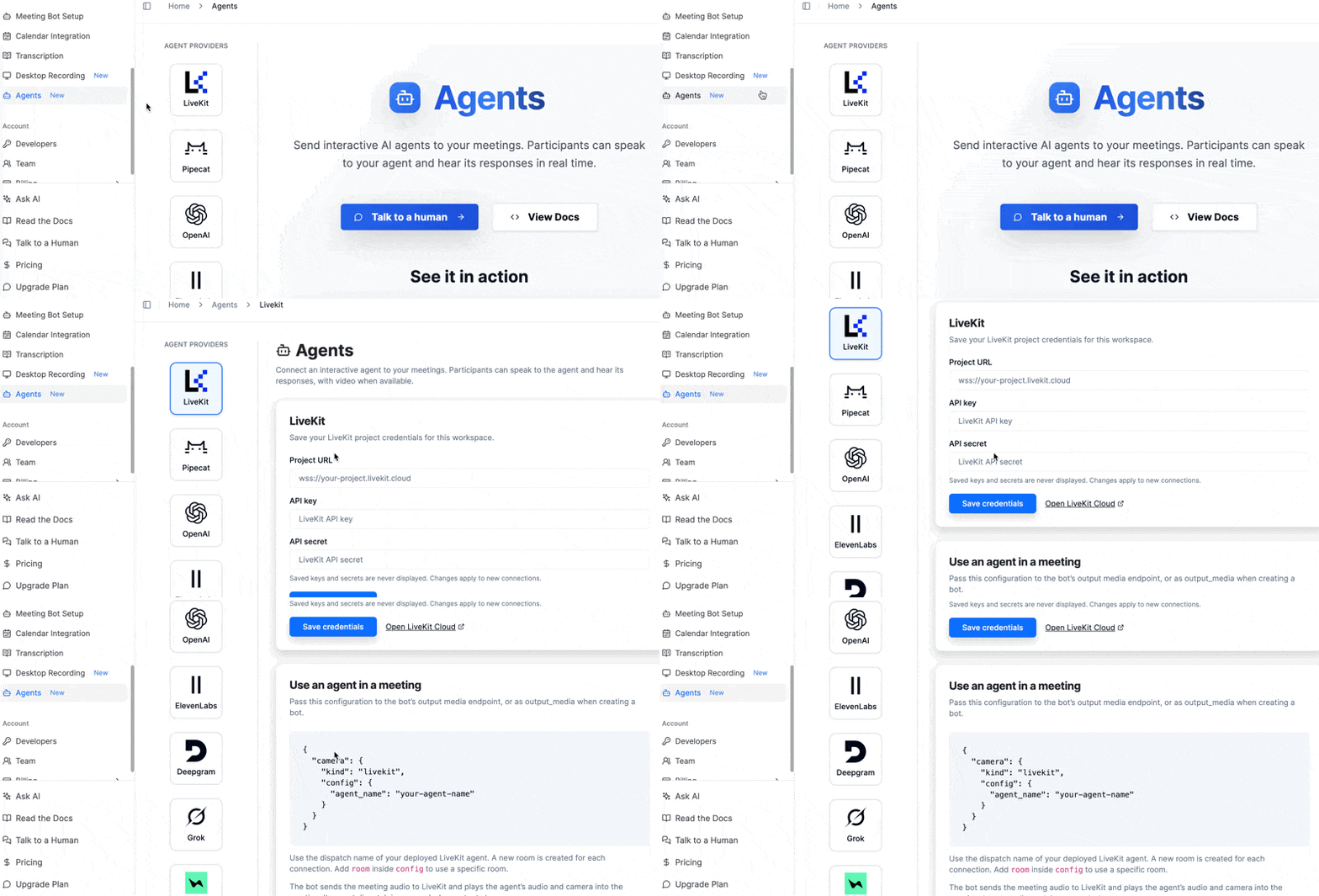
The LiveKit credentials configured in Recall.ai also need to belong to the same project as the worker. You can set those up under Agents → LiveKit in your Recall.ai workspace.
Making Recall.ai's meeting APIs available to the agent
Connecting the bot to LiveKit handles the media, but the agent also needs a way to perform actions in the meeting.
For example, if a participant asks the agent to share a webpage, as Gerry does above, the tool needs to know which Recall.ai bot should perform that action.
When Recall.ai connects the bot, it passes the bot ID and regional API URL through the LiveKit job metadata. The sample uses those values to create a Recall.ai API client for that meeting.
This keeps the agent's tools tied to the correct bot. The same agent implementation can handle different meeting sessions without hardcoding a bot ID or API region.
The launcher currently validates Google Meet URLs and uses a Google Meet-specific bot configuration. Supporting Zoom or Microsoft Teams in the sample would require updating that launcher, but the LiveKit integration would not need to be replaced.
Add speech and an animated avatar
The demo uses a LiveKit AgentSession with LiveKit Inference for speech-to-text, language generation, and text-to-speech.
The model and voice settings are stored in environment variables, so they can be changed without modifying the Recall.ai integration.
To give our agent some personality, we also added an animated avatar using Runway:
avatar = runway.AvatarSession(
    preset_id=require_env("RUNWAY_PRESET_ID"),
    api_key=require_env("RUNWAYML_API_SECRET"),
    avatar_participant_name=BOT_NAME,
    max_duration=int(require_env("RUNWAY_MAX_DURATION")),
)

await avatar.start(session, room=ctx.room)
await avatar.wait_for_join()
Runway generates the avatar media, which Recall.ai delivers into the meeting through the bot's camera.
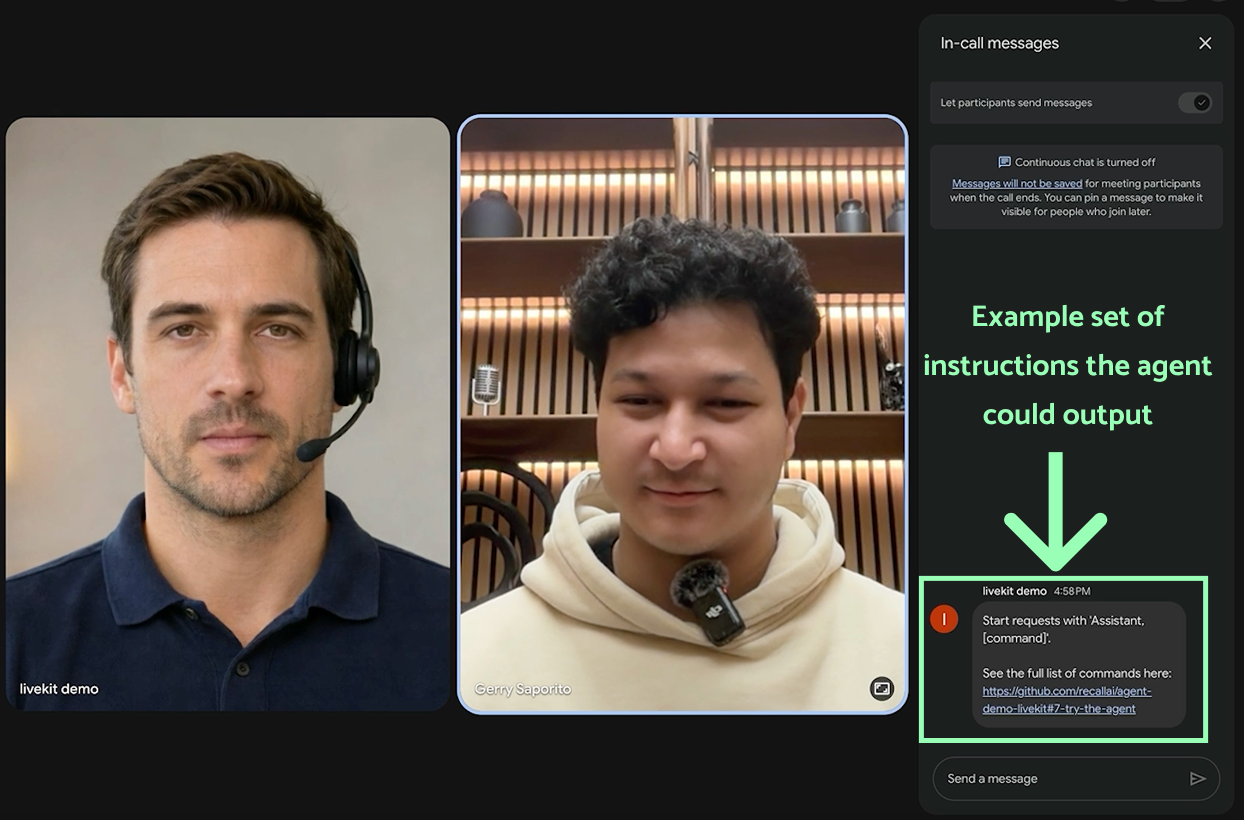
The agent joins silently. Once the avatar connects, the agent posts instructions in the meeting chat so participants know how to interact with it.
If you prefer to use another avatar generation tool or an audio-only agent, the Runway code can be updated or removed.
For this sample, the avatar makes it easier to see when the agent is participating, but the meeting connection works independently of that choice.
Give the agent tools for meeting actions
An agent that can answer questions is useful, but sometimes participants need it to take action during the meeting. We connected LiveKit's function tools to Recall.ai's meeting APIs so the agent could respond to requests like sharing webpages, posting messages in chat, or leaving the call.
Function tools let the language model request actions implemented in Python. In this demo, those actions include sharing webpages, sending messages in chat, stopping screen sharing, and leaving the meeting.
For example, someone can say: Assistant, share https://www.recall.ai/agents.
The agent calls a function tool that sends a screen-sharing request to Recall.ai.
In app/recall_client.py, that request looks like this:
//@title app/recall_client.py
async def start_screenshare(self, bot_id: str, url: str) -> None:
    await self._request(
        "POST",
        self._bot_path(bot_id, "output_media"),
        "starting the screen share",
        {
            "screenshare": {
                "kind": "webpage",
                "config": {"url": url}
            }
        },
    )
Using LiveKit for camera output and a webpage for screen sharing
Earlier, we configured the bot's camera with kind: "livekit". Here, the screen-sharing request uses kind: "webpage".
That's because the two outputs serve different purposes.
LiveKit provides the agent's speech and avatar. When the agent needs to show a webpage, Recall.ai can render that page separately and share it into the meeting.
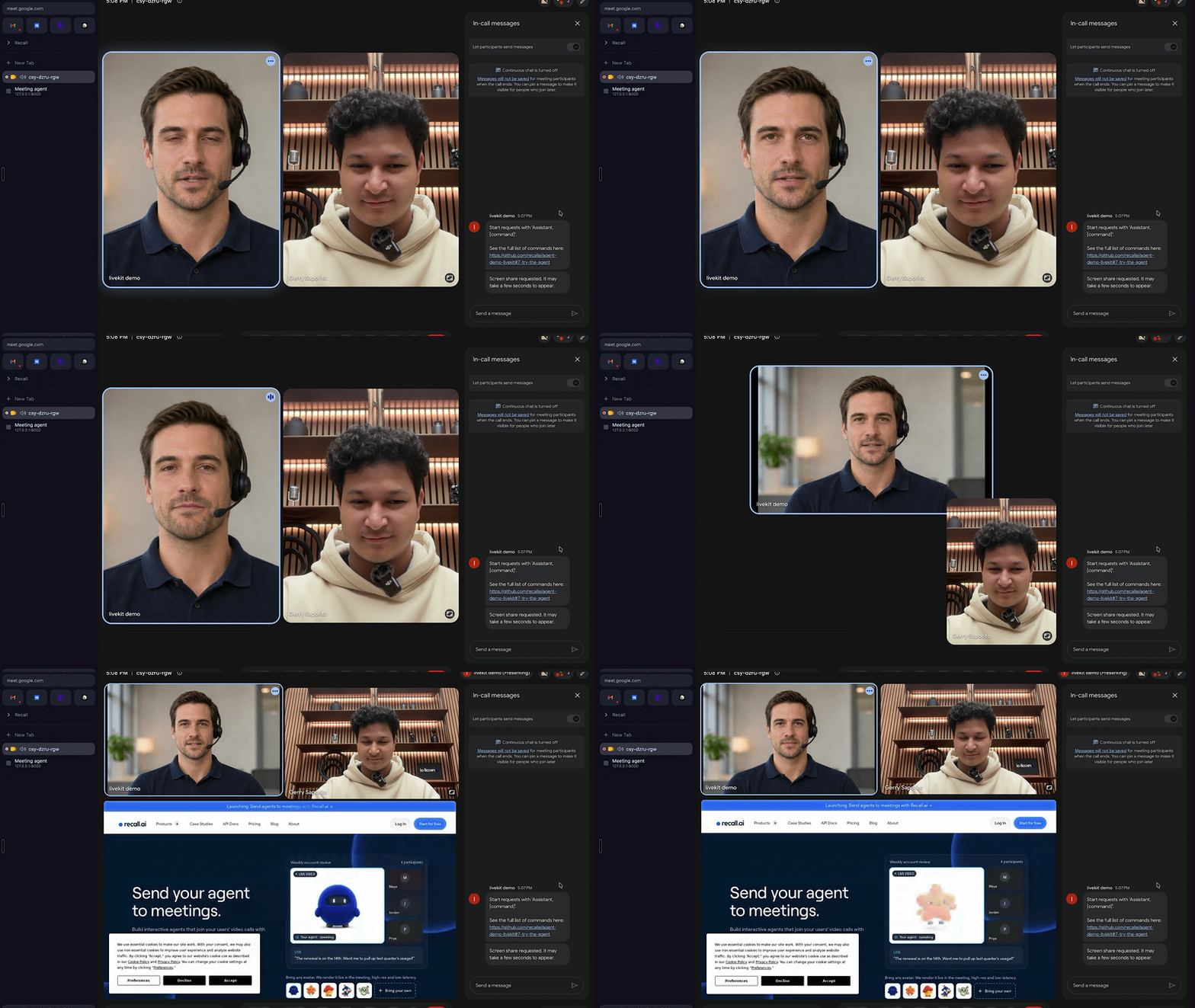
The direct LiveKit integration doesn't prevent the bot from using the Meeting Agent API to serve webpages. Both approaches can be used in the same meeting, depending on where the content is coming from.
For this demo, there was no reason to render the agent's avatar in a webpage, since Runway was already producing that media. But webpage streaming is still useful for sharing content that should be displayed in a browser, like interactive dashboards or presentations.
Sending links and messages in meeting chat
As anyone who has been in a large company meeting can tell you, communication doesn’t just happen via audio and video. The chat is an important source of information (and memes), so the sample also lets participants ask the agent to participate in the meeting chat.
One small feature we added is keeping track of the last shared URL. After the agent starts sharing a webpage, someone can say: Assistant, send that link in chat.
The agent can post the link without requiring the participant to repeat the URL out loud.
This works because the application stores the URL when the screen-sharing request is made. The chat tool can then use that stored value when the participant refers to the previously shared page.
Handling tool requests safely
The language model decides when to request a tool, but the Python code determines what the tool actually does.
For screen sharing, the sample validates URLs and only accepts public HTTPS webpages. A participant shouldn't be able to make the bot fetch an arbitrary internal address just by asking the model to share it.
The screen-sharing tool also distinguishes between requesting an action and confirming that it has completed.
When Recall.ai accepts a request to start screen sharing, the page may not be visible in the meeting immediately. The tool reports that the request was made rather than telling the agent that screen sharing has already started.
Control when the agent participates
In a meeting, not every question is directed at the agent. So if the agent responds to everything it hears, it can end up interrupting other participants.
In the demo, we added transcript-based activation phrases so the agent only responds when someone addresses it with “Assistant” or “LiveKit Demo.” By checking completed speech utterances, we also prevent unrelated conversations from interrupting the agent while it's speaking.
Why the agent checks requests before responding
LiveKit supports handling interruptions during a conversation, which is useful when someone is speaking directly to an AI assistant.
In a meeting, though, other participants might talk while the agent is responding. That shouldn't necessarily interrupt the agent's current answer.
The sample filters incoming speech so that requests not addressed to the agent don't enter its conversation or trigger interruptions.
It waits for a completed utterance before deciding whether to process the request. This keeps ordinary meeting conversation from becoming part of the agent's active exchange.
The approach is deliberately simple. Requiring participants to say the agent's name is easier than trying to infer whether every question in the meeting is intended for the assistant.
Other applications might make a different choice. An AI interviewer or facilitator, for example, may need to respond without being addressed by name.
Muting isn't the same as ignoring requests
The sample app distinguishes between muting the agent and telling it to ignore requests.
When muted, the agent stops speaking but can still perform meeting actions. Someone could ask it to share a webpage or post a message during a presentation, and it will do so without producing a spoken response.
When ignoring requests, the agent stops responding and performing actions until someone explicitly tells it to listen again. Any requests received in the meantime are discarded, so they won't be executed when listening resumes.
The two states are independent. If the agent was muted before it stopped listening, it stays muted when listening resumes.
These behaviors are defined in the sample's conversation logic, so developers can adjust them based on how they want their agent to participate in meetings.
Run the demo
The complete application is available in our LiveKit agent demo repository.
For the Google Meet example, you'll need:
- Python 3.12 and
uv - A Recall.ai workspace with the LiveKit integration enabled and a REST API key
- A LiveKit Cloud project with access to LiveKit Inference
- A Runway API key with Characters access and a character preset
- A Google Meet meeting to test with
Clone the repository and install the dependencies:
git clone https://github.com/recallai/agent-demo-livekit.git
cd agent-demo-livekit
uv sync --locked
cp .env.example .env
Add your Recall.ai, LiveKit, and Runway credentials to .env.
Make sure the LiveKit credentials configured under Agents → LiveKit in your Recall.ai workspace match the project running your worker. The launcher and worker should also use the same LIVEKIT_AGENT_NAME.
Start the LiveKit worker in one terminal:
uv run --locked python -m app.agent dev
Once the worker registers, start the launcher in another terminal:
uv run --locked uvicorn app.web:app --host 127.0.0.1 --port 8000
Open http://127.0.0.1:8000, paste a Google Meet URL, and select Send agent.
Admit the bot if Google Meet prompts you. Once the avatar connects, the bot posts instructions in the meeting’s chat.
You can then try:
- "Assistant, what is two plus two?"
- "Assistant, share https://www.recall.ai/agents."
- "Assistant, send that link in chat."
- "Assistant, mute and post 'Hello from the demo' in chat."
- "Assistant, unmute."
- "Assistant, leave."
A few limitations for the sample application
The sample is designed for local development. Its launcher doesn't include application authentication, so it should stay bound to localhost rather than being exposed publicly.
The sample focuses on voice interactions and meeting actions. It doesn't analyze shared webpages or save transcripts and conversation history, but both are possible extensions. Recall.ai provides access to meeting video, including screen shares, as well as real-time transcript events that developers can process and store.
If you're adapting the sample app for production, you'll need to consider authentication, session cleanup, provider failures, and which meeting actions your agent should be allowed to perform.
Build your own meeting agent
This sample app shows how LiveKit and Recall.ai can work together to build agents that listen and participate in meetings.
LiveKit handles the conversation and tool logic, while Recall.ai connects the agent to Zoom, Google Meet, and Microsoft Teams and provides APIs for interacting with those meetings.
You could extend the sample app to retrieve documentation and share relevant resources, post information in chat, or help facilitate discussions. The same approach works for different agent behaviors, from assistants that only respond when addressed to agents that participate more actively.
Explore the sample application to try it yourself, or read more about Recall.ai's Meeting Agent API and LiveKit Agents. For more information on Recall.ai’s direct integrations with agent frameworks, check out the docs or the agents page.


