


.avif)


Tl;dr: In this article, I’ll build an AI agent that joins an online meeting and talks with participants using the AssemblyAI Voice Agent API and the Recall.ai Meeting Bot API. If you want to see the full implementation, you can find the source code in the AI voice agent repository.
AI notetakers join meetings all the time, but most of them don’t have anything to say until the call is over. That’s fine if you just want a summary of the whole meeting, but what if you need an up-to-date analysis of the conversation so far, or have a question about something that came up earlier? Ideally, you should be able to talk to the bot and get an answer back immediately.
In this sample app, I’ll build an interactive AI voice agent that you can send to your own meetings. It can answer questions, refer to documents uploaded before a call, and use tools to perform specialized actions.
What is an AI voice agent for meetings?
An AI voice agent for meetings is software, typically a bot, that joins your calls to record, transcribe, and summarize them and acts on what was said during or after the call. AI meeting agents can either simply receive data from the meeting and use that information to power processes outside of the meeting or they can be interactive, both receiving information from and sending information to the meeting.
A preview of what we’re building
AI meeting agent architecture
Building a project like this from scratch would normally mean handling meeting audio, real-time transcription, LLM responses, text-to-speech, and streaming the agent's audio back into the call. Fortunately in this sample, almost all of that infrastructure is handled by two APIs.
The AssemblyAI Voice Agent API takes care of the live conversation including transcription, LLM analysis, and text-to-speech. All I need to do is provide some configuration and context for the agent to use. In this sample app, the agent will be embedded into a webpage so that you can interact with it by opening the webpage in a browser:
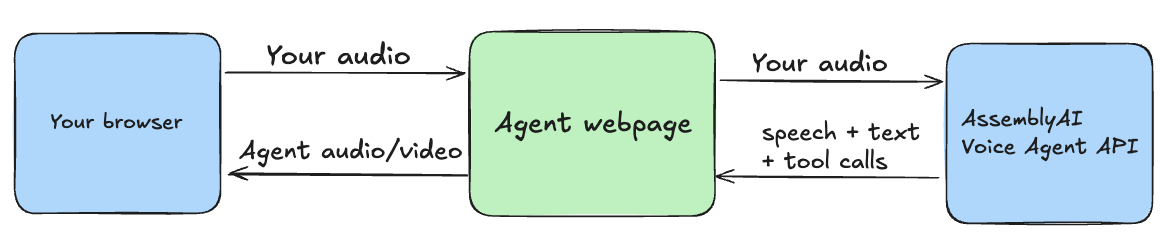 This gives me a working voice agent, but it’s still stuck inside the browser. To get the agent into an online meeting, I’ll be using the Recall.ai Meeting Bot API. Recall.ai meeting bots have their own web browser, which means they can open and run a webpage while they’re inside a call. Once the bot joins, it will load the contents of the agent webpage and start streaming it into the meeting:
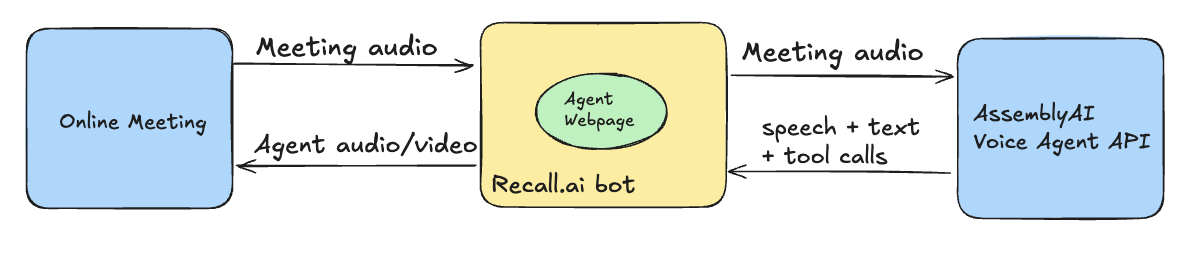
Put simply, Recall.ai gets the agent into the meeting and AssemblyAI handles the real-time voice interaction. With those pieces handled, the rest of the sample is a relatively simple web app built with TypeScript, Express, and the Web Audio API.
Does your application use a different tech stack?
Coding agents (e.g. Codex, Claude Code, Cursor) are able to easily translate between different programming languages and frameworks. If you ask your coding agent to refactor this application to the programming language of your choice, it should be able to one shot the change!
Step 1: Build a voice agent with the AssemblyAI Voice Agent API
Before worrying about the meeting itself, I’m going to build the voice agent as a normal webpage. Once I have it working in my own browser, I can use Recall.ai to run that same page inside the meeting bot.
Connect the webpage to AssemblyAI
Since this code will be running in a browser, I need to make sure not to expose any sensitive API keys. AssemblyAI allows you to mint a temporary token that’s only valid for a specific session, so the browser can connect without ever seeing the API key.
//@title src/server/voice-agent.ts
const { token } = await request<{ token: string }>("AssemblyAI token", {
  url: "https://agents.assemblyai.com/v1/token",
  headers: { Authorization: `Bearer ${apiKey}` },
  params: { expires_in_seconds: 300, max_session_duration_seconds: 8640 },
});
The webpage fetches this temporary token and uses it to open a WebSocket connection to AssemblyAI:
//@title src/client/agent.ts
ws = new WebSocket(
  `wss://agents.assemblyai.com/v1/ws?token=${encodeURIComponent(token)}`
);

ws.addEventListener("open", () => send(sessionUpdate()));
Configure the voice agent
Once connected, the webpage sends a session.update event to AssemblyAI containing the agent’s configuration:
{
  type: "session.update",
  session: {
    system_prompt: config.systemPrompt,
    greeting: config.greeting,

    input: {
      format: { encoding: "audio/pcm" },
      language_codes: ["en"],
      voice_focus: "far-field",
      voice_focus_threshold: 0.85,
      transcription_prompt: config.transcriptionPrompt,
      keyterms: config.keyterms
    },

    output: {
      voice: config.voice,
      format: { encoding: "audio/pcm" },
    },
  },
}
system_prompt controls the agent’s personality and tone. Since the agent will be in a group setting where most of the conversation will not be directed towards it, I’ve added explicit instructions about this in the system prompt. I tell it to respond only when someone addresses it directly and to return SKIP otherwise. The client checks the beginning of each response and suppresses the audio entirely if the model returns SKIP, so participants never hear it spoken aloud.
transcription_prompt gives AssemblyAI’s Universal-3.6 Pro Realtime model additional context about the conversation, such as what the meeting is about and what kind of discussion the model should expect.
keyterms is a good place to include participant names, company names, product names, and anything else you think the model might struggle to transcribe correctly.
This sample also sets voice_focus to far-field. AssemblyAI offers two options for this mode: near-field is for scenarios where the speaker is close to the microphone (e.g. headsets and phone handsets), while far-field is for scenarios where the speaker is further away (e.g. laptop microphones and conference rooms). Since the meeting bot will be receiving audio from participants using a range of devices and environments, I chose far-field to get better performance in less controlled microphone setups.
Once the session is configured, the webpage uses browser audio worklets to capture microphone audio and send it to AssemblyAI as input.audio events. AssemblyAI streams the agent’s speech back as reply.audio events, which the page plays through the browser.
Give the agent context from uploaded documents
To make the agent useful during the meeting, I need to give it context on what the meeting is actually about. In this sample, users can upload documents like project briefs, documentation, or agendas before starting the agent. All of the text is automatically extracted from these documents and added to the agent’s system prompt.
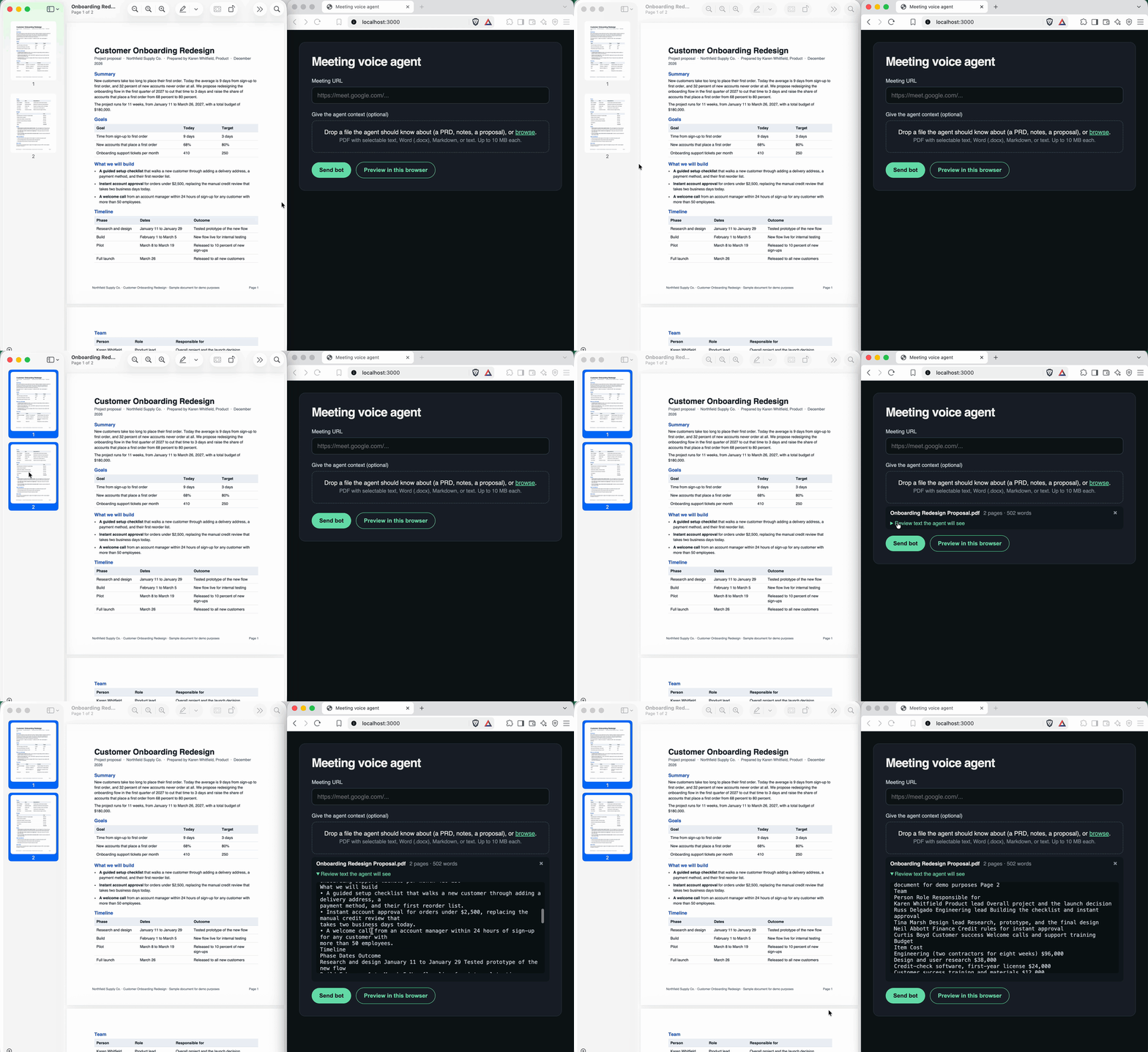
Using this approach, I can ask the agent questions about any documents that are relevant to the meeting. While this works for a demo, it doesn’t scale well if you want the agent to be able to reference hundreds of documents. I’ll explain a more robust approach to handling this in Step 3.
Test the voice agent in the browser
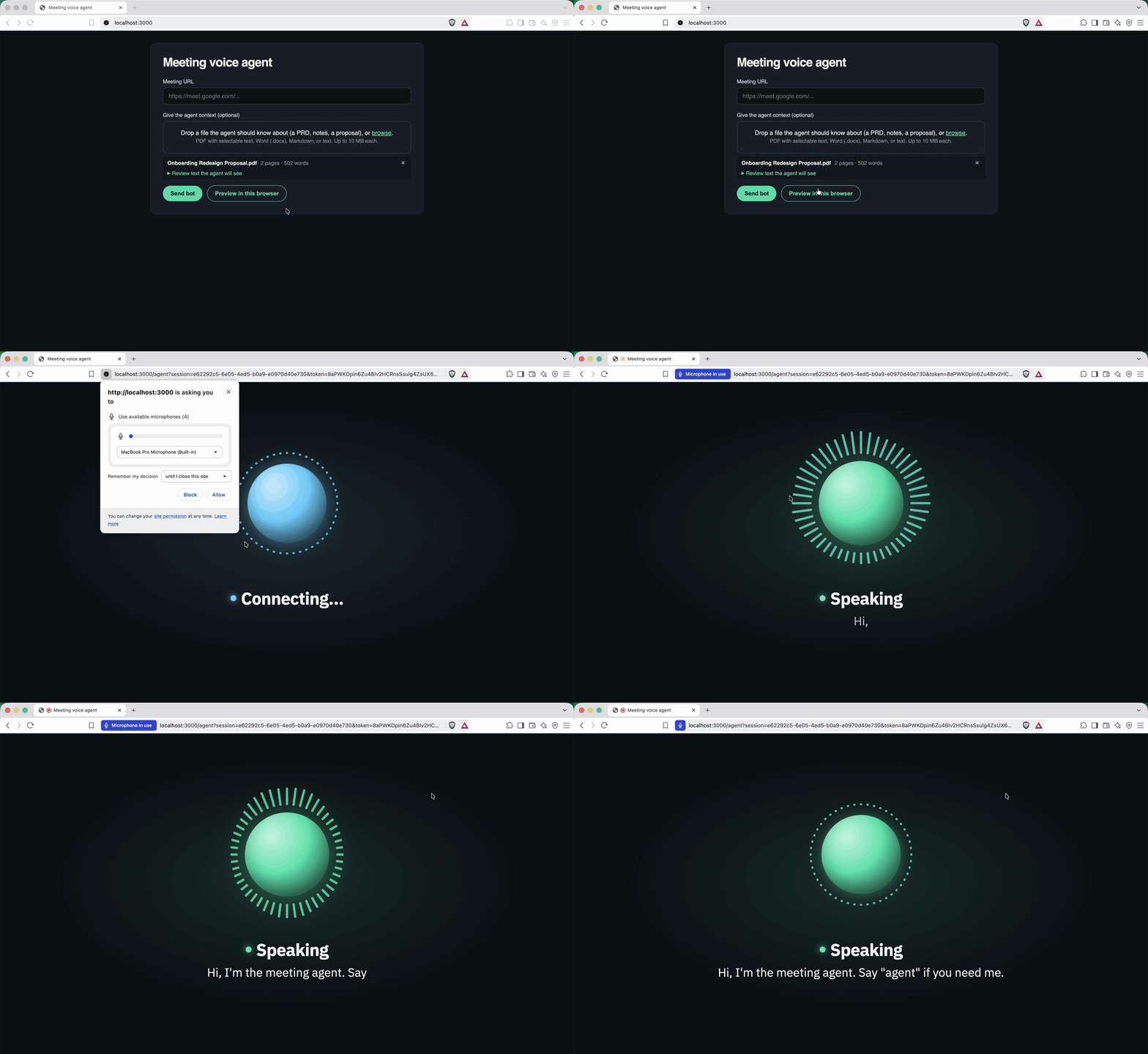
I now have a standalone webpage containing a working voice agent. I can talk to it through my microphone and ask questions about uploaded documents.
Step 2: Send the agent into a meeting using Recall.ai
To run the agent webpage inside an online meeting, I’m using Recall.ai’s Output Media feature. Output Media lets a bot open a page in its own browser, route meeting audio into the page as microphone input, and send audio and visuals produced by the webpage back into the meeting.
Use the Recall.ai MCP to automatically set up your Recall.ai integration
Recall.ai has an MCP server that can automate much of the setup for this project. It can search the documentation, inspect and debug bots, and create or update webhook endpoints if you give it write permissions.
I highly recommend installing the MCP and telling your coding agent to use it while you're setting up the sample repository.
Making the webpage publicly accessible
For the meeting bot to open the webpage, it needs to be reachable over the internet. However, while developing, the page is only accessible from my own computer.
To get around this I’d recommend using a service like ngrok to give the agent webpage a temporary public URL. The bot can then open the same agent webpage I was testing locally, except via the Ngrok URL instead of localhost.
When a Recall.ai meeting bot loads a webpage, it automatically grants microphone permission. Unlike when testing locally, there’s no permission prompt you need to handle for the meeting version.
Start Output Media when the bot joins the call
Output Media can be started and stopped at any point during a call using the Start Output Media and Stop Output Media endpoints but in most use cases where agents are involved, you’ll want to keep Output Media on throughout the call. In this sample, I want the voice agent to be available as soon as the bot joins, so I configure Output Media directly in the Create Bot request:
//@title src/server/recall.ts
{
  meeting_url: meetingUrl,
  bot_name: "Meeting Agent",
  output_media: {
    camera: { kind: "webpage",
              config: { url: agentUrl } },
  },
  variant: {
    zoom: "web_4_core",
    google_meet: "web_4_core",
    microsoft_teams: "web_4_core",
    webex: "web_4_core",
  }
}
Setting output_media.camera.kind to webpage tells Recall to open agentUrl in the bot’s browser and use that page as the bot’s video output. If you want to present the webpage as a screen share instead (e.g. if the agent will be showing high resolution charts or images), you can use screenshare instead of camera in the Output Media configuration. That streams the same webpage into the meeting as the bot’s shared screen rather than its video tile.
For all meeting platforms, I set the variant field to web_4_core. Output Media is more compute-intensive than a standard non-interactive notetaker, so I use the 4-core variant to keep performance smooth.
Finally, agentUrl includes a short-lived session token generated by the server. This makes sure that only someone with a valid session URL can load the agent, without exposing either the Recall.ai or AssemblyAI API key in the webpage. Because the token is short-lived and tied to the session, someone who discovers an old agent URL can’t keep reusing it indefinitely.
Step 3: Give the agent tools
Right now, the agent can join meetings and converse, but its responses are still limited and it cannot take any actions on its own. To improve this, we can provide the agent with tools. Tools let the agent fetch information that wasn’t available when the session started and take actions while the meeting is in progress.
AssemblyAI supports two ways to add tools:
- HTTP tools let you give AssemblyAI an endpoint that it calls directly when the agent invokes a tool. This is useful for straightforward backend operations because AssemblyAI handles the request and passes the response back to the agent without routing the tool call through your client.
- Function tools instead send a
tool.callevent to your application, which runs the tool and sends the result back as atool.result.
I’m using function tools in this sample because some of the tools I’m using depend on application state, such as the current Recall.ai bot ID. For operations that don’t need that state, an HTTP tool can be a more direct option.
Fetch live information with a tool
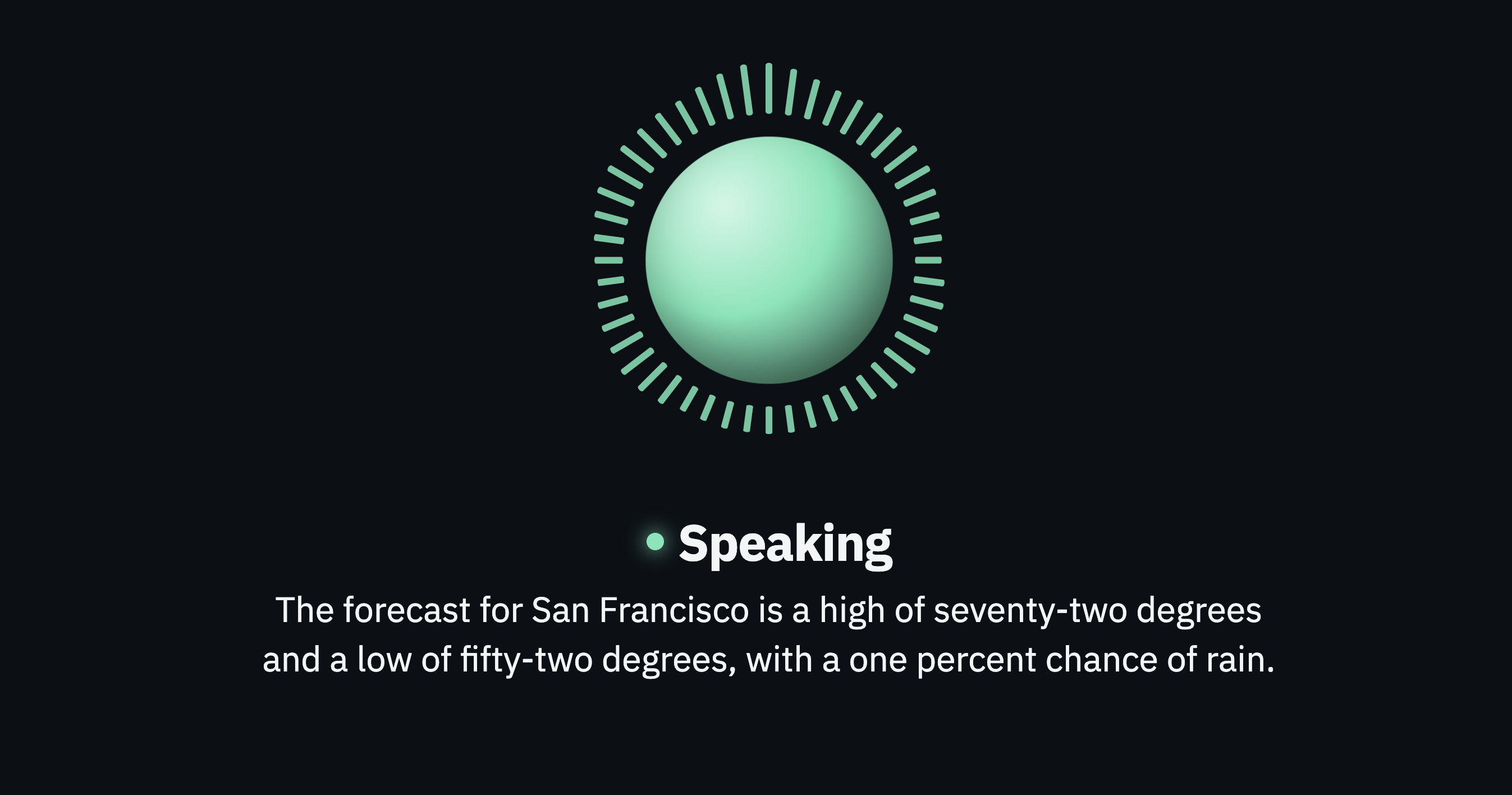
To test tools this sample app includes a simple get_weather function that allows the agent to check the weather report for a given location:
{
  type: "function",
  name: "get_weather",
  description: "Get today's forecast for a place. Use for weather questions.",
  execution_mode: "hold",
  parameters: {
    type: "object",
    properties: {
      location: { type: "string", description: "City and state." },
    },
    required: ["location"],
  },
}
The description parameter tells the agent what the tool is for, and when it should be called. The parameters object defines the arguments the tool expects. AssemblyAI uses that schema to improve both tool argument accuracy and turn detection, since it gives the model a better idea of what a complete value should look and sound like. In this example, the location parameter is a string with the description ”City and state”, which gives the agent context about the values that it should extract for this tool call.
execution_mode controls the way the agent behaves when a tool is running. There are two execution modes to choose from: interactive and hold. interactive lets the agent respond while the tool is running, while hold pauses the agent’s reply until the tool result comes back. In hold mode, new speech that arrives while the tool is running does not trigger another response from the agent. I chose to use hold in get_weather because this agent is participating in a group conversation. If another participant starts talking while the forecast is still loading, I still want the agent to wait for the weather result instead of reacting to the new speech.
When someone asks about the weather, the agent can infer from conversational context and tool description that it should call get_weather instead of trying to answer from its existing knowledge. If the agent calls this tool, AssemblyAI sends a tool.call event to the webpage, which then forwards the request to the Express server. The server looks up the forecast and returns the result, and the webpage sends it back to AssemblyAI as a tool.result. The agent can then use this information in its response.
The get_weather tool isn’t particularly useful in most meetings, but it demonstrates the power of tools in general. For example, if I wanted to give the agent access to a massive library of company data instead of needing to upload documents each meeting, I could give the agent a search tool that queries this library and returns relevant passages. The same approach could look up customer information in a CRM, search internal documentation, query an analytics service, or fetch information from the web.
Let the agent take actions in the meeting
Tools can also let the agent take actions in the meeting itself. In the sample app, I added a leave_meeting tool that allows the bot to remove itself when someone explicitly asks it to leave:
{
  type: "function",
  name: "leave_meeting",
  description:
    "Remove yourself from the meeting. This cannot be undone. Only use when someone clearly " +
    "tells you to leave, e.g. 'agent, you can leave now' or 'please drop off the call'.",
  parameters: {
    type: "object",
    properties: {},
    required: [],
  },
}
When the agent decides to call leave_meeting, it sends the same tool.call event as it does for get_weather. The webpage forwards that request to my Express server along with the current Recall.ai bot ID, and the server calls the Remove Bot From Call endpoint to remove that specific bot from the meeting. Note that this is not the only way to remove a bot from the meeting: the host of a meeting can always kick the bot out like they would for any other participant.
The same idea can be extended to other meeting actions. For example, you could add a tool that calls Recall.ai to send a chat message or pause a recording. This gives participants a natural way to control the bot simply by talking to it.
Step 4: Track the agent’s status using webhooks
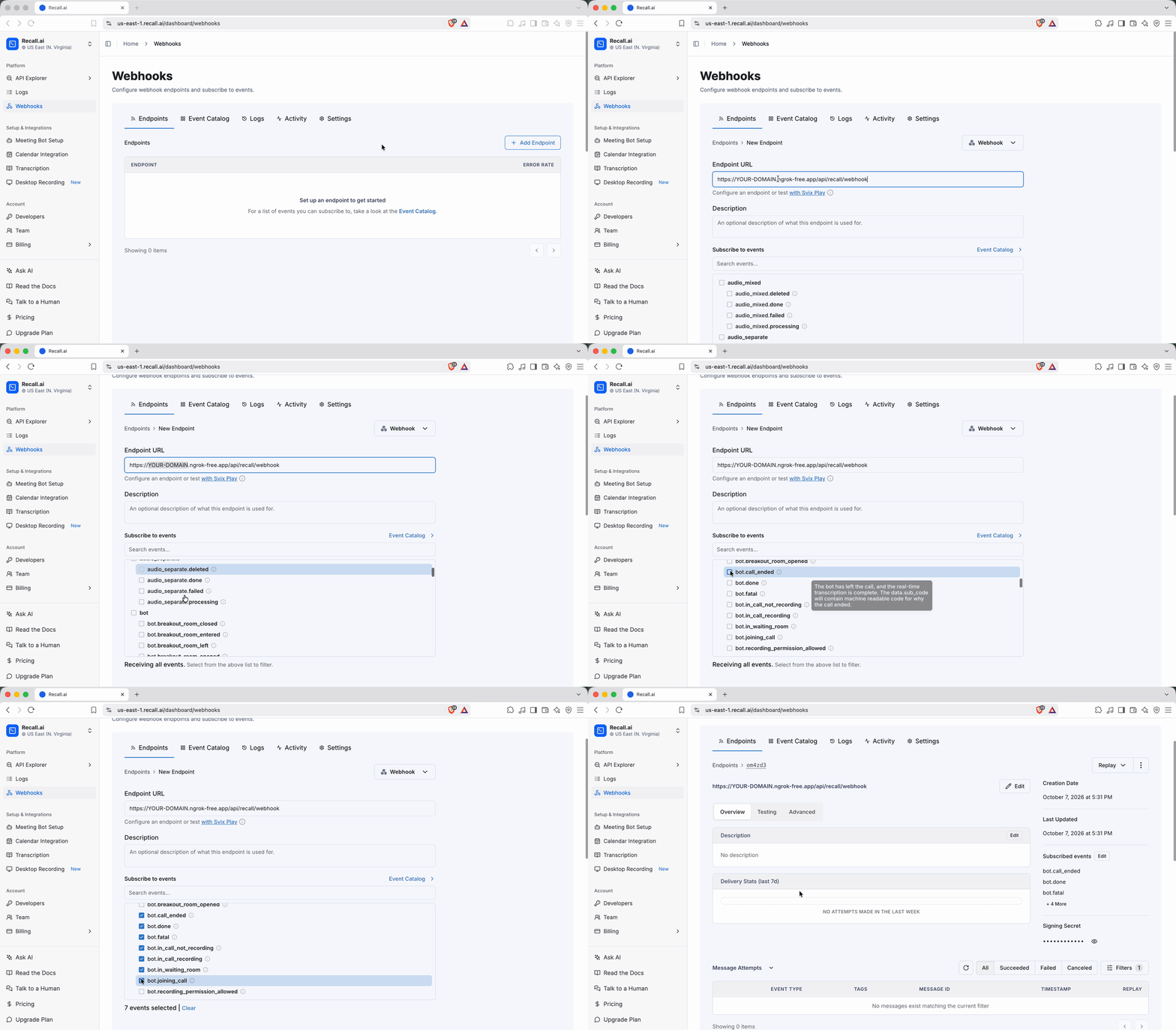
Once the bot has been created, updates about what it’s doing arrive through Recall.ai webhooks. For example, the bot.in_waiting_room event lets the UI show that the bot is waiting for the host, while bot.in_call_recording, bot.call_ended, and bot.fatal can be used to keep the bot’s status in sync as the meeting progresses.
To receive these events, register a webhook endpoint in the Webhooks tab of the Recall.ai dashboard and subscribe to the bot status events I mentioned above. If you’re using the Recall.ai MCP with write permissions, you can also have your coding agent configure the endpoint and subscribe to the relevant events for you.
For security, you’ll want to make sure to verify the webhook signature before processing any of these events. Verification is handled automatically in the sample application (src/server/recall.ts) if you want to take a closer look at how to do this.
Extending the meeting voice agent
Adding your own tools
The easiest way to extend the voice agent’s capabilities beyond this sample application is to add custom tools for it to use. To do so, you can add a function definition and a server-side handler in src/server/tools.ts. For simpler backend integrations, you can use an HTTP tool instead. In that case, you define the endpoint and its parameters in the AssemblyAI tool configuration, and AssemblyAI calls that endpoint directly when the agent decides to use it. This removes the tool.call / tool.result handling from your client.
Customizing the agent’s appearance
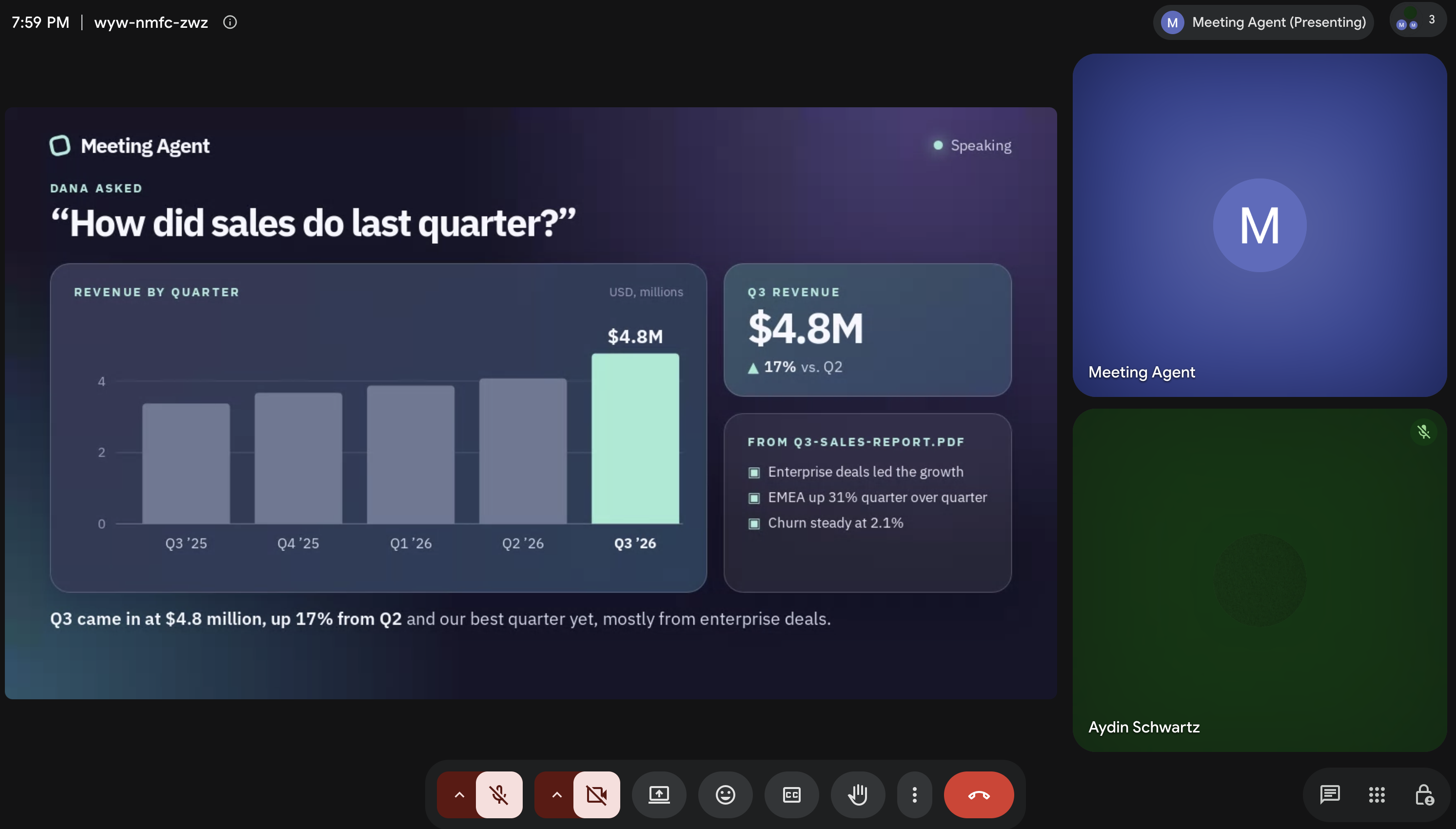
Since the meeting agent runs in a webpage, you have complete control over what participants see in the bot’s video tile. This sample application keeps the bot’s appearance simple, but there’s nothing stopping the page from updating as the conversation happens. For example, the agent could answer a question about sales out loud while also displaying a supporting chart in its video tile.
If you want to give those visuals more room, a Recall.ai bot can also be configured to share its screen by changing the camera parameter in the Create Bot request to screenshare. See Step 2 for more information on the Create Bot setup. This lets the bot present visuals in a much larger format:
Scheduling the agent to join meetings automatically
This sample application allows you to send ad-hoc bots to any meeting by pasting a meeting URL into the application’s UI. A better flow would be to instead have your application automatically schedule bots to join a user’s meetings from their calendar.
The most straightforward way to accomplish this is via the Recall.ai Calendar V2 integration. I won’t be going into depth on the integration here, but you can read more about it in our piece on automatically recording with the Recall.ai Calendar API. You can also ask your coding agent to use the Recall.ai MCP to add this to the sample application for you.
Conclusion
A meeting voice agent sits atop a deep stack of real-time audio and meeting infrastructure. The nice thing about this setup I’ve described in this article is that almost none of that stack has to live in the application. Offloading that infrastructure to AssemblyAI and Recall.ai leaves much more room to focus on the parts that make the agent useful.
If you want to try this voice agent out yourself, all the sample code is in the AI voice agent repository. It’s also a great starting point for building your own custom voice agent.
FAQ
Which meeting platforms can this AI agent join?
The AI agent can join Zoom, Google Meet, Microsoft Teams, and Webex meetings using the Recall.ai Meeting Bot API. In this sample, each platform uses the web_4_core bot variant, and Recall.ai loads the same voice agent webpage regardless of the meeting platform. This allows the agent to receive meeting audio and respond to participants across the supported platforms without requiring separate voice agent implementations.
How do I debug issues with the webpage in the meeting?
Recall.ai provides access to Chrome DevTools for the browser running inside the meeting bot. In the Recall.ai Bot Explorer, navigate to the bot's Debug Data and launch Remote DevTools. From there, you can inspect console logs, network requests, JavaScript errors, and the rendered webpage to troubleshoot issues with the agent's behavior, audio connections, or webpage functionality.
Why does the agent use the web_4_core bot variant?
The web_4_core variant provides additional computing resources for bots running Output Media. Unlike a standard meeting bot that primarily captures meeting data, this agent runs a webpage that processes audio, maintains a WebSocket connection, and plays generated speech. The 4-core variant is recommended to support these workloads. It has an additional cost compared with standard bot variants. See the Recall.ai pricing page for details.
Does this AI voice agent for meetings take notes automatically?
No. This sample focuses on responding to participants during a meeting rather than automatically producing notes or summaries. The agent's system prompt instructs it not to recap or take notes unless asked. Developers can easily add note-taking functionality by capturing meeting transcripts, storing relevant conversation data, and generating summaries or action items. See the meeting notetaker guide for an example of that workflow.
What is a voice agent API?
A voice agent API provides the functionality needed to build applications that listen to spoken input, process it, and respond with generated speech. AssemblyAI's Voice Agent API handles real-time transcription, language model responses, and text-to-speech. Developers can configure the agent's instructions, voice, supported input language, and tools. In this sample, the webpage streams meeting audio to AssemblyAI and plays the generated responses back through Recall.ai's meeting bot.
What is an AI agent API?
An AI agent API provides developers with the capabilities needed to build agents that receive information, process it using AI models, and respond or take actions.
For meetings, Recall.ai's Meeting Bot API and Output Media together provide an AI agent API. The Meeting Bot API provides access to meeting data, including audio, video, transcripts, and participant information. Output Media enables bots to send audio and visual content back into the meeting in real time. Together, these capabilities allow developers to integrate AI models and build agents that listen, respond, and interact with participants during a call.
What is Output Media?
Output Media is a Recall.ai feature that allows developers to send audio and visual content into an online meeting through a bot. It supports rendering a webpage in the bot's browser and streaming the resulting audio and visuals into the call. The webpage can appear in the bot's camera tile or as a screen share.
In this sample, Output Media routes meeting audio into the agent webpage as microphone input and sends the agent's generated speech back into the meeting. This enables a voice agent running in a browser to participate in a meeting without a separate implementation for each meeting platform. It also displays the agent in the call as a participant.
Why use a voice agent API?
A voice agent API handles the speech-processing components of a conversational application, including speech recognition, language model interaction, and speech synthesis. This allows developers to build an agent that listens and responds without separately integrating and coordinating those components.
In this sample, the AssemblyAI Voice Agent API also supports configurable transcription context, keyterms, voice settings, and tool calls. These capabilities allow the agent to understand meeting-specific terminology, answer spoken questions, and retrieve information from external services during a conversation.
Why use Output Media?
Output Media allows a Recall.ai bot to send audio and visual content into a meeting, in addition to receiving meeting data. This is necessary for the interactive behavior shown in this sample, where the agent listens to participants and responds aloud during the call in real time.
It also allows developers to control what the bot displays and sends. For example, a bot can show a visual interface in its camera tile or present charts, documents, and other webpage content through screen sharing. The bot can also output thoughts in the chat. Developers can update that content dynamically as the meeting progresses.
Why use an AI agent API?
An AI agent API allows developers to build interactive meeting agents without implementing the underlying meeting platform integrations and media infrastructure themselves.
With Recall.ai, developers can access live meeting data, stream generated speech and visuals into a call, and use meeting APIs to perform actions such as sending chat messages or removing a bot from a meeting. These capabilities can be combined with voice AI models and external tools to build agents that answer questions, retrieve information, and act on instructions during meetings.


